SoundW0rm93
Participating Frequently
March 20, 2024
Answered

Multicam clips do not show custom clip names when cut into timeline

  • March 20, 2024
  • 13 replies
  • 4303 views

Hello,

I am encountering a bug with Multicam source clips when they are cut into a timeline. I've attached three screenshots to illustrate my issue. 


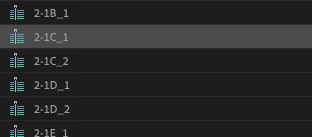
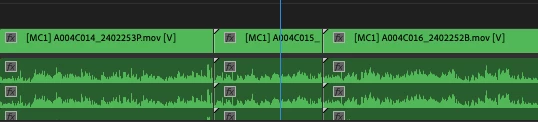
I have synced multiple camera angles to create multicam source clips, and given them custom names according to the scene and take (image 1). However, once these clips are cut into my timeline, the custom names disappear, and the only name that is displayed is the filename from the source (image 2)


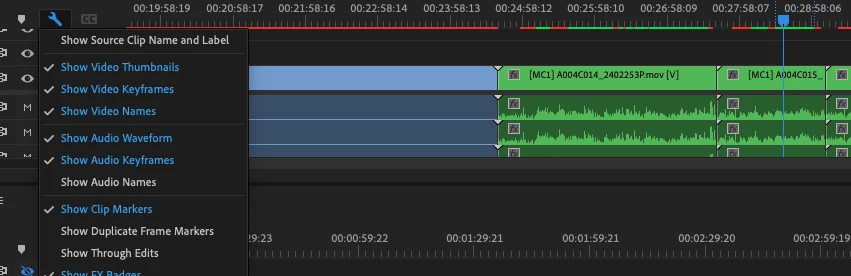
It seems that there is an option in the wrench menu of the timeline to "Show source clip name and label" (image 3), however even when this option is unchecked, Premiere Pro still does not display the custom multicam clip name in the timeline. This is an beyond frustrating- editors need to be able to look at the clips in their timeline and know exactly which scene and take they are looking at.


A note to Adobe's engineers: please do not suggest some convoluted work around- this is clearly a bug and should be very simple. It does not make sense why the "show source clip name" option doesn't work for multicam clips. FIX THIS PROBLEM.

Correct answer Ben Insler

Thanks for writing @SoundW0rm93!


I hear ya on this one.  Not that it helps, but we're aware of this.  It is currently designed this way on purpose:


once these [multi-cam] clips are cut into my timeline, the custom names disappear, and the only name that is displayed is the filename from the source


Multi-cams are designed to not show their source name in the timeline.  They show the source name of their selected angle.  That way, editors can see the name of the angle that is currently in use at that moment in the timeline, rather than the multi-cam name which may not be as descriptive.  If you make a series of cuts - Acam | Bcam | Acam | Ccam | Acam - each adjacent clip here will display as the same name if showing the multi-cam source name.  Showing the clip name of the selected angle displays a clear reference of what actual media is being used, and the name will change per clip in the timeline to reflect this in the same example above, even though each clip references the same multi-cam.


All things being equal, I woudln't fault you for then saying, "I can already see which angle is in use with the [MCX] tag on the multi-cam itself before the clip name.  I want to see my scene/take information that I painstakingly labeled." There's a perfectly valid counter argument that the name of the multi-cam isn't as helpful or descriptive as the name of the media that you're actually loooking at when you press play, and the [MCX] tag is not indicative of any true media information - you could have placed A001C004 in Multi-Cam position 2, and B001C008 in Multi-Cam position 1, making it appear like B Camera media is A camera. Different workflows need to access different information in different ways.  The current multi-cam implementation displays more accurate detail of what is actually showing up on the program monitor.


there is an option in the wrench menu of the timeline to "Show source clip name and label", however even when this option is unchecked, Premiere Pro still does not display the custom multicam clip name in the timeline.


Correct.  This option allows you to have your timeline label colors and clip names reflect the project source names of the used media in the sequence.  When this option is off, you can set local label colors and names on a per-clip basis in the timeline.  You can then toggle this on and off for different label workflows. For example you could have a dailies workflow that reflects the source labels which will display in the timeline (e.g., non-circle takes are green, circle takes are red) and also have a parallel timeline local VFX workflow (e.g., yellow clips are shots that need VFX, white clips have been turned over, and blue clips have their VFX work complete).  Toggling the Show Source Clip Name and Label option allows you, or others you are collaboration with, to switch between these two workflows without one intefering with the other.


That said, multi-cams do continue to work in the same way as described above in this scenario.  They will display local colors when assigned, but will not display their source multi-cam name, and they will not show a local name in the timeline when Show Source Clip Name and Label is off.  They will always display the name of the active angle within.


please do not suggest some convoluted work around


Sorry...

The recommended workflow is to also name your source media, so for example...

  • For multi-cam 2-1C-1
    • A001C001_240425AX becomes 2-1C-1_A
    • B001C001_245698CV becomes 2-1C-1_B
    • C002C001_240138EO becomes 2-1C-1_C

I don't consider this convoluted to be honest, just a part of the dailies labeling process.  I've done it this way on many projects.  With this workflow, you you get all the scene (and camera) information you're looking for in the timeline when using multi-cams.  We go farther, in fact, adding tags like _MOS or _48FPS to the source clips so that we have confirmation directly in the timeline that a specific angle shouldn't have audio, or was shot overcranked so we know exactly what math speeds it back to real-time if necessary.


All that said, consider your vote counted in the "please revise this" column.  It's not off our radar.

13 replies

Community Manager
March 20, 2024

In the interest of productive conversation without specifically defending or attacking these design choices...


I shouldn't have to go through the trouble of renaming all my A cam files, renaming all my B cam files, AND naming all my combined multicam clips


I agree with you - this can feel like time wasted.  This is however a fairly standard workflow regardless of NLE.  And this is actually good practice.  When you flatten your multi-cams, or match frame through the multi-cam back to an individual angle's source, if the contained source angles are also renamed, you end up with identifying information on the resulting clips.


And I'm sorry but the idea that A008C004 is a more useful clip name for an editor to see in a timeline than a proper name with scene and take information is not a "perfectly valid counter-argument".


Many editors/directors/workflows find the information on which camera is being used just as important as knowing what take is being used.  There is no way to name a multi-cam in a way that definitively indicates one camera or another.  Different workflows are all around us. 


users should have the option to change the naming system in prefernces to suit their needs.


Noted.  Two votes then.  🙂

SoundW0rm93
Participating Frequently
March 20, 2024

I appreciate your thorough reply, but I'll reiterate that this is a bug that should be addressed. And I'm sorry but the idea that A008C004 is a more useful clip name for an editor to see in a timeline than a proper name with scene and take information is not a "perfectly valid counter-argument". I shouldn't have to go through the trouble of renaming all my A cam files, renaming all my B cam files, AND naming all my combined multicam clips (so I can see the scene/take info in my bin). That's triple the work for information that should be easily viewable in the timeline. I understand that this has been designed a certain way, but users should have the option to change the naming system in prefernces to suit their needs. If a non-multicam clip is renamed in a bin to be 3A-4, and then that clip is cut into the timeline, then you will see "3A-4" on the clip label in the timeline. It should work the same for multicam clips. 

Ben InslerCommunity ManagerCorrect answer
Community Manager
March 20, 2024

Thanks for writing @SoundW0rm93!


I hear ya on this one.  Not that it helps, but we're aware of this.  It is currently designed this way on purpose:


once these [multi-cam] clips are cut into my timeline, the custom names disappear, and the only name that is displayed is the filename from the source


Multi-cams are designed to not show their source name in the timeline.  They show the source name of their selected angle.  That way, editors can see the name of the angle that is currently in use at that moment in the timeline, rather than the multi-cam name which may not be as descriptive.  If you make a series of cuts - Acam | Bcam | Acam | Ccam | Acam - each adjacent clip here will display as the same name if showing the multi-cam source name.  Showing the clip name of the selected angle displays a clear reference of what actual media is being used, and the name will change per clip in the timeline to reflect this in the same example above, even though each clip references the same multi-cam.


All things being equal, I woudln't fault you for then saying, "I can already see which angle is in use with the [MCX] tag on the multi-cam itself before the clip name.  I want to see my scene/take information that I painstakingly labeled." There's a perfectly valid counter argument that the name of the multi-cam isn't as helpful or descriptive as the name of the media that you're actually loooking at when you press play, and the [MCX] tag is not indicative of any true media information - you could have placed A001C004 in Multi-Cam position 2, and B001C008 in Multi-Cam position 1, making it appear like B Camera media is A camera. Different workflows need to access different information in different ways.  The current multi-cam implementation displays more accurate detail of what is actually showing up on the program monitor.


there is an option in the wrench menu of the timeline to "Show source clip name and label", however even when this option is unchecked, Premiere Pro still does not display the custom multicam clip name in the timeline.


Correct.  This option allows you to have your timeline label colors and clip names reflect the project source names of the used media in the sequence.  When this option is off, you can set local label colors and names on a per-clip basis in the timeline.  You can then toggle this on and off for different label workflows. For example you could have a dailies workflow that reflects the source labels which will display in the timeline (e.g., non-circle takes are green, circle takes are red) and also have a parallel timeline local VFX workflow (e.g., yellow clips are shots that need VFX, white clips have been turned over, and blue clips have their VFX work complete).  Toggling the Show Source Clip Name and Label option allows you, or others you are collaboration with, to switch between these two workflows without one intefering with the other.


That said, multi-cams do continue to work in the same way as described above in this scenario.  They will display local colors when assigned, but will not display their source multi-cam name, and they will not show a local name in the timeline when Show Source Clip Name and Label is off.  They will always display the name of the active angle within.


please do not suggest some convoluted work around


Sorry...

The recommended workflow is to also name your source media, so for example...

  • For multi-cam 2-1C-1
    • A001C001_240425AX becomes 2-1C-1_A
    • B001C001_245698CV becomes 2-1C-1_B
    • C002C001_240138EO becomes 2-1C-1_C

I don't consider this convoluted to be honest, just a part of the dailies labeling process.  I've done it this way on many projects.  With this workflow, you you get all the scene (and camera) information you're looking for in the timeline when using multi-cams.  We go farther, in fact, adding tags like _MOS or _48FPS to the source clips so that we have confirmation directly in the timeline that a specific angle shouldn't have audio, or was shot overcranked so we know exactly what math speeds it back to real-time if necessary.


All that said, consider your vote counted in the "please revise this" column.  It's not off our radar.

meganatcommune
Participant
October 15, 2024

I would also like to upvote the ability for multcams to maintain the multicam customs names. 
In terms of identifying what camera angle is used, it would be great to have a feature where the clip is colored based on what camera angle it is.