


Participant
September 19, 2017
Answered

Multicam outputs only black

  • September 19, 2017
  • 20 replies
  • 46674 views

I have a 6-camera multicam sequence which is behaving in a very unpredictable way. Random segments of the video of outputting only total blackness. Looking at the multi-cam view, I see all 6 cameras on the left, and can see footage being output on the camera that I've chosen to be currently active. But the output preview on the right is totally black. Switching to composite video view still only gives a black screen, and doing a preview render still gives the same result. I can switch the segment of the multicam sequence to a different clip, and then it'll be fine, but then I switch back to the camera I want, and it's black again. I've tinkered around in the underlying sequence to make sure there's no effects or other settings there that would cause the video not to display but can't find anything that should effect it.

This is specifically affecting two out of my six camera angles on this project. At the time when I was initially editing this multicam sequence, it all worked fine, and I can't think of anything that I changed that would have caused it to suddenly stop working. I have noticed that if I hit play, and then click again on the already chosen clip (creating a split in the multicam sequence on the timeline, but not changing camera angles), it'll suddenly start giving me output on the preview monitor again as expected. But then if I hit pause and play again, then we're still right back to the same problem again - just black output. Which, to me, seems to indicate that this is a bug of some sort.

I'm using Adobe Premiere Pro CC 2017 on a MacBook Pro running macOS 10.12.6.

Here's some screenshots:

You can see the black thumbnails anywhere that MC4 or MC6 is chosen:
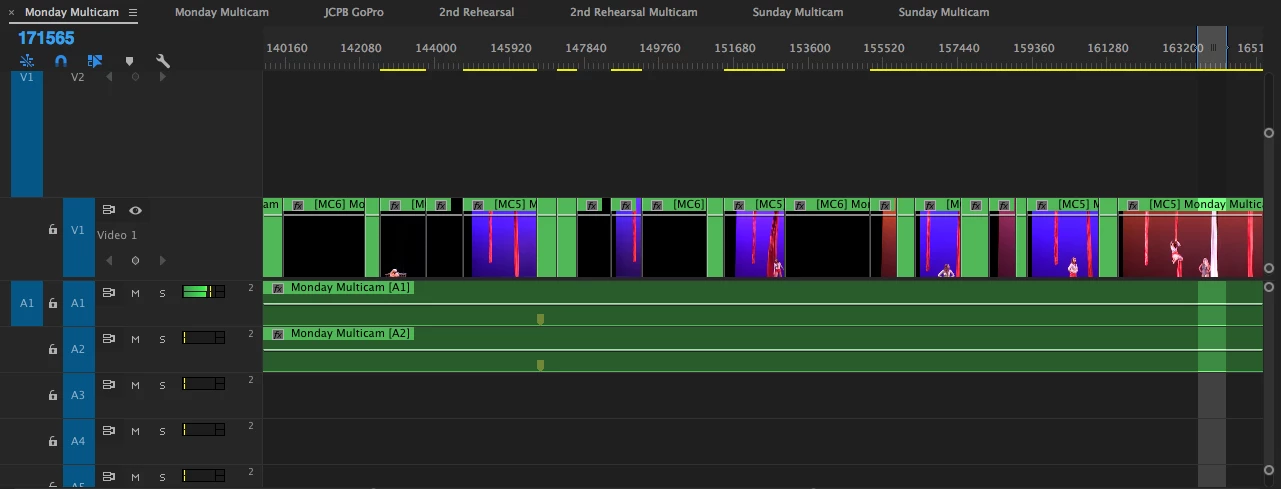
Here we are on MC4 with black output on the right:

Any suggestions?

Correct answer nicolasf73587131

Hey man I had the same problem I found a fast way all you have to do is select all your clips and hit shift E .To disable the clips and than Shift E again to enable them again and you should see them again.

20 replies

Known Participant
August 14, 2020

You rarely read a post like yours. Short precise and the SOLUTION! Thank you so very much.

Participant
July 4, 2020

Thank you so much 

Alex MuckRunner Richard
Participating Frequently
May 29, 2020

This was happening to me aswell. I fixed by selecting clips in original multi sequence and toggling the 'Enable' function on and off all the clips came back to my program monitor. 


Just select all clips > right click > Enable (toggle on and off)

Participant
April 29, 2020

I tried several different methods to get the video to show. I finally found one that worked for me and thought I would post it here. Maybe it can help someone! 


I'm running 14.1.0 on a Macbook pro. 


I made the mistake of saving the Premier file with 2 of my 3 cameras turned off inside the multi cam sequence. The result was that the casmeras showed up black no matter what I did. Here is how I fixed it. I simply turned those camera channels back on, then saved and restarted Premier. FIXED! Hope this helps someone! 


If you can experiencing black in a multi cam I would suggest going into said multi cam sequence and turning off scertain cameras using the little eye rool on that channel. Save the project then go back in turn them on and save and exit. This will hopefully fix the issue for you. 

Cheers, 

Participant
May 30, 2022

This worked for me, thanks a million!

Participating Frequently
March 17, 2020

legend!

nicolasf73587131
nicolasf73587131Correct answer
Participant
April 29, 2018

Hey man I had the same problem I found a fast way all you have to do is select all your clips and hit shift E .To disable the clips and than Shift E again to enable them again and you should see them again.

Participant
May 2, 2018

This worked too!

lordloco79
Participant
March 7, 2018

Thanks so much Davidurb... I have a now missed deadline because of this ridiculous bug, I had no idea what the hell was happening, your fix has completely saved my day! Cheers

Participating Frequently
December 30, 2017

If you come across this again then I have another work around that fixed it for me and was more simple.

1 - Went to sequence where I synched my clips

2 - The top clip was the issue for me so I swapped that (v2) with (V2)

3 - Went back to the multicam sequence and noticed none of the clips were showing black again

4 - Went back to original sequence and positioned the clips correctly again so that they were in line with the camera selection from the multicam.

Participant
February 26, 2018

i had the same problem, only thing was when i synced with plural eyes i had 3 of the 4 layers HIDDEN ie turned off.. WTF... can't believe i made that rookie mistake.. i turned on the layers, left ALL audio layers re synced again and voila... LOL

Participant
November 29, 2022

Thank you. This answer made me check my source sequence... I thought, this can't be it... But it turns out I had 3 out of 4 layers hidden as well. I had been color grading directly at the source and didn't think to check for hidden tracks when 3 of my multi-cam tracks blacked out. What a rookie mistake but thank you for making me check!

davidurb
Participant
September 30, 2017

I faced a very similar problem just now, with the difference that I couldn't get output video from the affected tracks no matter what I did in the timeline. I found a fix that workd for me. I hope it will work for you.

In the original sequence from which you made your multicam:

1. Go to the first affected track in your timeline;

2. Highlight one video file or nested sequence (in my case, each track contained only one video file or nested sequence each)

3. Right click > select Show in Project. This will highlight the file or sequence in your project bin. Don't touch your bin, just leave the file selected (light grey).

4. Right click on the track/nested sequence again > select Replace with Clip > from Bin.

5. Toggle back to your multicam edit. You should now see the previously lost video in your output monitor. You will need to do this for all affected tracks. If you have more than one clip in each track, you may need to replace each clip individually, as described. I haven't tested whether this is the case, because each of my tracks only contained a single clip.

DJCraig, I really hope this works as well for you as it did for me. I hate these time-wasting glitches more than cold toast.

Participant
October 12, 2017

thanks Davidurb ! It save me to restart my premiere and loose a lot of time ! but the result was a out of sync , well after a ctrl Z everything finally work well...

I use multicam to edit a weekly tv program so time is really an issue here ! I really hope adobe will fix that issue that happen only since the last upgrade !

Jeff Bugbee
Community Expert
Community Expert
September 19, 2017

I notice you're editing in proxy mode and in 1/4 resolution. If you untoggle proxy mode and or change the display res, can you see your video? Your proxies may be acting funky.

DJCraigAuthor
Participant
September 19, 2017

Still the same problem with proxies disabled, full res, and also tried turning FX mute on and off, no change: