Known Participant
September 14, 2018
Answered

Multicam sequence audio assignment problem

  • September 14, 2018
  • 4 replies
  • 11702 views

Hello !

A have small assignment worries of sound track in Premiere Pro.

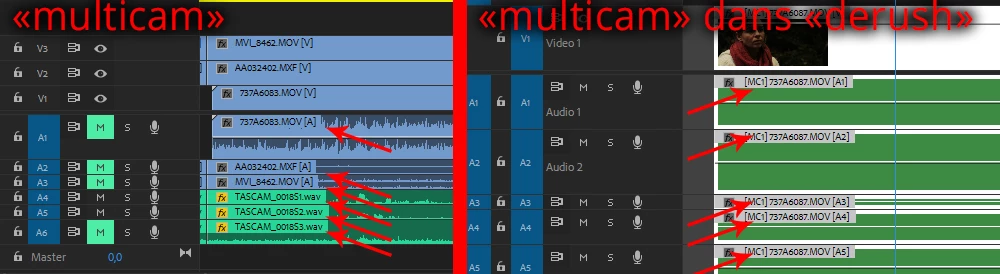
- I created a multicam sequence of an ITW with 3 cameras and 6 sound tracks (3 cameras sounds + 3 others with external recorder and mics)
- I create another sequence in which I import the first, to be able to cut in it and to make my derush of the ITW.

Problem: When I drag the first sequence (multicam) in the second (derush), I recover my 6 channels
, but the 6 are the same (duplicated) ...

I check 6 stereo channels in "sequence settings" of my multicam sequence, but I don't understand why I have this problem ...

An idea ? Thank you !

This topic has been closed for replies.
Correct answer Daniel Hoover

There is a way to make this work exactly how you were hoping and it's possible right now for as many audio tracks/channels that you want to pass through, try these steps and see if it works:

1) Say you need a 10 video, 4 audio channel multicam edit.  Create a new sequence with 10 video tracks and 4 audio tracks and place the video and audio files on the appropriate track in sync with each other.

2) The crucial part here is that all audio files should be interpreted as mono (Project Panel > Modify > Audio Channels).  You want each channel to be on its own track (i.e. stereo file should take two audio tracks in the sequence, not a combined stereo file on a single audio track)

3) Now you have 10 video tracks and 4 mono audio tracks in a sequence (we will call this the "Multicam Source Sequence").

4) Find this "Multicam Source Sequence" in the Project Panel.  Interpret the audio settings of the sequence (Project Panel > Modify > Audio Channels) to be Mono - 4 clips.  One for each audio track in the sequence.

5) Create another sequence (we'll call this the "Main Timeline")

6) Place the Multicam Source Sequence into this Main Timeline.  Notice that it has one video track, but 4 audio tracks!  This is because we interpreted the sequence to have four channels back in Step 4.

7) Right click on this clip we just placed in the timeline, Multi-camera > Enable.  Now you have full multicam control for the video, but the audio is not set up yet.

8) Right click again on the clip and choose Audio Channels and check the farthest left box for each track (box #1).  This routes audio channel #1 of each audio track from inside the Multicam Source Sequence out to this track.  Since we made sure the tracks inside the Multicam Source Sequence are all mono, there are no other channels we need to pass through to the outside, which is why we check box #1 for all tracks.  (Side note: If we had instead left the clips stereo on a single track inside the Multicam Source Sequence, we could use these boxes to control which channel (left/right) gets passed through to which track on the outside, but this way is much simpler).

9) Now we have four audio tracks receiving the first channel from inside the Multicam Source Sequence.  But they are currently all identical because they're all set to Multi-Camera Angle 1.  The way you control which audio channel you need is the same as how you control the video - by changing Multi-Camera Angles.

10) But our video clip is still linked so we can't edit each audio angle individually.  To fix this, right click and Unlink the clip so we can edit each audio track separately.

11) Now right click on each audio clip and choose Multi-Camera > Angle 1 for the first track, Angle 2 for the second track, etc.

12) You should now see the waveforms appearing as they are passed through to the outside to their respective tracks.

13) Now you have full video multicam control with linked audio that passes through as many tracks as you need!  And you can match frame the video to get the timecode of the audio for use back in the Multicam Source Sequence.  Note that if you accidentally delete one channel, it's trivial to get it back, simply duplicate another track's audio and change the Multi-Camera to the missing Angle!  Also you can route these Multicam audio Angles in the Audio Track mixer for exporting splits, etc.  Very powerful workflow once you get the hang of it.

Note: One thing to avoid - if you have multiple multicam syncmaps you need to make into "Main Timelines" you might be tempted to go through the steps for one of them and then duplicate those sequences, clear out the contents, and paste the other syncmap in there.  DON'T DO THAT.  It won't work, trust me.  Just start this list of steps again from the top for each multicam sync you need.
4 replies

Daniel Hoover
Daniel HooverCorrect answer
Inspiring
May 9, 2019

There is a way to make this work exactly how you were hoping and it's possible right now for as many audio tracks/channels that you want to pass through, try these steps and see if it works:

1) Say you need a 10 video, 4 audio channel multicam edit.  Create a new sequence with 10 video tracks and 4 audio tracks and place the video and audio files on the appropriate track in sync with each other.

2) The crucial part here is that all audio files should be interpreted as mono (Project Panel > Modify > Audio Channels).  You want each channel to be on its own track (i.e. stereo file should take two audio tracks in the sequence, not a combined stereo file on a single audio track)

3) Now you have 10 video tracks and 4 mono audio tracks in a sequence (we will call this the "Multicam Source Sequence").

4) Find this "Multicam Source Sequence" in the Project Panel.  Interpret the audio settings of the sequence (Project Panel > Modify > Audio Channels) to be Mono - 4 clips.  One for each audio track in the sequence.

5) Create another sequence (we'll call this the "Main Timeline")

6) Place the Multicam Source Sequence into this Main Timeline.  Notice that it has one video track, but 4 audio tracks!  This is because we interpreted the sequence to have four channels back in Step 4.

7) Right click on this clip we just placed in the timeline, Multi-camera > Enable.  Now you have full multicam control for the video, but the audio is not set up yet.

8) Right click again on the clip and choose Audio Channels and check the farthest left box for each track (box #1).  This routes audio channel #1 of each audio track from inside the Multicam Source Sequence out to this track.  Since we made sure the tracks inside the Multicam Source Sequence are all mono, there are no other channels we need to pass through to the outside, which is why we check box #1 for all tracks.  (Side note: If we had instead left the clips stereo on a single track inside the Multicam Source Sequence, we could use these boxes to control which channel (left/right) gets passed through to which track on the outside, but this way is much simpler).

9) Now we have four audio tracks receiving the first channel from inside the Multicam Source Sequence.  But they are currently all identical because they're all set to Multi-Camera Angle 1.  The way you control which audio channel you need is the same as how you control the video - by changing Multi-Camera Angles.

10) But our video clip is still linked so we can't edit each audio angle individually.  To fix this, right click and Unlink the clip so we can edit each audio track separately.

11) Now right click on each audio clip and choose Multi-Camera > Angle 1 for the first track, Angle 2 for the second track, etc.

12) You should now see the waveforms appearing as they are passed through to the outside to their respective tracks.

13) Now you have full video multicam control with linked audio that passes through as many tracks as you need!  And you can match frame the video to get the timecode of the audio for use back in the Multicam Source Sequence.  Note that if you accidentally delete one channel, it's trivial to get it back, simply duplicate another track's audio and change the Multi-Camera to the missing Angle!  Also you can route these Multicam audio Angles in the Audio Track mixer for exporting splits, etc.  Very powerful workflow once you get the hang of it.

Note: One thing to avoid - if you have multiple multicam syncmaps you need to make into "Main Timelines" you might be tempted to go through the steps for one of them and then duplicate those sequences, clear out the contents, and paste the other syncmap in there.  DON'T DO THAT.  It won't work, trust me.  Just start this list of steps again from the top for each multicam sync you need.

Participant
October 7, 2019
You sir, are a hero. This is the way multicam with separate external audio is meant to work. Still trying to wrap my mind around why it's so difficult to set up properly
Legend
October 2, 2018

******************************************************

If you are coming to this because of your frustrations with PP multicam audio - vote for this on the Adobe voice site.

Better audio management for multicam sequence – Adobe video & audio apps

******************************************************

Legend
September 24, 2018

OK I faffed around a bit more and have figured out a way to achieve what you want (I think).

Firstly, when creating your multicam sequence you must use a preset with multichannel (rather than stereo) audio. Otherwise your multicam sequence can only have 2 audio outputs.

Group your cameras & sep sound (I had 'all audio' selected).

Open the resultant multicam timeline as a timeline and rearrange audio so that the correct audios are on the correct tracks (for my test I had an 8 channel wav file on first 8 tracks then 4 stereo pairs from the cameras on the next 4 tracks) - and delete empty audio tracks.

Open audio track mixer and route the audio correctly (e.g. in my example A1 should be panned left and routed to outputs 1&2, A9 was a stereo pair routed to outputs 9&10)

Modify audio for the multicam clip so that it reflects the correct number of audio clips (16 mono in my case)

Edit that mulitcam clip into a timeline with correct number of audio tracks - I now had 16 (8 x mono from the dual sound and 4 x stereos that appear as monos) tracks on the timeline, with 16 different audio tracks, all showing a sync relationship with the multicam clips, that I could then edit.

Flattening *appeared* to produce the correct results (with the caveat that more than one audio clip in a multicam source timeline track does lose clips when flattening).

Yet to use this in anger though....

Legend
September 24, 2018

On further inspection:

a. when enabling multicamera, prior to flattening, the audio only appears from muliticam tracks 1&2

b. flattening restores the correct clips but some clips do not have any source tracks enabled

Legend
September 14, 2018
David FabAuthor
Known Participant
September 15, 2018

Thank's, but that's exactly what I did, it does't solve my paudio channel problem.

Each time I have to do a multicam sequence, and drag it into a new sequence (or right click that sequence and choose New Sequence From Clip), I have to copy audio sources from the first sequence into he target sequence ... And it doesn't seems to be the proper way, because all the audio tracks are unlinked from the multicam video, and if I loose one audio track after derushing 2h of ITW, I can't do a match frame to recover the 6 different audio channels ... I always have 6 duplicated audio channels ... I don't understand why ...

Legend
September 16, 2018

I have to copy audio sources from the first sequence into he target sequence

No you don't.  Audio is included when nesting.

If you want access to the individual channels in the Multicam Target sequence, you'll have to do things non-standardly and add them manually, but this is unavoidable.  It's just how PP does multicam, using nested sequences.