
Participant
April 20, 2021
Answered

New Captions are cutting off characters, Edit Graphics workspace does not look like tutorial

  • April 20, 2021
  • 2 replies
  • 4320 views

I am having an issue with the new captions. I have imported an srt file to the caption track and everything is lined up on the timeline correctly. However, it is truncating each line of text, so you cannot see the whole caption. They look fine in the text box but do not appear on screen. All the video tutorials I can find show how to edit the size of the text box in the Edit Graphics panel. But mine is missing A LOT of the things they are using. See picture below. How can I make the entire caption file visable without completely redoing them with fewer characters in each line?
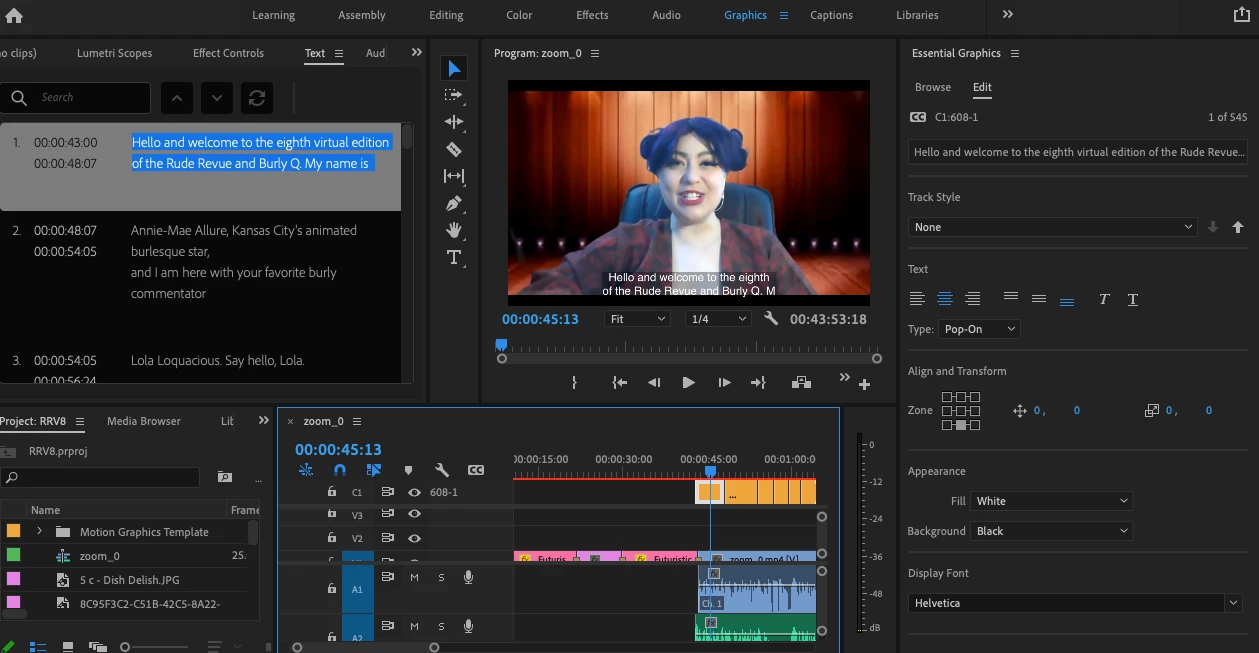
This topic has been closed for replies.
Correct answer Trent Happel

Stan is spot on, CEA-608 has character limitations (https://en.wikipedia.org/wiki/EIA-608). If you intend to stick with Open Captions/Subtitles (since you are starting with an SRT), then best to create a Subtitle Caption track (which allows greater number of characters). You can simply reimport the SRT from the Text panel and when New caption track dialog appears, choose Format: Subtitle. 


Unfortunately, we don't currently warn you when you get into specification cases like this, but it is on our radar. 


If you haven't found them yet, here are a few helpful links for new Captions in Premiere Pro 15.0.

https://helpx.adobe.com/premiere-pro/user-guide.html/premiere-pro/using/working-with-captions.ug.html

https://www.youtube.com/watch?v=xpdFSpL4lcY

https://www.youtube.com/watch?v=rcmDz7FDmRQ

https://www.youtube.com/watch?v=Cz7TOQCjbUM


2 replies

Stan Jones
Community Expert
Community Expert
April 20, 2021

You created a CEA-608 Closed Captions stream. It is limited as to how many characters can appear on a line and more.


If you don't need closed captions, just right click in the track header area and change it to Subtitles - what used to be called Open Captions in Premiere Pro.


Then you'll see all the editing options you want.


If you are burning in, you'll be good to go. If you are creating a sidecar file, you need to know what format file export you will have.


Stan


Trent HappelCommunity ManagerCorrect answer
Community Manager
April 20, 2021

Stan is spot on, CEA-608 has character limitations (https://en.wikipedia.org/wiki/EIA-608). If you intend to stick with Open Captions/Subtitles (since you are starting with an SRT), then best to create a Subtitle Caption track (which allows greater number of characters). You can simply reimport the SRT from the Text panel and when New caption track dialog appears, choose Format: Subtitle. 


Unfortunately, we don't currently warn you when you get into specification cases like this, but it is on our radar. 


If you haven't found them yet, here are a few helpful links for new Captions in Premiere Pro 15.0.

https://helpx.adobe.com/premiere-pro/user-guide.html/premiere-pro/using/working-with-captions.ug.html

https://www.youtube.com/watch?v=xpdFSpL4lcY

https://www.youtube.com/watch?v=rcmDz7FDmRQ

https://www.youtube.com/watch?v=Cz7TOQCjbUM


Participant
March 21, 2022

What if you need to embed your captions into the export file? I am trying to embed into a ProRes file and the only way to do that from Premier is if the captions are set to 608. No other caption format works. 

R Neil Haugen
Legend
April 20, 2021

Have you tried using the Captions workspace? You're in the Graphics workspace there ...


Neil

Everyone's mileage always varies ...