


Inspiring
August 13, 2018
Answered

No cut when switching cameras in multi cam sequence when playhead is stopped

  • August 13, 2018
  • 1 reply
  • 190 views

Me again - the guy who just upgraded from CS 5.5 to CC 2018.  I am working with a mulit cam sequence and one thing is frustrating me.  It seems the only way to create camera switch cuts in the sequence is to use the keyboard or mouse to switch cameras *while the sequence is playing*.    To me, this is a frustrating way to work.  In CS 5.5, I could scrub to the exact point I wanted the camera to switch, press the number corresponding to the camera, and a cut would appear in the sequence with the new camera selected going forward.  As far as I can tell, this doesn't work in CC 2018.  So I have to scrub to my switch point, manually make a cut with the razor tool, and then choose my camera.  Am I missing something or is there a way to do what I want in CC 2018? 

Incidentally, I just submitted this as a feature request to Adobe.
    Correct answer PaulMurphy

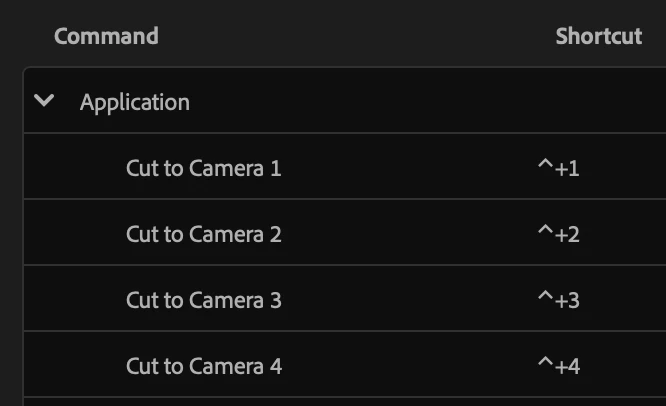
    You can use the Cut to Camera shortcut to make a cut and switch angles simultaneously in a multicam sequence. This allows for efficient editing without needing to manually make a cut first.


    You can also customize the shortcut so that it's triggered by a single number key (e.g., 1, 2, etc.) rather than a number key plus a modifier. To do this:

    1. Go to Edit > Keyboard Shortcuts (Windows) or Premiere Pro > Keyboard Shortcuts (Mac).
    2. Search for "Cut to Camera" in the search bar.
    3. Assign your preferred single-key shortcuts to the available camera angles.


    This setup streamlines the multicam editing process, especially during playback or live switching.


    1 reply

    PaulMurphyCommunity ExpertCorrect answer
    Community Expert
    May 31, 2025

    You can use the Cut to Camera shortcut to make a cut and switch angles simultaneously in a multicam sequence. This allows for efficient editing without needing to manually make a cut first.


    You can also customize the shortcut so that it's triggered by a single number key (e.g., 1, 2, etc.) rather than a number key plus a modifier. To do this:

    1. Go to Edit > Keyboard Shortcuts (Windows) or Premiere Pro > Keyboard Shortcuts (Mac).
    2. Search for "Cut to Camera" in the search bar.
    3. Assign your preferred single-key shortcuts to the available camera angles.


    This setup streamlines the multicam editing process, especially during playback or live switching.