
Participant
September 13, 2021
Answered

Opacity Masks render in preview but do not export

  • September 13, 2021
  • 3 replies
  • 3012 views

Hello!

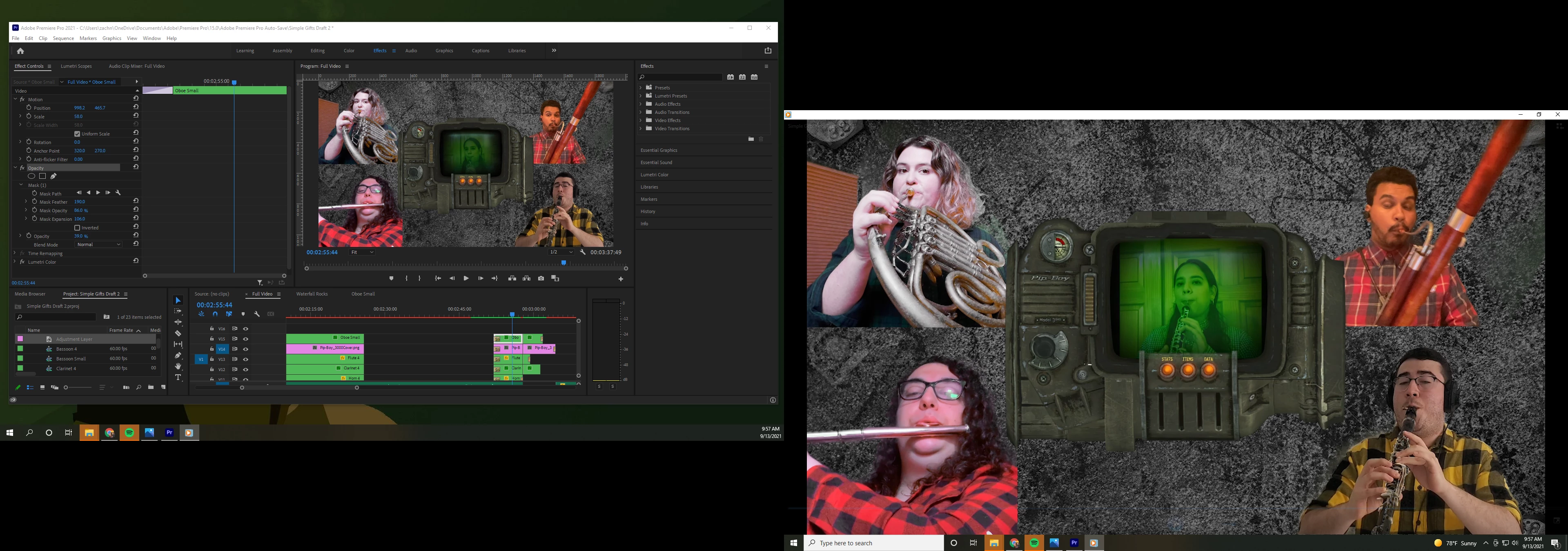
In my current video, I have an opacity mask on the center oboist in my video that renders properly in preview, but it will not export. The opacity seems to reset to 100% as well when exported. 

I've tried pre-rendering these sections then exporting with "Use Previews" checked.


I've also gone into the Media Encoder and disabled "import sequences natively". Though when looking up the wording of this setting I saw that it reverted back to selected, so I'm currently exporting straight from Media Encoder queue after unchecking this (I unchecked it, closed it, and exported straight from Premiere last time, so perhaps it wasn't disabled at all). I'll update this thread once it's done, but I figured I'd ask for help anyway in case it doesn't work.
This topic has been closed for replies.
Correct answer defaultd9irmy3qi39l

Hi Kevin,

I actually found another solution! I had "Render at maximum depth" and "Use Maximum Render Quality" selected in the export settings, and when I deselected this the masks exported just fine.

This is awesome advice though (I had a personal contact suggest the same!), and I'll definitely try this with heavy-effect projects moving forward.

3 replies

Participant
January 3, 2023

I've had issues when exporting multiple masked layers as well. They will playback just fine but won't export properly. I tried unchecking the max bit and max render depth settings with no success. I'm working with 64 gigs of ram and 14 cores so it doesn't seem likely that the problem is my machine... What did eventually work for me was nesting the masked layers together.

Kevin-Monahan
Community Manager
Community Manager
January 3, 2023

Cool! Thanks for letting us know what worked for you.


Kevin

Kevin Monahan - Sr. Community and Engagement Strategist – Adobe Pro Video and Audio
Kevin-Monahan
Community Manager
Community Manager
September 13, 2021

Hey there! 

Hope to help. I get into these problems when I've got a lot of masks and other GPU accelerated effects going on with a middle of the road laptop. If this is you, I recommend soloing the oboist "effects stack" and turn off all other tracks. Then, export this section on its own with an alpha channel using ProRes 4444+ (with alpha). Then, import 'er back in and let it play as a standalone file rather than a stack of effects horking all your juice instead. I "mixdown" effects stacks like this sometimes. Take a wee bit of time, but after that, everything plays and renders more smoothly.


If you share your system specs, and info on your footage, we can give better advice.


Thanks,
Kevin

Kevin Monahan - Sr. Community and Engagement Strategist – Adobe Pro Video and Audio
defaultd9irmy3qi39lAuthorCorrect answer
Participant
September 13, 2021

Hi Kevin,

I actually found another solution! I had "Render at maximum depth" and "Use Maximum Render Quality" selected in the export settings, and when I deselected this the masks exported just fine.

This is awesome advice though (I had a personal contact suggest the same!), and I'll definitely try this with heavy-effect projects moving forward.

Ann Bens
Community Expert
Community Expert
September 13, 2021

Delete preview files and do not use preview files is output differs from Preview codec.

Participant
September 13, 2021

I have exported with "Use Previews" unchecked and exported with it checked, same result.

Ann Bens
Community Expert
Community Expert
September 13, 2021

Might need to set the opacity for mask and clip opacity differently.