Participating Frequently
September 18, 2017
Answered

Pixelated Text in Premier Pro

  • September 18, 2017
  • 5 replies
  • 146911 views

Hi guys,

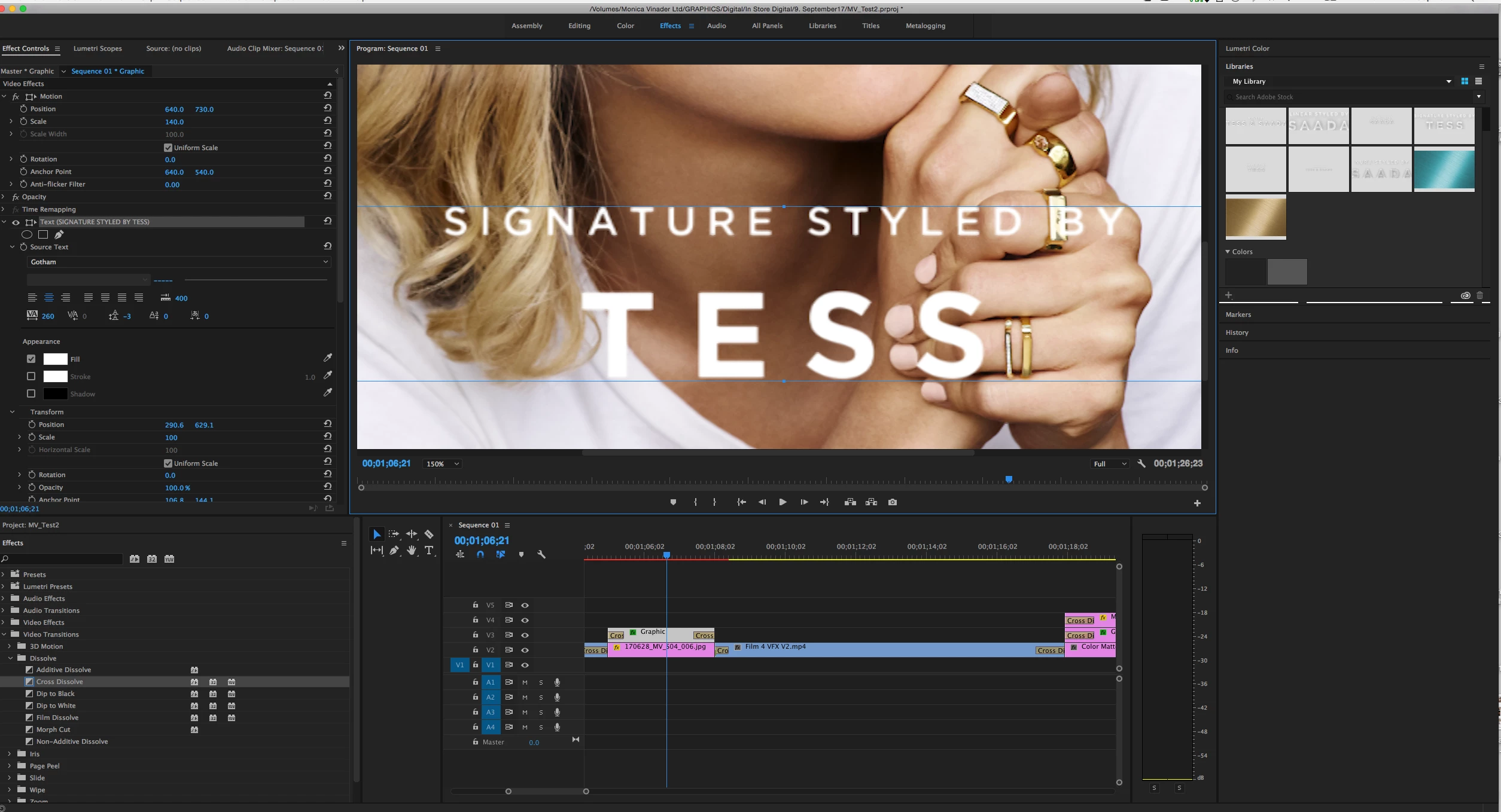
Why does my text look slightly pixelated? This text has been created within premier pro so it should be sharp?

Has anyone got any advice?
Correct answer David Arbor

So I chose my initial setting following this youtube video HOW TO FIX BLURRY TITLES IN ADOBE PREMIERE - YouTube

and it's purpose is for an LCD screen in store.  The feedback was the text looked a little blury - what would you export it as?


There are so many things wrong with that video that it's not worth addressing all of them. The first part is that they basically acknowledged at the beginning that they don't know what they're talking about.

The second is making an assumption that everyone has the same issue. Then they chose settings that don't make any sense if you're going to the web or being displayed on an LCD screen in a store, so it also depends on your pipeline.

To do this correctly you should start over:

Your sequence should be 1920x1080 (unless it's a 4K TV)

You should be set to Progressive (or no fields)

You should have a Square (1.0) pixel aspect ratio.

I don't know how long your comp is and how much of a pain it will be to restart this work, but it will save you strife in the long run.

You can at least try creating a proper sequence and then copying the contents of your previous timeline into it.

Then for export, since there are a lot of settings and you don't have a lot of experience with knowing what to choose, I would do what Ann said and use the YouTube preset—specifically the YouTube 1080p preset...unless, again, you're showing this on a 4K TV.

5 replies

Participant
October 18, 2021

For my case.. I fixed the blurry footage by not using scale to frame size. I'm manually resize the footage. Using the auto Scale to Frame size function reduce quality of my footage. Maybe it is follow the sequence setting for my project. So manually resize footage fixed the blurry footage. No pixelate text anymore. 


*Keeping this here in case I having the same problem for the next project. Ha.ha. 

Participant
February 20, 2020

I've experienced this same issue of text outlines becoming pixellated during playback and was able to resolve it by rendering my sequence completely before playback. After the bar above my timeline was green, text was as sharp as desired.


Check the line color above your timeline. If it's not green, and your playback is sub-optimal, you need to render. You can set your in and out points then press 'Enter' which will render effects, but also go to Sequence > Render In to Out. 

Participant
April 4, 2020

You're actually a life saver thank you!

Participating Frequently
October 30, 2018

I had a perfect preview, but rendering was jagged. I nested the guilty text and preview became jagged in the nested sequence preview. I identified that shadow was causing the issue. I disabled it and it was ok. I recreated the text and placed it above the nested sequence and managed to export ok with the shadow, but only once. All subsequent exports were jagged. So it's a BIG BUG in Premiere.

So, first time lucky and then nada. Shadow guilty, but not always and depending on settings of the shadow. ADOBE, fix that. It's almost 2019 now (as your software claims now).

Participant
January 6, 2020

I'm a die-hard Premiere Pro user.  It seems that with with new releases and new functionality like tracking and warp stabilizer (GREAT), PP has gotten buggy again.  This is more noticeable on longer videos.  The longer the video, the more likely PP will crash, and the more likely credit rolls (text) will not work properly, and / or pixelate. Likewise, the more text you have in a rolling credit, the less likely it will work at all.


In previous releases, text, even long text, was not a problem.  Now I'm having to export some videos and add credits in seperate sequence just to get the credit roll to work at all.  WHen I do it that way, it is likely to pixelate - Regardless of the sequence settings.


ADOBE, Fix That!

Participating Frequently
September 18, 2017

This is my video settings

This is showing that even at 100, the 'T' still has a slight haze on top. I'm guessing I need to preview at high qaulity like the above person said

Inspiring
September 18, 2017

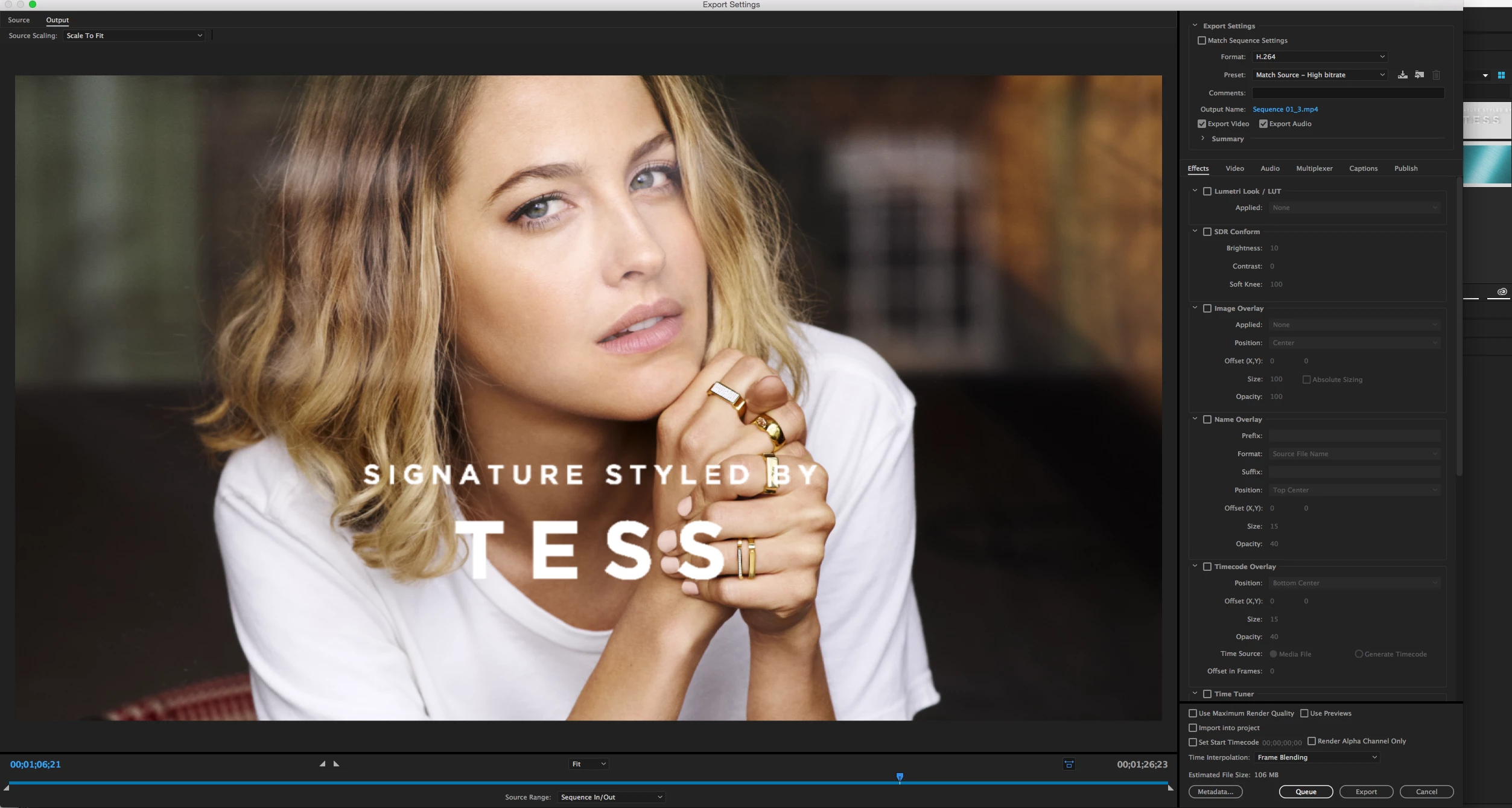
The problem is likely your sequence settings combined with your export settings. In your Export Settings you have Match Source chosen, which is showing that your sequence is DVCPRO HD and interlaced. Is this intentional?

What is your source footage and where are you delivering this to? There's a lot going on here that may or may not be intentional but I'm not sure what your workflow is.

Participating Frequently
September 18, 2017

So I chose my initial setting following this youtube video HOW TO FIX BLURRY TITLES IN ADOBE PREMIERE - YouTube

and it's purpose is for an LCD screen in store.  The feedback was the text looked a little blury - what would you export it as?

Ann Bens
Community Expert
Community Expert
September 18, 2017

Because you are scaling the text image and not the text itself.

Participating Frequently
September 18, 2017

Ah yes, I have just rectified this however it still isn't super sharp?

Is there anything else I'm doing wrong?

Inspiring
September 18, 2017

That screenshot is from Preview, which is a great utility, but not a good way to view critical quality, so it's hard to tell. That being said, since it's in Preview that means you exported it. Can you post a screenshot of your export settings? You might just need to increase your quality.

When you view your Program monitor at 100% back in Premiere is your text as sharp as you want? If so, then you need to change your export settings.