
Participant
January 20, 2018
Answered

Playhead in timeline won't move (Premiere Pro CC 12.0.0)

  • January 20, 2018
  • 4 replies
  • 48593 views

It seems that after 10 minutes into editing something, the playhead in the timeline would stop moving, along with the sliders in the color correction panel. The only thing moving is the playhead in the preview panel. However, when I use my mouse to the drag the playhead in the timeline, it would still scrub through the timeline, it's just that the actual timeline playhead and the vertical line does not move. The same thing happens to the color correction panel. The sliders would not move, but it still adjusts the colors. I have to exit the program and restart it in order for the problem to go away (not for long). This problem is really slowing down my workflow.
This topic has been closed for replies.
Correct answer R Neil Haugen

Adobe Premiere Pro CC 2017.0.2 v11.0


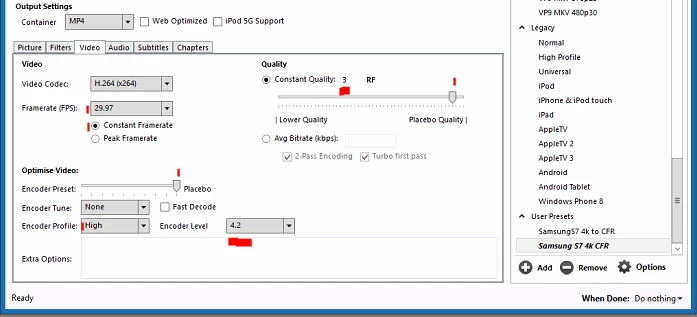
Your screen recorder is almost certainly exporting VFR ... variable frame rate media, and that version of PrPro could choke on it, or play it ... but disconnected video from audio. I would recommend running your screen-captures through Handbrake to convert to CFR, then import that media into PrPro and see if that fixes your problem.

In Handbrake, make sure the size of the image is the same as your original in the far left "Picture" tab, in the Video tab, a level of at least 4.2 and near placebo, with CFR little circle checked AND a specific number entered in the frame-rate box.

Neil

HandBrake download page:  https://handbrake.fr/downloads.php

4 replies

Participant
August 21, 2023

TRASH COMPANY! LEAVE ADOBE NOW WHILE YOU STILL CAN. GET THE HELL OUT OF THIS ECO-SYSTEM NOW! THEY ARE GOING TO START REALLLLLLY SCREWING PEOPLE OVER SOON. HEAR IT FROM ME, GET OUT NOW! THERE ARE SO MANY OTHER PROGRAMS TO USE NOW. SAYING GOODBYE TO THIS TRASH COMPANY AFTER 20 YEARS. BYE!!!

Participating Frequently
December 6, 2019

I'm having the same problem. but I'm not doing any sort of screen recording. This just started happening to me on CC v13.5, and I thought updating to v14 (2020) would solve it and it did not. When I open premiere it runs fine, as long as I don't go to my project panel and try and pull new media into the timeline, which causes the playhead to freeze and not move, even though my project monitor shows that the footage is scrubbing.. when I click on clips, they do not appear to be selected, and I can't use any drop down menus in my effect controls panel. Please any other work arounds that don't involve screen captures?

Participating Frequently
December 6, 2019

Solved my own problem, here's the fix. Thanks to this dude for finding out how to fix it. 

The problem comes from a buggy bin, so first you have to figure out which bin is causing this issue, then click the hamburger menu for that bin and close it, the project should work normally, then just reopen that bin and the problem appears to be fixed. Thanks HumerousGorgon.


https://www.youtube.com/watch?v=ZbeUQHnnwBk detailed video on how to fix.

Participant
December 17, 2019

You are a lifesaver thank you

marcopollo
Participant
February 10, 2018

i'm having the exact same problem, except my problem begins whenever I export footage I record with my screen recorder into my project and re-opening the program doesn't help either. Are your snip tools, ext. to the left of your timeline missing as well? It's just a grey space. A solution to this problem would be great, I feel like i'm now paying monthly for a program that doesn't even work!

R Neil Haugen
Legend
February 10, 2018

Which specific number-dot-number version of PrPro are you using?

Neil

Everyone's mileage always varies ...
marcopollo
Participant
February 11, 2018

Adobe Premiere Pro CC 2017.0.2 v11.0

R Neil Haugen
Legend
January 21, 2018

This could be a number of things or even concatenations. So ... let's start with some basics.

Hardware: OS/CPU/RAM/GPU/vRAM, the number and type of drives on that computer and how used for the program, media, and cache files.

In program: media used (codec-format/rate/size), and what created it; the sequence settings for frame-size/rate; what effects you're using; and if any third party programs or plug-ins have been involved.

Next ... have you tried deleting the cache/cache media files ... oh, is this only on one project, or if you create a new project, does it do this also?

Neil

Everyone's mileage always varies ...
le0zzzAuthor
Participant
January 21, 2018

I'm running Windows 10, Ryzen 1700, 16Gb DDR4, GTX 1070 with 8Gb DDR5 VRAM. I have one ssd for program and cache and one hdd for media files. My video clips are MOV files shot on a Nikon D5100, 23.98 fps, H2.64.

R Neil Haugen
Legend
January 21, 2018

4k or 1920x1080?

I note that it's not a bad machine, though not overly equipped with RAM. Hope that second HDD is internal ... hard drives on external aren't particularly speedy.

So, with H.264, you might consider using the included Cineform proxy preset. For new clips importing, use the create-proxy on ingestion route, but for a current project right-click a group of clips in a bin, select "Proxy/create proxies" and again use the included Cineform ones, pick one a bit smaller in frame-size than your media. Do NOT use the H.264 proxy preset ... no clue what that's even included. You want an intraframe codec like Cineform, DNxHD/R or ProRes for proxies as it's far easier on the CPU than in interframe H.264 or mov codecs.

Then go to the + on the far right of the Program monitor controls, and drag the Toggle Proxy icon from the 'available' ones to the controls. Click it to blue, PrPro uses the proxies. Click to gray, you're back to original media.

Neil

Everyone's mileage always varies ...