Participating Frequently
March 4, 2017
Question

PLEASE HELP!!! School project gone... "Unable to locate these files..."

  • March 4, 2017
  • 5 replies
  • 925 views

Hello,

I am working on a university school project right now and I have spent about 7 hours editing the project thus far (I am still a beginner at editing, especially with Premiere Pro). That was for the first draft. I haven't been on Premiere Pro for about 2 weeks since then, and now I re-open it and pretty much EVERYTHING is gone?!

I took screenshots to help me explain my situation:

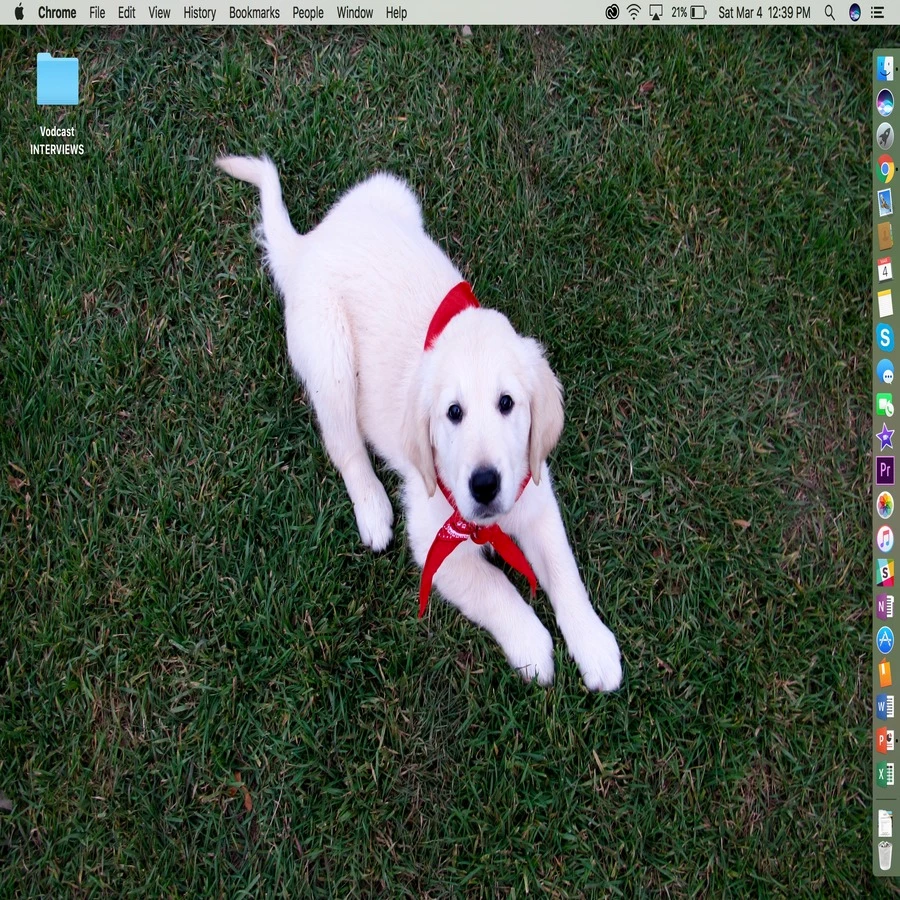
1. Here is where the video and audio files are located, on my desktop in the top left corner.
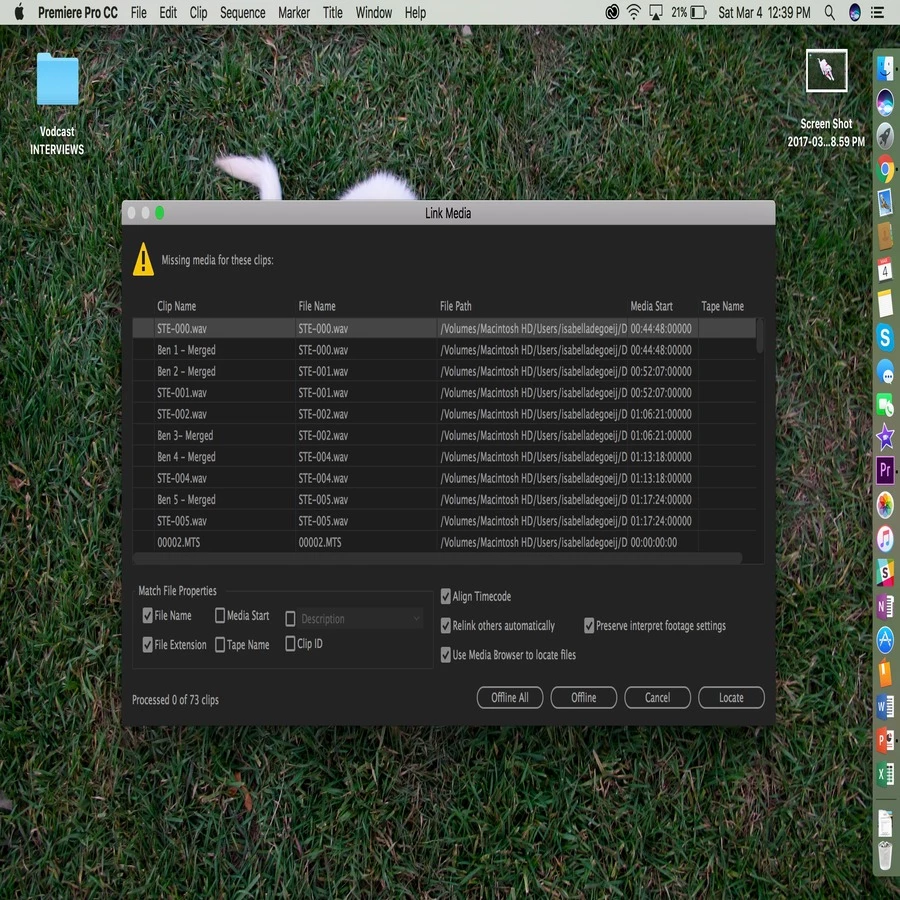
2. This is what comes up when I open the project.
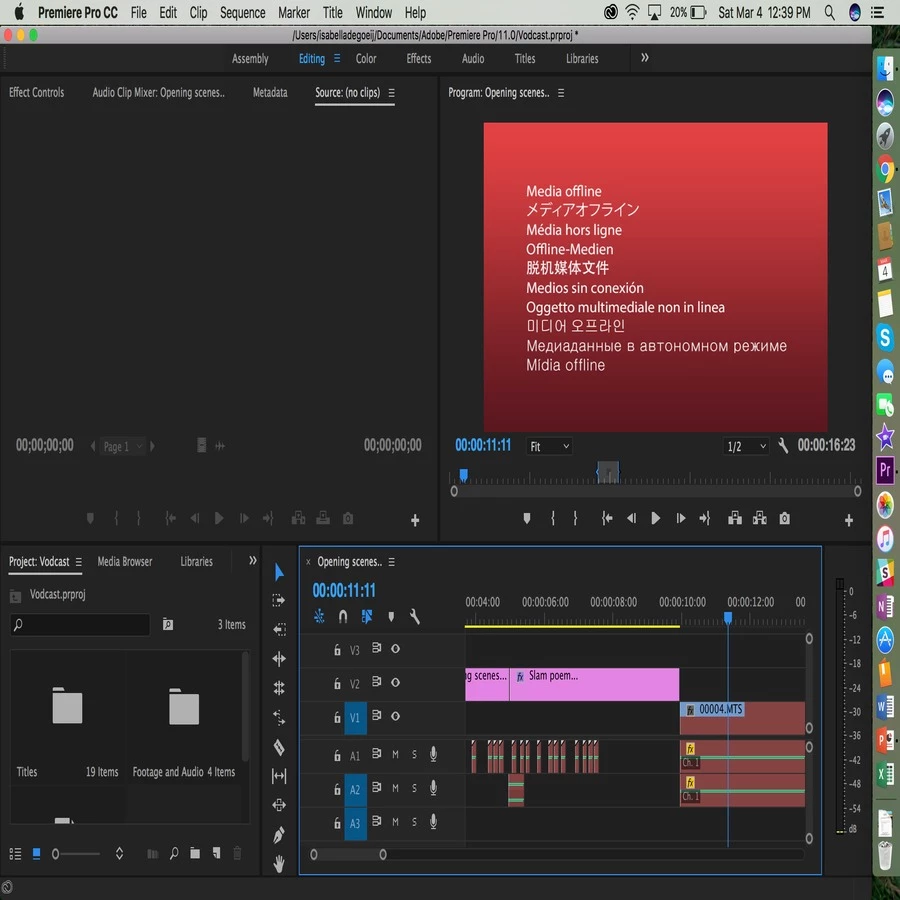
3. After pressing cancel on that previous picture (I tried searching for the files and it couldn't locate them), you can see that it says that my media is missing...
Does anyone know what is happening? Your help and advice will be greatly appreciated!!!

Sincerely,

A Panicked University Student

    This topic has been closed for replies.

    5 replies

    Participating Frequently
    March 4, 2017

    Look, it's baaaack! You all helped me fix my problem!!!! Thank you so much 'R Neil Haugen', 'Meg the Dog', and 'TaylorH'. You all made my day! :-)

    THANK YOU!

    Inspiring
    March 4, 2017

    . . . and now you've learned a major editing lesson: never panic until the check bounces.

    MtD

    Participating Frequently
    March 4, 2017

    Haha, I will keep that in mind! Thank you.

    RTHiggins
    Inspiring
    March 4, 2017

    Should have an option to relink files automatically.

    This is more advanced tactic with extremely large projects(not sure how big yours is):

    note: It is either relink everyone one by one, merge the clips again or the last method which I will explain:

    1. Duplicate the premiere project file in case anything goes wrong.

    2.change the extension of the duplicate file to .zip

    3. Unzip the file

    4. Open the file in a text editor. If you can't change the extension of the file to .txt

    5. use "search and replace" feature to search of the "last path" and then replace it with the new location path of all media on your computer.

    6. Save the file

    7. Use a zip program to zip or compress the file

    8. Change the extension of that file name to .prprj

    Now all that being said, this option looks absurd unless you have hundreds of clips that are 00001 00002 etc. sometimes premiere gets mixed up when you locate the files through premiere. This forces premiere to look at the correct files no matter what.

    Personally, I would locate each one, one by one, if I were you. Write it off as editor woes.

    RTHiggins
    Inspiring
    March 4, 2017

    Merged files shouldn't be any different when relinking...

    Are these merged files different from said RAW media? Meaning are they different clips entirely?

    Participating Frequently
    March 4, 2017

    I don't think so, but I am not 100% sure what you mean by that! I will explain the process I went through:

    -Uploaded those files onto my computer, now they are on my desktop

    -Created the project in Adobe

    -Imported the folder from the desktop into the media browser

    -Matched the audio to the video and that appeared to save into my media browser

    -Clipped out the sequences I needed

    -Inserted what I needed into the timeline

    That's kind of how it all went, and now this missing media thing keeps happening!

    Inspiring
    March 4, 2017

    When the dialog box comes up asking you to link media, press Locate and then take  a screen shot of the dialog box that comes up and post that here.

    If you open the folder that is on your desktop, do you see the files there?

    In the time since you last worked on this project, did you modify the location of the files in any way?

    MtD

    Inspiring
    March 4, 2017

    Also - are you confident you have logged into the computer with the same user account that you used when editing before?

    MtD

    R Neil Haugen
    Legend
    March 4, 2017

    Typically, you would check the "Locate" button on that first dialog, then navigate to the first file, select it, and hit enter. PrPro then (normally) finds the others in the same folder also.

    That didn't work? Did it not see the files, or refuse to link to them?

    Neil

    Everyone's mileage always varies ...
    Participating Frequently
    March 4, 2017

    The problem is that it finds each individual file, but not the audio/video files that I merged... Which means I would have to redo all of that, right?

    R Neil Haugen
    Legend
    March 4, 2017

    Ahh, merged files. You didn't mention that. That can be more problematic for this sort of thing.

    MtD, I think you've got more experience with merging than I ...

    Neil

    Everyone's mileage always varies ...