
Participating Frequently
July 12, 2017
Answered

Poster Frame not working?!

  • July 12, 2017
  • 1 reply
  • 3298 views

I am editing a short clip for a client for social media.  I have spent HOURS trying to get the video to show the introductory screen as it's "resting place" before you hit the play button.  I have tried all of the "poster frame" setting options in Premier, Shift-P, going to thumbnails view and right clicking to select "Set Poster Frame", stopping the slider and selecting the camera, which displays "Poster Frame".  Alas, when you view the video in either windows explorer or drop box, the frame selected is neither what is displayed prior to hitting "play" or what is displayed as the thumbnail.  I have tried encoding in Premier Pro and exporting to Media Encoder.  HELP!  I look like an idiot to my client.

Is Poster Frame not what is used to set both the starting image and the thumbnail.  Educate me, PLEASE!

Here is a screen shot of what the video looks like when you view it:

Here is screen shot of me selecting Poster Frame in Premier:
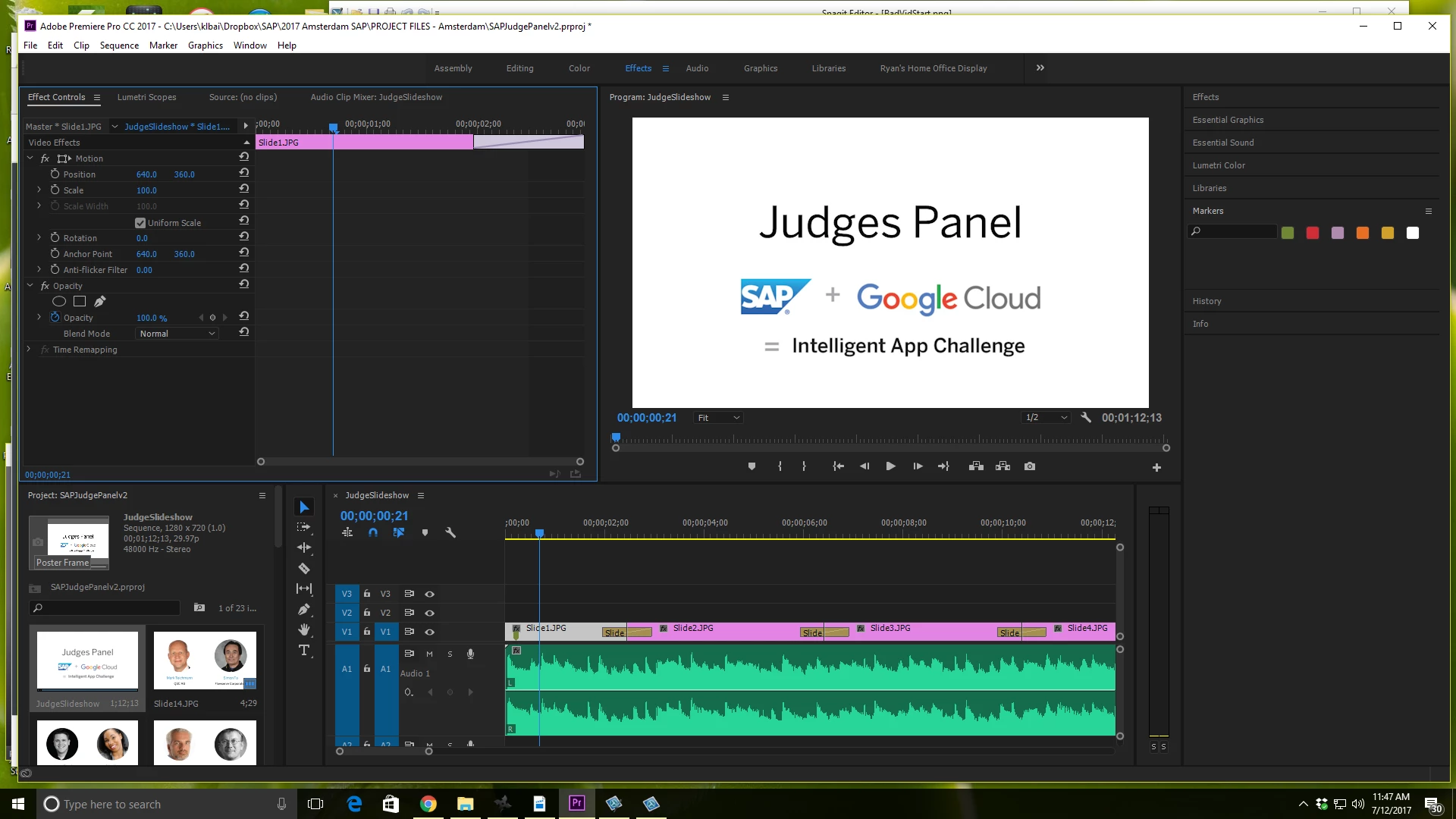
    This topic has been closed for replies.
    Correct answer stefan_gru

    No editing software that I know of embeds a special poster frame within the metadata of the video file itself so that all video players will use that thumbnail image — but I could be wrong. In my experience, you have to tell the player what image to use.

    Regardless, your question is asked by others wanting to upload to Twitter. It seems you can do so on the Twitter end of the upload: Video Thumbnails - Advertiser API - Twitter Developers

    However, it looks like it might be a feature that is available only for advertisers (who pay, naturally).

    My guess is that Twitter uses the first frame of the video as the thumbnail that loads before video playback. With that in mind, I would suggest that you insert a one-frame image of your preferred starting frame at the start of your sequence. That way you are manually determining the first frame of the video.

    Try that out and see if it works for your needs. Btw, this tutorial shows you how to upload to Twitter but it does not mention the poster frame: Learn how to publish to Twitter | Adobe Media Encoder tutorials

    1 reply

    stefan_gru
    Inspiring
    July 12, 2017

    Setting poster frames in Premiere Pro is for organizational purposes only within the Project panel. This article covers that topic: https://www.premiumbeat.com/blog/premiere-pro-tutorial-setting-poster-frames/

    After you export the video and upload it to a hosting service (Vimeo, YouTube, etc.), the service will pick a (random) poster frame for you. You must choose it there to make it appear in your video embeds.

    Check these help topics out:

    Add video thumbnails - YouTube Help

    Setting a 'poster frame' on Vimeo

    How can I customize the thumbnail image for my video ad? | Facebook Help Center | Facebook

    Does this solve your problem?

    ibkbAuthor
    Participating Frequently
    July 12, 2017

    This is not acceptable for social media applications.  My client does not want nor intend to host this video anywhere, it will be tweeted.  Obviously, people are doing this every day in some application - it must not be Premiere Pro.

    stefan_gru
    stefan_gruCorrect answer
    Inspiring
    July 13, 2017

    No editing software that I know of embeds a special poster frame within the metadata of the video file itself so that all video players will use that thumbnail image — but I could be wrong. In my experience, you have to tell the player what image to use.

    Regardless, your question is asked by others wanting to upload to Twitter. It seems you can do so on the Twitter end of the upload: Video Thumbnails - Advertiser API - Twitter Developers

    However, it looks like it might be a feature that is available only for advertisers (who pay, naturally).

    My guess is that Twitter uses the first frame of the video as the thumbnail that loads before video playback. With that in mind, I would suggest that you insert a one-frame image of your preferred starting frame at the start of your sequence. That way you are manually determining the first frame of the video.

    Try that out and see if it works for your needs. Btw, this tutorial shows you how to upload to Twitter but it does not mention the poster frame: Learn how to publish to Twitter | Adobe Media Encoder tutorials