
Participating Frequently
July 1, 2020
Answered

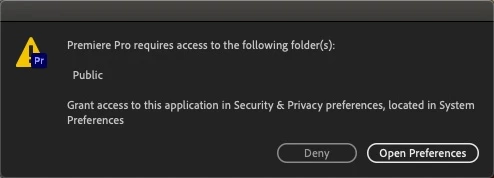
Premier Pro requires access to the following folder(s): Public

  • July 1, 2020
  • 7 replies
  • 21894 views

I updated Premiere Pro 2020 to 14.3 and now Premiere Pro will not start.
I get the error:
"Premier Pro requires access to the following folder(s): Public
Grant Access to this application in Security and Privacy preferences, Located in System Preferences."
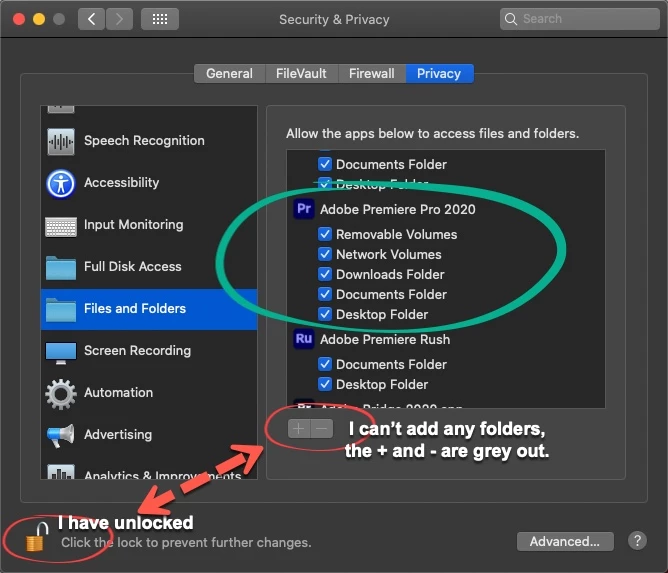
1. In System Preferences, I have unlocked the Settings dialogue box.  But I can't add any new folders to Files and Folders for Premier Pro because the + and - buttons are disabled (greyed out). 
 

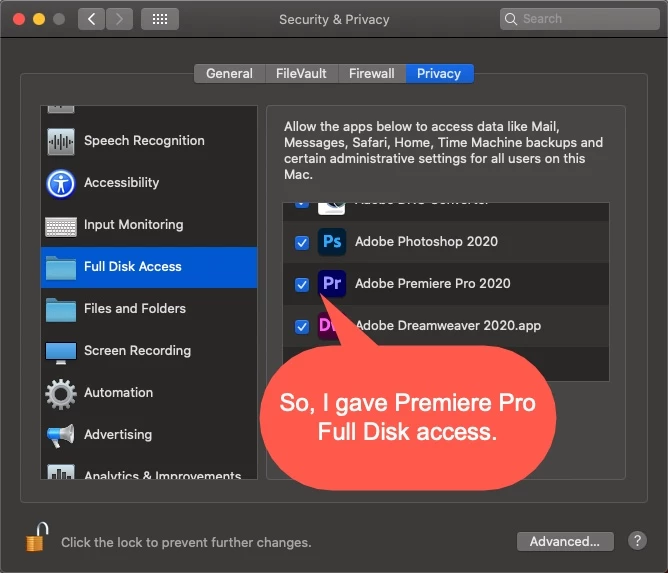
2. I then gave Premiere Pro Full Disk Access!
3. Quit Premiere Pro
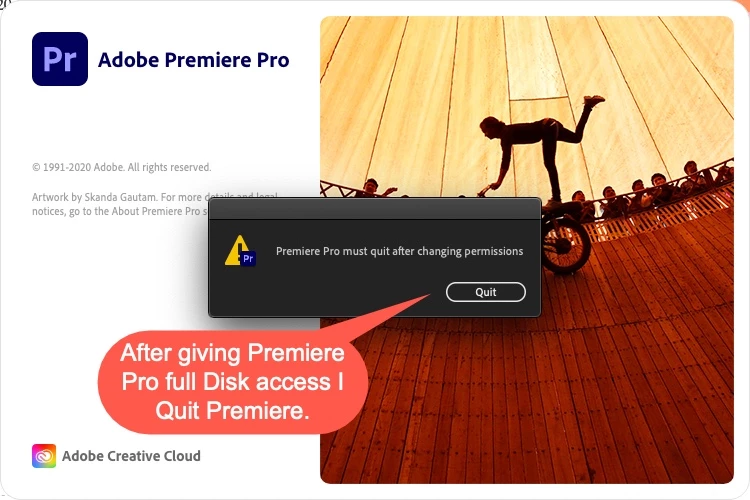
4. Restarted Premiere Pro only to get the same error message. 
This means I cannot run Premiere Pro at all!
I need help with this issue as I have to deliver a completed video in 24 hours from now.  Without Premiere, I am going to default on my contract.
I have never had any issues with Premiere before!


Hardware Overview:

Model Name: MacBook Pro
Model Identifier: MacBookPro10,1
Processor Name: Quad-Core Intel Core i7
Processor Speed: 2.7 GHz
Number of Processors: 1
Total Number of Cores: 4
L2 Cache (per Core): 256 KB
L3 Cache: 6 MB
Hyper-Threading Technology: Enabled
Memory: 16 GB
Boot ROM Version: 261.0.0.0.0
SMC Version (system): 2.3f36
Serial Number (system): C02KH0EPFFT1
Hardware UUID: E1623E4A-E01E-5FC2-AA39-57B75F465113


Correct answer PTramN

Hi, It just happened to me when I upgraded to Monterey and Premiere 2022. You need to change the permission on your public folder. I used those instructions and it worked: 

https://www.macobserver.com/tmo/article/os-x-using-the-public-folder

Good luck!

7 replies

Participant
January 4, 2025

 Same issue, previews solutions don't work on this one tho.

Participant
February 8, 2022
Does anyone know what is the appropriate solution for this problem, the same thing happens to me and I have not been able to fix it
PTramNCorrect answer
Participant
February 18, 2022

Hi, It just happened to me when I upgraded to Monterey and Premiere 2022. You need to change the permission on your public folder. I used those instructions and it worked: 

https://www.macobserver.com/tmo/article/os-x-using-the-public-folder

Good luck!

Participant
February 2, 2024

Had this problem and after hours of trying different things with no success, and then this worked! Thank you!

Participating Frequently
November 2, 2021

I had this issue updating to Monterey 12.0.1 on M1 Max with Premiere 2022.


Case 3 on this Adobe forum seems like a simple solution, but it worked for me:

https://helpx.adobe.com/premiere-pro/kb/premiere-pro-hangs-on-launch-on-macos.html


Participant
February 8, 2022
I did all the steps in this link and nothing worked
 
Participant
December 4, 2020

Adobe couldn't figure this out for me but apple discovered that the public folder was missing. My computer's user/account would not make a new folder so I created a new user which ran the newest version of premiere fine. Then I went back into my normal account and again searched for the public folder. I then found the public folder of my 2nd user, hit the + button, added my main account, and changed the permissions to allow my main account to read and write. Then my premiere worked on my main account as well. 

Participant
December 4, 2020

just to be more specific: hit get info to get to them + account step from above! ^^^

Participant
March 13, 2021

So using your hint about not being able to create a Public folder with your normal account, I decided to try something.  I opened up Terminal and went into my home directory.  The Public folder was there but all access was denied (d---r-x---+ ).  Fyi - the "d---r-x---+" is a mode of 111, meaning that the directory can be read but cannot be written to.  So I changed to the root user (sudo su - root, then type in your password when prompted) and then changed the permissions of the public folder using the root user (chmod 777 -R Public) this mode is full read, write, and execute access.  I then restarted Premiere Pro and it worked fine. I then changed the permission of the directory to 755. One word of caution when using the root user.  This user is the ALL powerful user and you can get in a lot of trouble with this user so please use caution when doing this.  Hope this helps.

Participant
July 14, 2020

I managed to solve it easier.
Just go to your hard drive, look for the PUBLIC folder and if it comes up with a red symbol, then right click on get info. And in Sharing and Permissions
add to admin and give it read and write and voila.

Participating Frequently
July 15, 2020

Hi Gabrik1986,

Sorry, this did not work in my case.

I actually have multiple Public folders on my main disk.

I reinstalled Premiere 14.3 then modified the permission on the "Public" folders.

As you can see I have given "admin" read/write access.  Yes, temporarily to all of the public folders.

I tried to run Premiere again and still got the same permission error.
I did not really expect this to work because in my original post I showed I had given Premiere access to the entire disk.
I am still waiting on Adobe Support to advise when the problem will be fixed.
Kind regards

thomas_ac93659294.

Participating Frequently
July 3, 2020

I gave this issue to directly Adobe Support and the response was immediate.  They advised me to reinstall the previous version and disable Auto Update to prevent Version 14.3 from reinstalling.
I have done this and Premiere is running smoothly again.
I asked if I would be notified when the issue was corrected so I could take advantage of the new versions and was told yes..
Hope this helps any others with the same issue. 

Ann Bens
Community Expert
Community Expert
July 1, 2020

Please do NOT add images via the "attach files" box, as you are then forcing everyone to DOWNLOAD the file to view it outside their browser. Drag/drop the image files directly ONTO your reply box so other users can see them without needing to download unknown strange files.
Thank you! 

Participating Frequently
July 2, 2020

Thanks, Ann, I have fixed my gaff and deleted the attached jpgs.