

ZenGeekDad
Inspiring
February 4, 2020
Answered

Premiere 2020 multicam view not showing source camera feeds

  • February 4, 2020
  • 3 replies
  • 12921 views

I have a ~1 hour multicam sequence, that I have ~85% of sequenced in a target timeline.  After my last edit, suddenly my source camera area (on the left) is showing only one camera, not the four that it should:
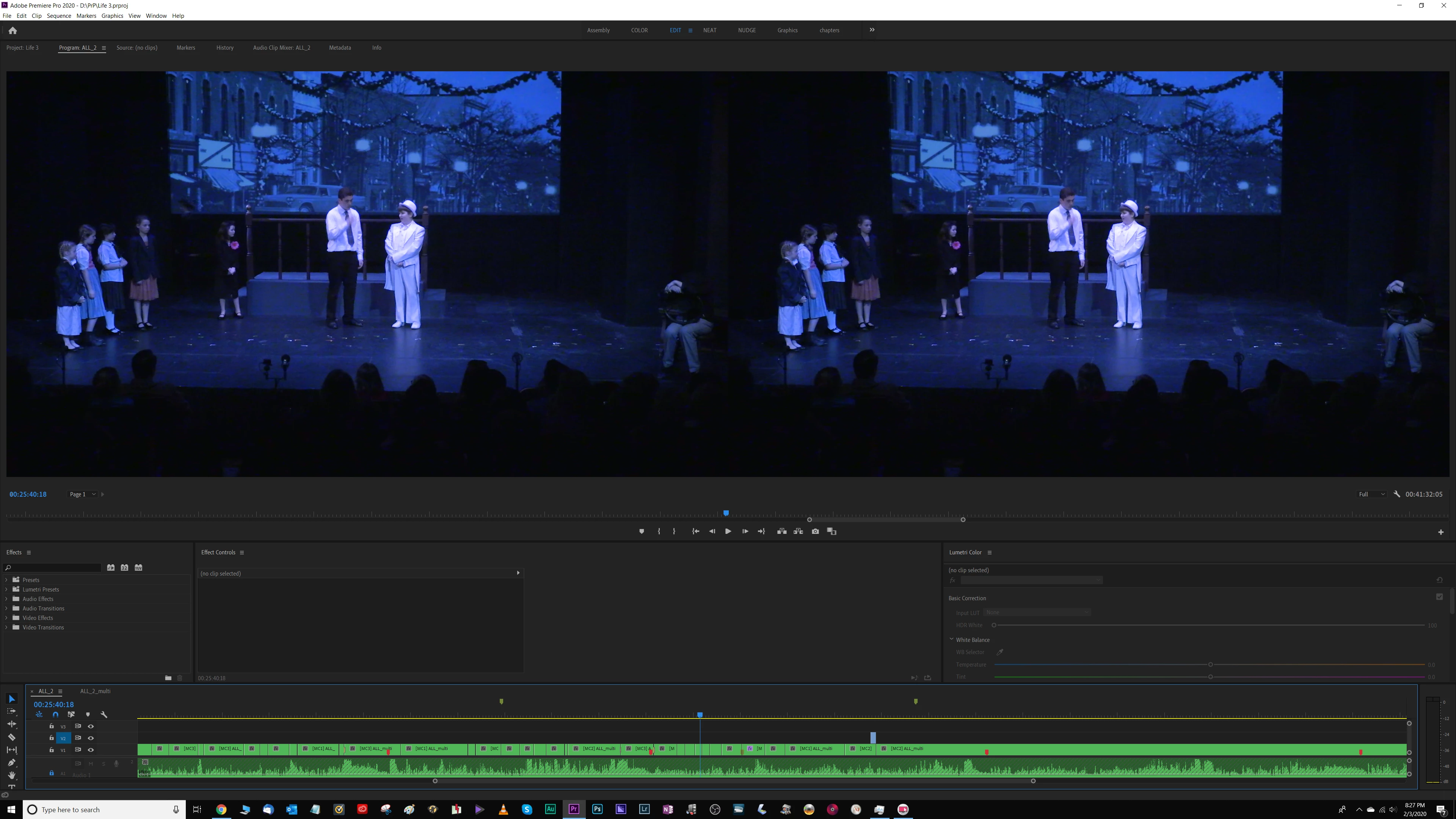
[ It's like what happens when I manually drop in a clip onto the target sequence's timeline, outside the multic-camera sequence that provides the rest of the content.  When I do that, the side-by-side views change from "all the source cameras on the left, and the selected camera on the right" to "same camera on the left and on the right."  But in that circumstance, this behavior makes perfects sense, since the manually added clip is not sourced from the multicam sequence.  And in this case, it's happening on my entire target sequence's timeline, including the other 117 clips that came from the multicam sequence. ]


I have the display mode set to multicam:
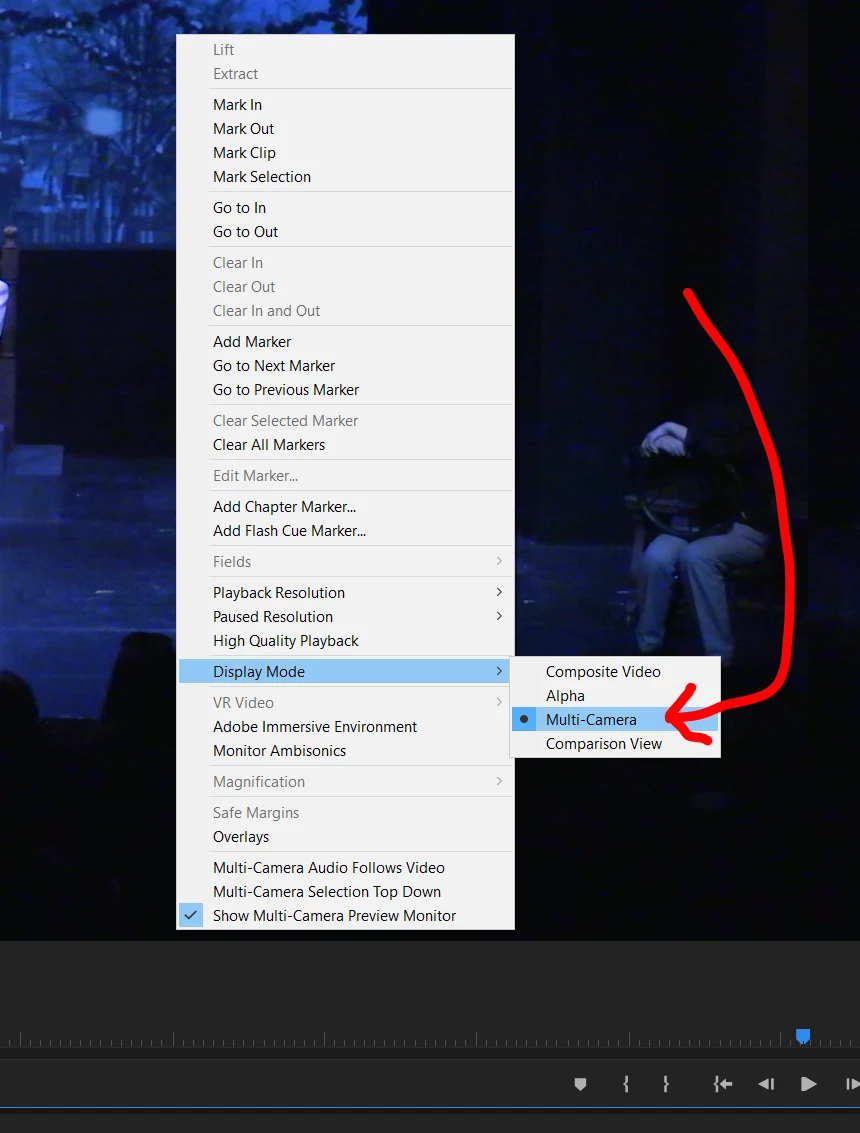
And I checked the various clips on the target timeline, and all are set to "multicam >> enable".  I've toggled them to disable and back to enable, closed, rebooted, and re-opened - but no luck.
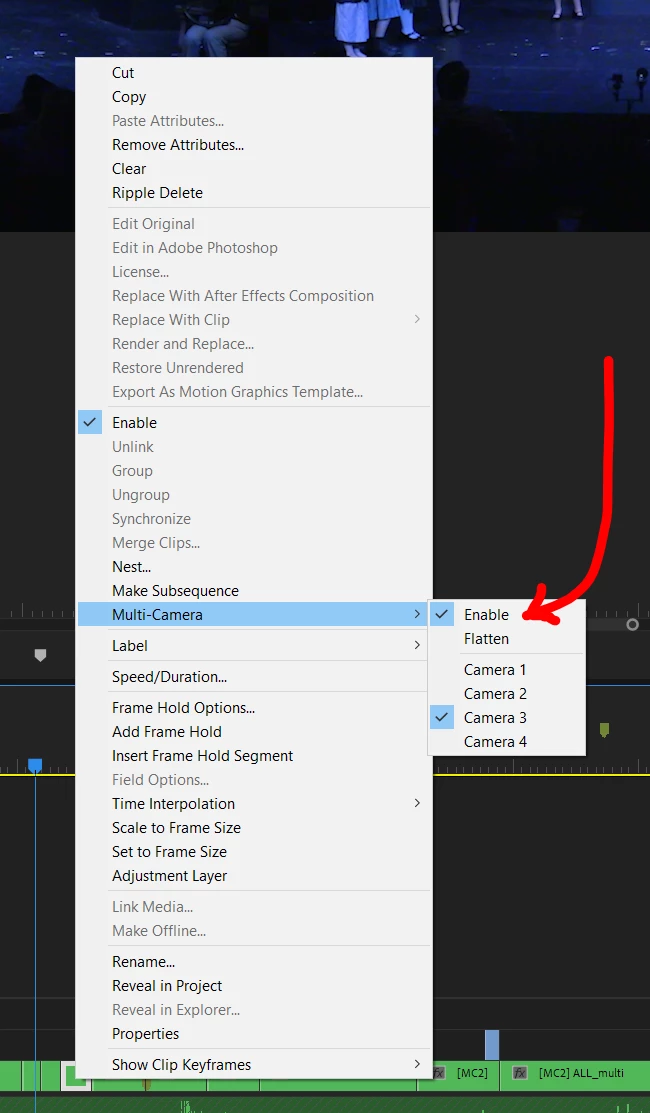
 

No other projects are showing this problem; they properly show the multiple source cameras on the left.


I'm guessing that I butter-fingered some hotkey (I'm a sloppy typist) that changed a setting, but I can't figure out what.

Correct answer dreimer79

I think I figured it out. Your clip is on layer v1 in the timeline but you have layer v2 active (you can tell by the color blue outlining v2). You just need to either move the nest to layer v2 or make v1 active by clicking it.


Pretty sure I have some terminology wrong here but that's what worked for me. 

3 replies

GreatJobTommy
New Participant
July 6, 2023

I just want to add a Soluition I solved for my Project. Multicam wasn't showing the different cams anymore, even if I activated them in the settings (in multicam view/wrench icon) > edit cameras... If you got multiple multicam sequences in your project and you forget on one of them to activate your layers inside the multicam (the blue highlighted on the left side of every layer for example V1,A1,V2,A2) all other multicam sequences can get confused and so the muticam monitor breaks. Just highlight tem all and you should be good to go. If it breaks again, it helps to have the MC-timelines open as well and you have to jump inside of them and go back to your Main timeline. Multicams defenetly need a rewrite of more complex Code to make it more reliable in this scenario. Best to do atm is to only have one multicam clip in your projects.
Hope that saves someone the hours of pain researching about this multicam error I had to figure out. Cheers!

dreimer79
dreimer79Correct answer
New Participant
March 4, 2021

I think I figured it out. Your clip is on layer v1 in the timeline but you have layer v2 active (you can tell by the color blue outlining v2). You just need to either move the nest to layer v2 or make v1 active by clicking it.


Pretty sure I have some terminology wrong here but that's what worked for me. 

ZenGeekDad
Inspiring
May 19, 2021

dreimer79: You are correct.  My apologies to the community that I did not post the fix.  I forget when I eventually figured it out.  But it was some time later.  Anyway, to confirm: I can reproduce this "buggy" behavior in any project at will by deselecting video track 1.  This always loses the ability to the see the multitrak source videos.  And reselecting video track 1 always restores it.

New Participant
July 29, 2020

Did you ever solve this? I am having the issues tonight. Past timeline worked correctly then moved on to 2nd part of the edit and could not get a 2nd timeline to show the multi-cam view. just showing 1 camera at a time. 

New Participant
November 4, 2020

Hi Guys, I'm having the same issue and I'm quite sure it depends on a bug. I'm currently working on a mac. I solved it just by moving the multicam clip on the upper video tracks. If the next one doesn't work, just push it to the next one until the multicam view will show up... Can the tech support say something on it, please?

HYDROMEDIA
New Participant
November 18, 2020

Thanks 

Saved me lots of time