
Participating Frequently
February 22, 2019
Answered

Premiere auto apply HDR

  • February 22, 2019
  • 3 replies
  • 9368 views

Hi all,

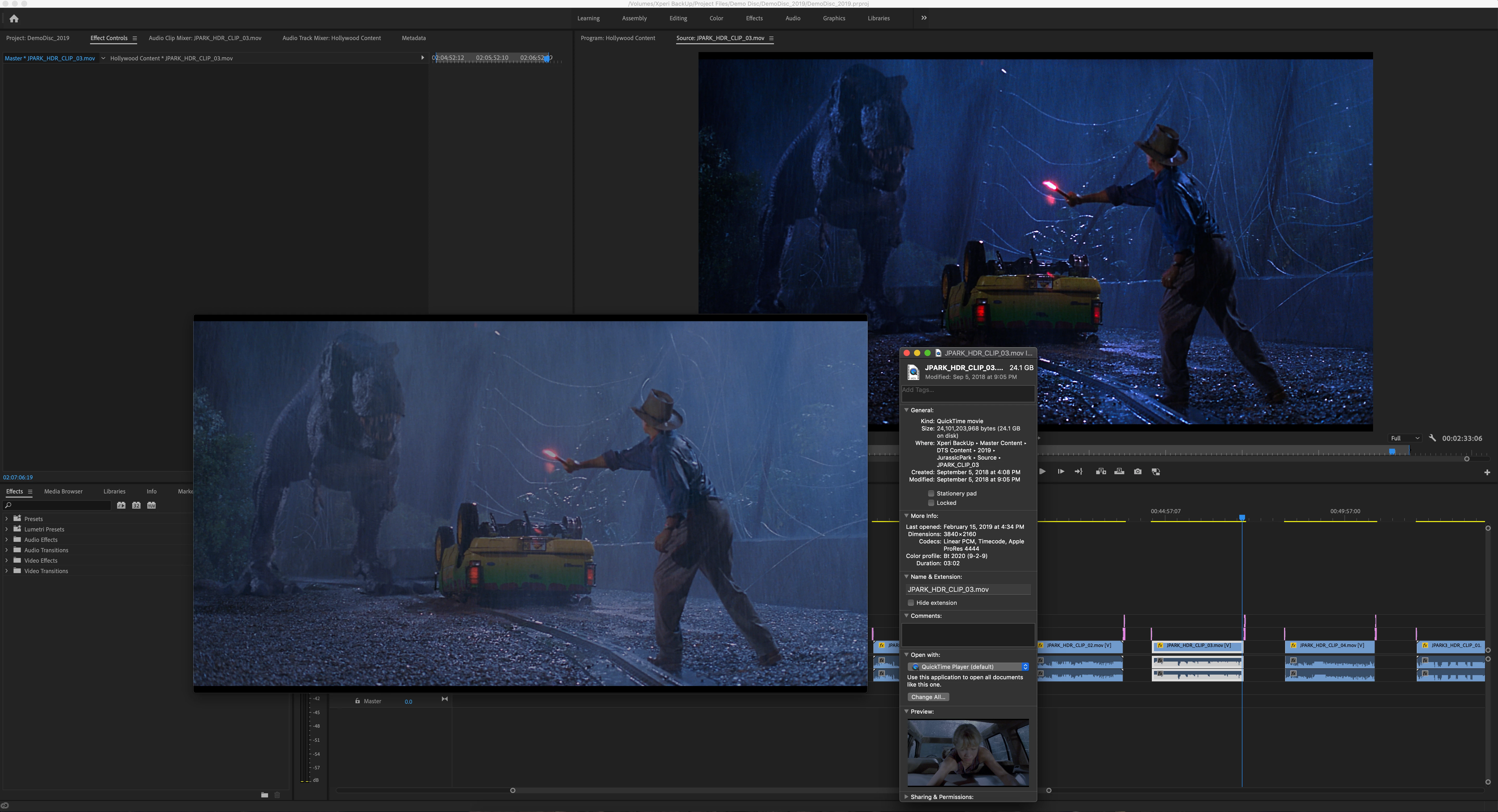
I have recently updated Premiere CC and after recieving HDR footage from a studio, Premiere seems to be auto adding a lut or color profile that I cannot find or turn off.  It doesn't exist in the Master Clip section.  I have included a screenshot of the video in Quicktime vs in Premiere.  The color profile in the source is BT Rec 2020.  But I cannot seem to control the colors that are being auto applied.

Any ideas?

I am using Adobe Premiere Version 13.0.2
    This topic has been closed for replies.
    Correct answer R Neil Haugen

    Right off I see several potential issues here. Let's start with these three:

    First, you're on a Mac ... how do you have your monitor set, which color-space/profile are you using?

    Second, QuickTime Player is notoriously color-stuuupid, so comparing that to something in Pr is pretty much a waste of time. How does that clip look in a decent color-aware player like Potplayer or VLC?

    Third ... what's it look like in Lumetri with HDR turned on?

    Neil

    3 replies

    R Neil Haugen
    Legend
    July 25, 2020

    Christian s....


    In the shipping Premiere, you can set the Lumetri scopes to Rec.2020 to show HDR media correctly in the Scopes panel, and you can set the Lumetri panel to HDR for proper modification.


    However ... none of the monitors in Premiere can currently work with HDR media, so you need the hardware kit covered elsewhere to send a correct video stream to a proper HDR monitor. I cover this in this FAQ here:


    FAQ: Setting up for HDR work in Premiere 2020


    That FAQ not only includes the setting up needed to monitor HDR, and work color correction in Lumetri, but also the exporting option for the various current exports ... I'll post that pdf below.


    Note, the public beta version has more options available ... here's the HLG options explained ...

    DISCUSS: Rec. 2100 HLG HDR workflow


    They are working on getting us full color management controls but are rolling out parts of it as they get it tested. The public beta program will of course have the latest possible options.


    Neil


    [Moderator note: link to public beta forum discussion fixed.]


    Everyone's mileage always varies ...
    Participating Frequently
    July 26, 2020

    Oddly enough I do not need to view HDR correctly, I simply need for Premiere to stop "helping" me by auto converting my rec2020 source to whatever it is they make it now.  I wish they would just leave it alone.  

    To get around this I take my rec2020 source and run it through ffmpeg and encode it with rec709 parameters so that when i import it into Premiere Premiere is tricked into thinking it's a rec 709 source and doesn't convert it so you get a nice flat greenish looking image 🙂  

    I along with others have requested for years now for Adobe to make your input color space user selectable.  Shame it still hasn't happened.  Resolve looks more appealing every day.  

    I tried to click on your link Neil but it doesn't seem to go anywhere.  If you have an alternate method to check out I would love to see it.  Thanks!

    R Neil Haugen
    Legend
    July 26, 2020

    The link is fixed.


    As noted often, including in the links I provided above, they've added a few user-selectable options for color space and exports, and are working on more.


    Understand the basic underlying code for Premiere was totally built on stock-standard pro Rec.709 all the way through. So any change of the color space options means completely rewriting vast sections of code throughout the application.


    Premiere currently (unless you have the HDR turned on in Lumetri) will simply handle the material as appropriate for if it were Rec.709 media. There is the 'extended dynamic range' option which I still don't fully understand the use of but is there in the preferences along with the Display Color Management option, and I think is more designed towards the display being over-bright than the media itself.


    The beta version has a few more options involved than the shipping one, and given they turn the public beta into shipping in what ... about every 3-4 months now? ... means the options there will be in the shipping regular version in not too long.


    Neil

    Everyone's mileage always varies ...
    francis-crossman10980533
    Adobe Employee
    Adobe Employee
    February 26, 2019

    HDR is a very complicated mind-bending thing to wrap your head around. Here are some bullet point info.

    • Premiere Pro's internal working color space is hard-coded at Rec709 SDR - this is not user-configurable (yet)
    • When HDR material is brought in the data is converted into over-range Rec709.  Data outside the Rec709 gamut is stored in floating point values internally. - again, not user-configurable
    • Viewing HDR footage in PPro on your computer monitor (which is P3 at best, but probably only sRGB) will look blown out, because the over-range is being clipped by your display. Even if you have an HDR desktop monitor, PPRo is only capable of delivering Rec709 to the internal display.  Imagine you take a Rec709-shapped cookie cutter out of the middle of a Rec2020 gamut.

    • To view HDR footage correctly, you need hardware from AJA such as the Io4K Plus or Kona4/5 and an HDR monitor connected over HDMI.  Blackmagic currently does not offer support with their UltraStudio of Decklink lines.
    • The support we added for ProRes HDR was to enable the footage to be correctly converted to over-range Rec709.  This does not actually make it look "correct" on the internal display - it will look blown out.  The previous functionality was that the HDR data was assumed to be Rec709 with no conversion, and the appearance was low contrast and low saturation, kinda like Log footage.  Some users found this useful - you could grade your way to a nice looking (SDR) result.  This workflow was not HDR at all though.
    • Premiere Pro will be supporting a better HDR user experience in the future.
    R Neil Haugen
    Legend
    February 26, 2019

    Thanks a ton for all that info, Francis ... that is very informative.

    Not necessarily charming if one is needing HDR at the moment, but still, very informative.

    Neil

    Everyone's mileage always varies ...
    R Neil Haugen
    R Neil HaugenCorrect answer
    Legend
    February 22, 2019

    Right off I see several potential issues here. Let's start with these three:

    First, you're on a Mac ... how do you have your monitor set, which color-space/profile are you using?

    Second, QuickTime Player is notoriously color-stuuupid, so comparing that to something in Pr is pretty much a waste of time. How does that clip look in a decent color-aware player like Potplayer or VLC?

    Third ... what's it look like in Lumetri with HDR turned on?

    Neil

    Everyone's mileage always varies ...
    chris_loAuthor
    Participating Frequently
    February 22, 2019

    Thanks for the response Neil,

    When I put it in lumentri color panal and select HDR, nothing happens, the colors appear to be baked in.  When I play the video in VLC the colors look correct.  The thing is, before I updated Premiere, in the timeline the videos looked the same as quicktime with "muted" colors that can be adjusted in HDR.  And now it seems to be auto detecting the source color profile and reading it wrong.  Is there a way to set the Color Profile in Premiere?  To tell it what the source is?

    I have included another screenshot.  The Top Left is in Quicktime, the Bottom Left is in VLC, and the Top Right is the Premiere Sequence.  The way Premiere is reading it is obviously wrong.

    R Neil Haugen
    Legend
    February 23, 2019

    Wrong ... right ... or not, there's a number of things that need to be aligned.  In the last example, QuickTime is being obviously QuickTime which is to say clueless. VLC looks to have simply brought the brightness into SDR range more or less.

    And in Pr, you're using the Source monitor not the Program monitor ... so it doesn't tell me much. The Program monitor with Color Workspace and Lumetri set with HDR turned on in the hamburger menu would be the place to see what's what in Pr. And you need to adjust the HDR Specular/White point in Lumetri to match the clip into the current monitor space.

    Neil

    Everyone's mileage always varies ...