
conoro29323929
Participating Frequently
September 2, 2021
Question

Premiere is making my footage more saturated and have more contrast. All Mac desktops but not laptop

  • September 2, 2021
  • 5 replies
  • 20698 views

The issue:

When footage is brought into premiere and (unedit/unaltered) is compared side by side with the original file in finder (quicktime) - the image looks to have more contrast as well as more saturation. It exports this way and the file is changed forever. 


This is an issue I have known existed since 2018 when I had my iMac Pro. I got rid of that machine and premiere has worked fine on my Macbook Pro since, but now I got my Mac Pro yesterday and got er up and running... guess who came back to play? You guessed it. 


What I have tried that worked:

The only thing I can find works is taking the footage and running it through compressor. Then then everything looks and works great. But that is a huge pain and takes up a LOT of storage.
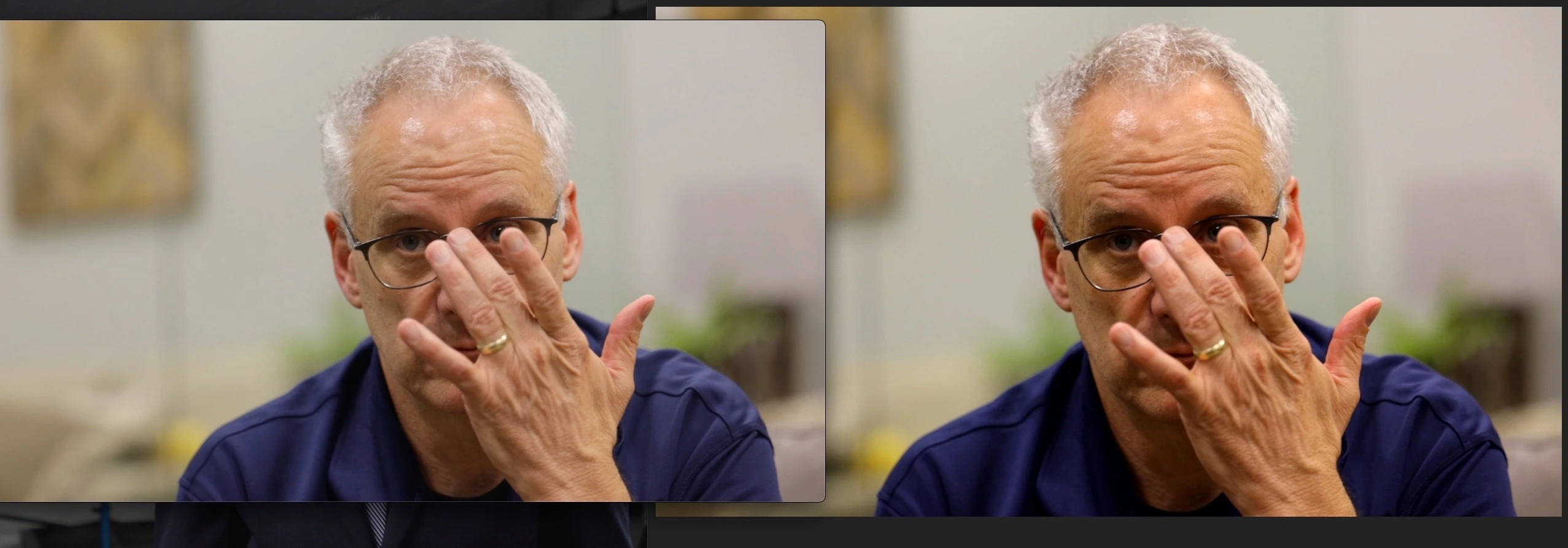
Picture: *Clip on the left is quicktime and the right is the same file sitting in a sequence in premiere.


The Footage:

This seems to happen only with .mp4 footage, but it happened with C200 .mov footage back in 2018. Since testing the last few days, only .mp4 has been the proble.

Footage was captured across several cameras including R6, C200, 1DX MkII, EOS R, and 5D IV

Footage is both 4K and 1080p


The Computer(s):

Issue persists on Mac Pro (3.2 GHz 16-Core Intel Xeon W - AMD Radeon PRO W6800X 32 GB - 32GB 2933 MHz DDR4) and iMac Pro. I also tried it on another friend's Mac Pro and he had the same issue. 

Issue does not persist on Macbook Pro


Weird things to note:

I updated this morning and launched premiere, everything looked fine until the peak files were generated, then the issue presented itself.

The issue was not consistent after update and with new footage. I would scrub through the footage and when I release the cursor the issue would go way for a moment, then return. Almost like the contrast was flashing or being enabled and disabled. 

All software is up to date and I have tried in prior versions of premiere. 

I have taken the same file and opened in on my Macbook and the issue persists. 

I have tried calibrating the display

I have tried different displays


Stuff I don't know about:

I read something that said there’s a bug in Adobe products with a .mp4 video file that has a 0-255 luminance range a 8bit. I feel like some of my footage has been .mov so I don't know if it would hold true and since this issue has been around since 2018 I feel like Adobe should have addressed it by now. 


PLEASE GIVE ME SOMETHING TO TRY. I have no idea where to go from here. I will go down whatever rabbit trail you think might help. 

5 replies

chrisw44157881
Inspiring
September 4, 2021

your suspicions were correct. I checked the metadata in all three.


there's 3 problems in each, wrong color range, wrong ID# and wrong profile level.


uppercase - color range full id (1) avc1 high 4.1
lowercase - color range limited id (2) high 4
rendered - color range limited id (1) l 4.1

conoro29323929
Participating Frequently
September 9, 2021

So what's that mean for us layman? I'm screwed? 

chrisw44157881
Inspiring
September 9, 2021

1. did you try exiftool.org or bbc qtff-parameter-editor? they are used professionally by the BBC.

2. autokroma plumepack aftercodecs integration

3. also, i haven't tested if iwltbap would be able to burn in the lut change. but its worth investigating.

chrisw44157881
Inspiring
September 3, 2021

what's up color management peeps!

have you tried changing your operating system's default color profile to rec. 709? I believe each version of mac has their own flavour of color(which depends on the screen size, no less!)

then turn on color management in premiere.


since compressor changes the 1111 color code metadata, then perhaps the rendering is done differently in hardware encoding as well.


as a final control, render out both ways for 5 seconds and post to google drive for a non-mac user to see if the color flags/metadata has an actual render bug or the os is displaying referred apple wonkyness.


some metadata tools include
exiftool.org and bbc qtff-parameter-editor

conoro29323929
Participating Frequently
September 3, 2021

I think you are on the right track here, but I have been having trouble finding the place to change the color profile for the OS specifically. Everything in ColorSync is for devices connected to the computer. And when I try and google a way to do it, all the articles are talking about how to change your monitor's color profile, not the operating system's. 

Inspiring
September 3, 2021

Conoro, I had mentioned your color profile might not be setup 100% correct prior to Chris. That is why I wanted you to use a second computer rmonitor on all there devices. Does Premiere Pro's full screen output to the second computer monitor look the same on all three devices? I am not concerned about the export at this point in time. Having said that does the full screen output from FCPX and Resolve look the same on all three devices using the second computer monitor? Those tests should give us a lot of info.

Inspiring
September 2, 2021

Premiere Pro's colors are dead on for the Canon Vixia cameras and Sony A 7 III as seen in the video below. Having said that I am not sure Adobe Premiere Pro has a color shifting/contrast bug as you claim. It might for some video codecs but keep in mind no camera was created to be played back on an iMac using Quicktime. That being said no camera was created to be played back on a Dell laptop using OBS. OBS, Quicktime and Window Media player will all handle video a tad bit different. The Canon T3i and Sony A7 III have HDMI ports to be played back on broadcast complaint hardware (your TV) not an iPad. What does the video look like if you connect your camera to the TV using the HDMI port? You can use an adjument layer for exporting to different playback devices. Even Resolve needs to be tweaked at export. 

The two videos below might be helpful. One is for editing the other is for exporting. 


conoro29323929
Participating Frequently
September 2, 2021

Andy

i have a decent understanding of monitor calibration and viewing in different programs like VLC and I have seen the color management option in other threads and forums. Where I get stuck is that if I was to take a clip, open it in premiere on my Mac Pro (or my friend's or an iMac Pro that I used to have), and export it, there would be a contrast and saturation difference no matter what program you watch it in. If you do that same process with a MacBook, no issue. 


I even exported the footage from my Mac Pro, opened it on my MacBook and looked at the Lumetri color scopes and you can see that the information is different. 
however, if you run the original footage through apple compressor software and bring it into premiere (doesn't matter what machine), the scopes are the same and everything looks the same. 
You can use whatever display you want or use no display at all with Remote Desktop (I tried that too), the issue persists if an Apple Desktop is the one reading the file. Weirder yet is that after an update, the problem went away UNTIL premiere generated a peak file. 

Inspiring
September 2, 2021

You are getting different looks depending on the device and software being used but which one looks correct? As I stated what does the video from that camera look like when connected to a TV? You have to find out which porgram and device combination matches what the camera looks like out of the camera before you can get acurate color correction done. Dell latops, iPads, ASUS monitors and cellphones all have different color spectrums. Not one video camera is designed to be played back on a cellphone.  What you see on your iMac when exported will look different than what I see on my Dell Laptop. Does that make sense? 

Having said that a Dell Laptop with an Intel CPU and integrated  GPU might export things different than an AMD X5900 with at GTX 3080 because the hardware is different. Having said that there should be no difference between hardware rendering and software rendering when using Premiere Pro but there is. I admit that is a bug.  Adobe needs to scrap the Mercury Playback Engine ASAP and implement the Saturn Six system ASAP. The Mercury Playback Engine has seen better days. 

Keep in mind the color profile setting of your OS may not be setup 100% correct or certain programs  you use may not be setup 100% correct. Premeire Pro, Avid and Resolve must be setup 100% correct. 

R Neil Haugen
Legend
September 2, 2021

Sadly, working video on a Mac has some built-in issues.


There is a standard for virtually all non-HDR video called Rec.709. This standard sets a number of conditions for both the math behind the media encoding and the proper display of that media.


Apple chose not to apply the proper Rec.709 standards for some reason when they went to the Retina monitors by the settings chosen for the ColorSync color management utility native to those Macs with Retinas.


The Rec.709 standards require two mathematical transforms of the image/pixel data from the camera. The first is the scene-referred transform, the second (added as Bt.1886) is the display-referred transform. And a gamma of 2.4 for most evaluation is specified, with an alternate of 2.2 for "bright-room viewing" allowed.


Apple for some reason chose not to apply the Bt.1886 display transform and gamma of the Rec.709 standards.


Instead, they apply what they call "sRGB gamma" of around 1.96 or 1.95, depending on who's measuring it. So the way the Macs with Retinas and ColorSync display Rec.709 video in all applications that allow ColorSync to control color management is improper to begin with.


I work daily with some major colorists. I'm a contributing author on a subscription site for pro colorists to up their game. Most of them work on Macs and use Resolve. And none of them "trusts" their Macs to get CM correct. They would never evaluate an image on a 'basic' Mac screen.


Now ... that's for professional work. I don't know what you do. If you don't need to meet pro broadcast standards, and only worry about what the image looks like on a Mac, that's one thing. If you need proper images that will look good on "proper" color managed systems, that's a whole different kettle of fish.


Premiere Pro is built for bog-standard Rec.709 work, with the assumption CM has been properly handled by the user setting up the physical system. The Program and Reference and Transmit Out "internal" monitors are assumed to be displayed on full Rec.709 calibrated monitors.


On a Mac/Retina system, to get it to work properly with the media is typically using the Preferences option for "display color management" ... which tells PrPro to look at the ICC profile of the monitor and adjust/remap the pixel values displayed to (within the current physical monitor) display the image as close as possible to Rec.709 standards as it can.


But outside PrPro on that Mac, ColorSync will change the image due to the difference in color management settings. It won't appear the same because of that difference. QuickTime player, Chrome and Safari browsers, and most other players will allow QuickTime to contol CM.


My understanding is that on some Macs, VLC player and Firefox browser do not allow Colorsync to control the image. So their image display tends to be closer to what you would see within PrPro than the others.


It also means that those two tend to give a better idea to what non-Mac systems will do with the image. Because there is the same differnce between Mac/Non-Mac as there is within your computer between Quicktime and probably VLC.


You can either make it look like it looks like on your Mac for Macs. You can make it look like you want it across non-Macs and all fully Rec.709 compliant systems. You can't do both, and that sucks.


I will note: what you're seeing of other pro produced media on that Mac has been touched by Colorsync exactly as what it's doing to your media. It didn't look like (originally) what you're seeing.


Now, oddly enough, some of the newer iPads ... if you turn off the auto-image stuff and adjust brightness/saturation correctly ... are some of the best playing devices for checking proper Rec.709 color made. Some colorists I know have stacks of them, setup correctly, that they loan to clients and require all change-requests and approvals for the job come from viewing on those specified iPads.


Neil

Everyone's mileage always varies ...
conoro29323929
Participating Frequently
September 2, 2021

Neil,


If I understand what you are saying, the fault may lie in the display and for this I can firmly say that is not the issue as I have used the Retina display with the Mac Pro, attached an LG, and sent the footage to a friend with his own Mac Pro setup. All garnished the same result. 

my questions why is it that going through compressor fixes it? Why is is that this issue is not present on my MacBook Pro, only desktop machines.

R Neil Haugen
Legend
September 2, 2021

I don't know what that MacBook Pro does for CM. Older Mac gear, without Retina monitors, didn't have this version of Colorsync. That as noted changed with the Retina monitors.


And I'm not saying the monitor is the problem, it's likely the Mac ColorSync utility that is the problem for most color issues on a Mac. Retinas are in nearly every respect beautiful monitors. It ain't the monitor's fault if what's sent to it isn't correct.


I have no clue why going through Compressor 'fixes' the issue. Wish I did. @Kevin-Monahan , you're a Mac user. Any ideas there?


Neil

Everyone's mileage always varies ...
Matt Young14394008
Legend
September 2, 2021

Comparing Quicktime output to Premiere output on the same monitor might not be as revealing as it seems.  Read through this thread and see if you find anything that helps:

https://community.adobe.com/t5/premiere-pro-discussions/color-saturation-not-correct-on-premiere-pro/td-p/10281745