
Krispy38
Participant
June 22, 2017
Question

Premiere MultiCam (Missing Angle)

  • June 22, 2017
  • 13 replies
  • 9263 views

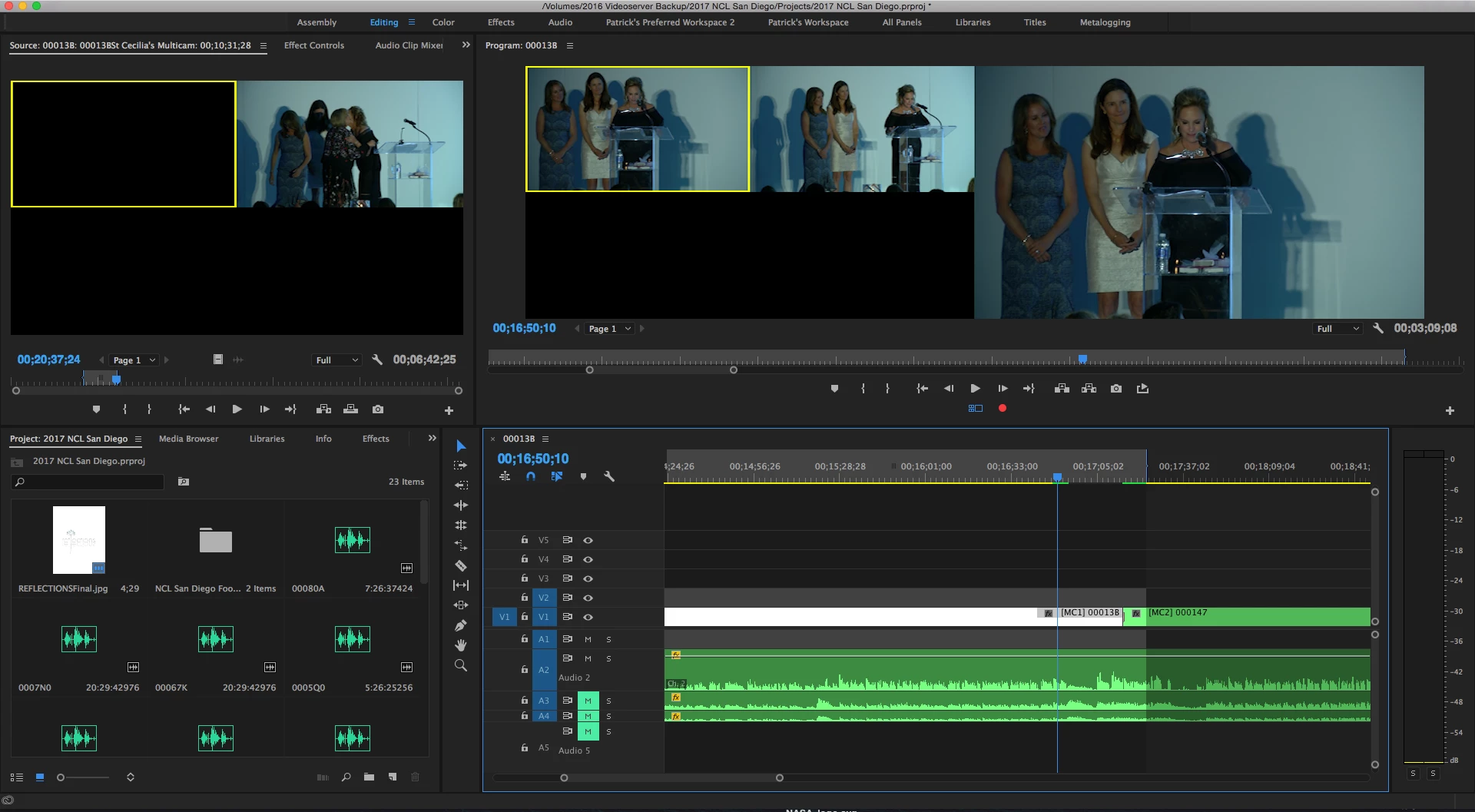
So essentially, we've been working on this 2 hour recording for a while now. We made a multicam sequence out of two cameras. For the past 6 exports, the video exported fine, everything was showing up. Well, the client wanted some more changes. GOing to work on it today, I find that one of the cameras in the multi cam shows up for the first 15 or so minutes in the sequence and then it just cuts out, showing up as black. Whenever it cuts back to that particular camera on the timeline, the frame on screen is just black until it cuts back to the other camera, showing up. I don't know what exactly changed or happened since the last time this file was worked on but wondered if anyone has encountered something like this.

EDIT: Looking deeper into the project, I noticed something odd. The timeline is broken up into two multicam sequences, since we had to stop recording half way through the show and continued recording. I noticed that the same thing happened in this sequence as well. Camera 1 shows up fine on the timeline for 16 minutes, then just cuts out. It's Camera 1 on both sequences. When I go into my bin with the videos, I see the raw clips and can see the video right there. Maybe premiere is having a hard time with the sequence, maybe my work machine can't handle the load, or something.

Possible solution: Would I be able to re-link or just substitute the camera angle with a duplicate of itself so it fixes the problem? Would it still keep the cuts I already made on my timeline?
This topic has been closed for replies.

13 replies

Participating Frequently
July 22, 2017

Just experienced the same thing on export via Media Encoder of part of a multicam sequence. Track 2 was visible in Program Monitor, but disappeared on export. Closing and re-opening Premiere fixed the problem.

Using 2017.1.2.

Participant
April 13, 2021

This also fixed my issue.

Participant
June 23, 2017

I have had this same issue on 3 separate projects now.  I found a simple, usable work-around but no solution so far. 


I've been working on a project with a total edit time of about 3 minutes 30 seconds, consisting of 3-5,  2-camera interviews, b-roll shot using the same cameras as the interviews, and some After Effects linked compositions as lower thirds.  I edit the video as usual with no problems for any indefinite amount of time (the first project was something we had been working on for over 2 months, this time it happened within 3 days of starting the edit).  Then, at some point within a day or two after I move from the edit tab to the color tab to do color on the Multicam interview clips, then go back to the edit tab to do tweaks on the main edit, one of the angles from a Multicam clip no longer displays in the edit.  At first, it seems like I forgot to un-mute that angle, and so it translates in the timeline as a black video.  But, if I double click (or match frame) the clip from the timeline, the original video shows up as the selected angle in the source monitor. 

[My very nonprofessional opinion is that somehow the mute button for that track is showing as not ticked, but the angle is translating through to the timeline as muted, since I do color adjustments by muting all but one angle and adjusting levels, and after this step, something goes wrong.]

My workaround is simply to go all the way back into the Multicam clip (right click from project > open in timeline) , move (or copy and paste) the problem angle to another video track, then go back to the edit and change every instance of the initial selected angle to the "new third angle", but this is understandably not ideal.  Doing this, your edit points and timing wouldn't change as long as you line up the new video exactly as the initial one was,  but you do have to go back through your edit and switch the angle at each instance.  Again, not ideal, but better than having to start over or think you lost your footage. 

This is the first and only place I have seen someone else with this issue, so I wanted to post my workaround in hopes that a solution is soon to follow. 

Participant
June 26, 2017

Good to see my problem is acknowledged here in this forum. I thought I was going crazy and that I had made a mistake myself.

In addition to your workaround jon_wise, I just found another very simple one working for me (working in Premiere Pro CC 2017.1.2 Version11). I just placed the same clips as the original ones in the multicam sequence et viola !

Participant
June 26, 2017

UPDATE:  While working on this project in the past, I've tried to fix the problem once I encountered it, and spent hours trying to fix this issue (mostly because the missing video will render out as black during an export, so if I needed to export something that day, the problem needed to be addressed). 

This time around I ignored it for the time being, and on Monday morning when I opened the project, the issue seems to have disappeared. 

Legend
June 22, 2017

Open the multicam Source sequence and check that out.