



AndrewTheGreat
Known Participant
December 5, 2024
Question

Premiere Pro 25.1 - iGPU stopped decoding my footage

  • December 5, 2024
  • 68 replies
  • 52935 views

Ok, just updated to v 25.1 opened my projects in progress to find out that none of them uses my iGPU to decode.

Went on checking it with different formats that are decoded (h264 8-bit 4:2:0, h265 8-bit 4:2:0, h265 10-bit 4:2:0, h265 10-bit 4:2:2) by the iGPU - all of them show 0% load.
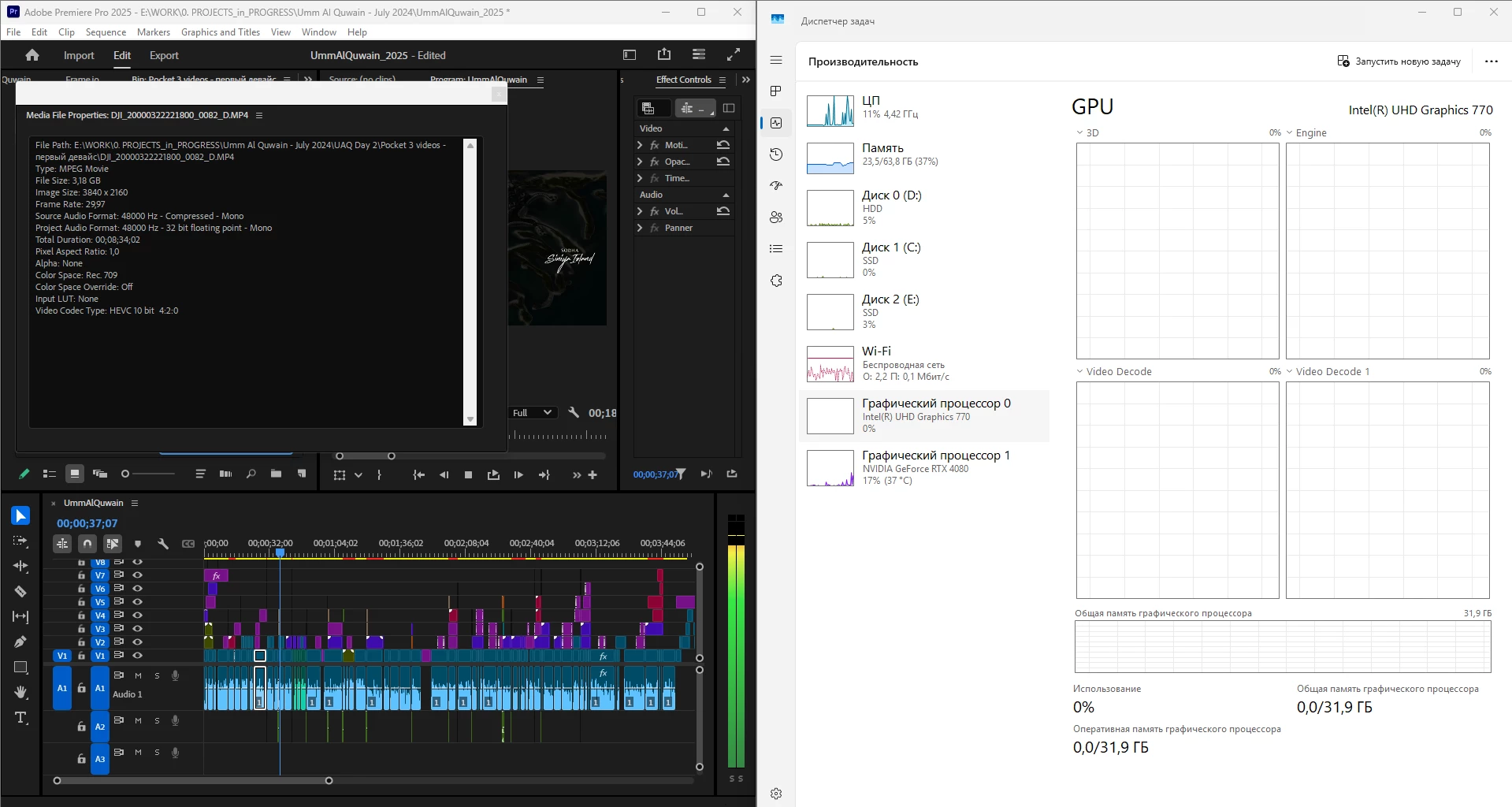
 

What is going on, guys? Why is it "new version - new bugs" thing every time? My CPU immediately started being loaded more, like by 60% all the time, even though my GPU does the decoding, whereas on the previous versions the average CPU load was 20-30% with the iGPU doing all the decoding job.


Yes, I tried reinstalling both Premiere Pro (as well as resetting its cache, preferences and plugins via the start+shift menu) and all the drivers. 


Steps to reproduce? Open a project or create one, import a knowingly decoded video, put it on your timeline, press Play. Watch the the Windows Task manager - Performance graphs.


i7 14700K, RTX 4080, 64 Gb ram, SSDs, Win 11 24h2

68 replies

Legend
December 10, 2024

At any rate, on my PC software decoding is actually faster on H.264 than the Nvidia hardware decoder on my particular RTX 4070 Ti. Strange.

AndrewTheGreat
Known Participant
December 10, 2024

@RjL190365  And how do you measure the decoding speed? Do you have a lag on 4070 while having no lags on CPU only? Or is it by dropped frames? Or did you actually mean the ENcoding when exporting?

Legend
December 10, 2024

That was just running the PugetBench. I will use actual footage later when I perform my re-test.


Although to be exact, my RTX 4070 Ti and all other discrete GPUs will suffer from some lag during decoding while also trying to render because all of the operations must share the exact same PCIe lanes. And all operations in both directions by default utilize all available PCIe lanes.

AndrewTheGreat
Known Participant
December 10, 2024

Hi, @mayjain

Do you want to see an interesting thing related to this issue?

This is what I'm seeing right now - still Win 11 24h2, still no decoding in the Windows graph, Premiere Pro showng in its console that I have no iGPU installed at all and there's only Software decoding going on... 

The most interesting thing here is - just think! - I'm now having my 4080 turned off (unplugged) and my monitor plugged into the motherboard to work with my iGPU.

Yeah...

And this is Assasin's Creed Mirage (2024) running on my "not working iGPU" alone: 


Legend
December 10, 2024

Maybe my particular installation of Windows has been doing something that almost nobody else is experiencing? Maybe the expected behavior with 24H2 and any version of Premiere Pro was to disable the iGPU under all circumstances, and that setting the hardware decoding to Intel enabled and Nvidia/AMD disabled would force software-only decoding?

AndrewTheGreat
Known Participant
December 10, 2024

I thought of that. I upgraded from 23h2 to 24h4 when Windows suggested me doing so and there was nothing particular about this process, everything went fine. But two facts here I'd like to draw everyone's attention to.

First, here's the decoding data in Premiere Pro's console:

It's a HEVC 10 bit 4:2:0  which is decoded but Premiere Pro shows I have no Intel iGPU installed and the decoding is done by the software, not a hardware decoding. One might think there's a problem with my iGPU, it's dead or something. 

But I open Intel's Graphics software and see there that my iGPU not only works, it actually does something when I play back this video in Premiere Pro:

But Windows tells me that my iGPU is silent during this same process - there's something 3D but it's definitelly not the decoding:


SO the only thing I see now since no one has come up with any idea how to fix it by small blood is to reinstall Windows... Though here are two options too - go back to 23h2 and have no ussies though an older Windows version or 24h2 and pray that a second installation will fix this issue... 


JonesVid
Community Expert
Community Expert
December 7, 2024

Thanks @AndrewTheGreat for raising this issue!.

It has come at quite a convenient time for me as I was about to upgrade my other Windows 10 machine. The Media Creation tool would have put Win 11 24H2 on it ! aggh

Also thanks to @RjL190365 here for highlighting it as a Windows 11 24H2 generic issue. I am a bit puzzled though why the problem is not there in Premiere 25.0 but there in 25.1?

I raised a case with Microsoft myself this morning anyway and they told me they are working on this 'known issue'.

Not sure the Microsoft support guy fully understood what I was explaining to him but have also raised it on the feedback hub. Apparently (from a quick scan read on Microsoft website) they have re-worked the Graphics handling on this 24H2 major version release.

At least he did not tell me to change my Motherboard 🙂

For the time being I am blocking any updates to Windows 11 24H2.

It would be useful to get an update on this from the Adobe team @mayjain7130546 please, so if you have any information via Microsoft this would also be useful to see here.

I also rely on NVidia GPU and Intel iGPU being available to optimise performance on a ASUS Z690A motherboard.

Legend
December 6, 2024

My i9-14900K system running Windows 11 24H2 is also experiencing the same problem when running Premiere Pro 25.1. It did not experience this problem with version 25.0.


The workaround for this is to clear the checkbox besides Nvidia (or AMD, if you have a discrete AMD GPU) in the hardware decoding settings within Preferences > Media. Only with the hardware decoder set this way (Intel enabled, Nvidia or AMD disabled) would the iGPU be utilized for decoding.

AndrewTheGreat
Known Participant
December 7, 2024

Hi @RjL190365 

Thanks for your input. Checked it on Premiere Pro 24 - same issue on 24h2.

JonesVid
Community Expert
Community Expert
December 6, 2024

This is what ASUS motherboard guys have to say on the issue


https://www.asus.com/support/faq/1054046/


Not sure what your motherboard is - but it seems that Windows 24H2 disables the iGPU in BIOS?

Weird

Did you check the iGPU setting in BIOS already?. Its under System Agent\Graphics Configuration

AndrewTheGreat
Known Participant
December 7, 2024

Hi, @JonesVid 

Thanks for sharing this. I'm an MSI owner, but I checked this theory and my iGPU was on. So I went further and turned it off and on again and it did not help. Win 24h2 update messes up either the graph readings or the whole iGPU 

AndrewTheGreat
Known Participant
December 6, 2024

And yet another thing to add, @mayjain7130546 

Now why is this all iGPU thing crucial, and why I even brought up this issue. Below are two videos. The first shows Premiere Pro 25.0 in Windows 11 23h2 simultaneously playing back 4 physical copies of an h265 10 bit 422 120 fps footage. You can see that my CPU's iGPU helps immensely to play that back without any visual frame drops. The CPU is only 50% loaded by the way:


And here is the current Premiere Pro 25.1 in the current Windows 11 24h2 with the same exact footage configuration. See the 100% CPU load, a huge lag before the playback starts and the lags during the playback that mean tons of dropped frames:


This is serious, guys...


Community Manager
December 6, 2024

Thanks, @AndrewTheGreat , for taking the time to dive deeper and provide a detailed report!

It seems I mistakenly shared a screenshot where the video decode showed no progress. However, we tested two Windows systems where we observed the iGPU being utilized as expected (with the video decode graphs progressing normally).

I verified that both systems where this issue was tested are running Windows 11 23H2.

To confirm further, do you see the iGPU functioning correctly with Premiere version 25.0(but not with 25.1) even on Windows 11 24H2?

I’ll also investigate this issue on a system with the 24H2 version and discuss it with my team. I’ll keep you updated with any findings.

Thanks,
Mayjain

AndrewTheGreat
Known Participant
December 7, 2024

Hi, @mayjain7130546 

Looks loke it's purely a Win 24h2 issue. I checked it in my 24h2 and this is Premiere Pro 25.1:

And this is Premiere Pro 24.6.4:


So Premiere Pro is actually not the problem, but Windows is. 

Community Manager
December 5, 2024

Hi @AndrewTheGreat,

Sorry to hear about the issue. I just tested this in version 25.1 and found iGPU being used as expected. Could you please confirm if both GPUs are enabled for Hardware Decode in the Media Preferences settings?


Hoping to help,
Mayjain

AndrewTheGreat
Known Participant
December 6, 2024

Hi, @mayjain

Your graph shows 3D load, not the decode one. I don't know what 3D shows, but it's not decoding. Still I have them all at 0%. All of the decoding options are on:


I tried turning OpenCL on only, the 3D graph starts showing in the iGPU tab, but as I said it's not Decode. Should I use the Cuda renderer, the iGPU is always at 0%. I tried installing different versions of Intel iGPU drivers as well as Nvidia Studio drivers - of no avail. I Also downgraded my Premiere Pro to v. 24.6 and there it's all OK.


Also take notice of the following. This is the GPU-Z utility showing NO iGPU load at all during the playback of the video and no Video Engine load of the dGPU during the same playback. So none of the videocards are being used for the decoding, but the dGPU is being used for some other processes, I suppose for accelerating the UI.

Where should I dig to?