Participating Frequently
December 30, 2019
Question

Premiere Pro cc 2020 - H.264 converted to 720p ProRes freeze/crash on Playback

  • December 30, 2019
  • 2 replies
  • 478 views

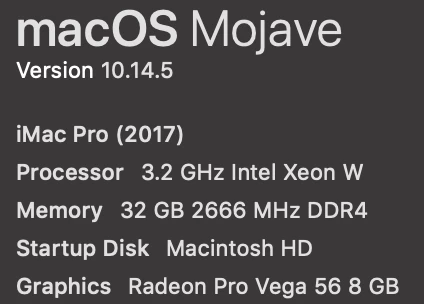
I can't get anything done! Computer specs below


I'm editing a show for YouTube, so I placed all 111 (h.264) clips of the host talking on my timeline and have been trimming. It worked perfectly at first, but then started lagging quite a bit, so I made 720p ProRes proxies. The project will work for a few minutes max before freezing, at which point I have to force quit Premiere 
 

This topic has been closed for replies.

2 replies

Warren Heaton
Community Expert
Community Expert
December 30, 2019

For what it's worth, a H264 Full Resolution / Apple ProRes Proxy workflow is backwards.


Convert all of your H264 footage to Apple ProRes422 (LT), then edit in a custom ProRes422 (LT) Sequence.  When exporting, export an edited master to Apple ProRes422 (LT) as well.  With this approach, you'll be taking advantage for Smart Rendering in Premiere Pro (https://helpx.adobe.com/premiere-pro/using/smart-rendering.html).  Then, transcode the edited master as needed for delivery (for YouTube, probalby H264 via Adobe Media Encoder).


1080p ProRes422 (LT) will require about 700MB per minute.  Rounding up to 1GB/minute, you'll need 111GB to store your interview footage.  2160p ProRes (LT) will take more disk space, but not too much.


Your iMac Pro is as good as they come for a ProRes workflow.


Here are the official troubleshooting steps:

https://helpx.adobe.com/x-productkb/global/troubleshoot-system-errors-freezes-mac.html


mgrenadier's suggestion to create a boot drive that's just the OS and Premiere Pro is a good suggestion if the troubleshooting steps don't work.    A USB-C SSD drive works very, very well for creating a startup volume for testing.


-Warren


Legend
December 30, 2019

How much empty space do you have on your startup drive?  Should keep a minimum of 20% free on a boot drive...  And make sure you do not have ANY other programs running at the same time.  Some programs may set up to run automatically when you boot so always a good idea to check this.  

It's hard to diagnose this sort of thing from a distance and it's hard to judge your level of experience on a mac so I'm sorry if the following is well below your skill level.   A few basic troubleshooting steps:  Try disconnecting all external devices and disconnect from the internet.  Try creating a new user with administrative privileges in systempreferences:  users and groups and then sign out and sign in as the new user.   It's also recommended that you reset your preferences and clear your caches within Premiere.     

I recommend keeping a bootable clone of your startup drive and updating it before you do any software installs.  And although I know it's painful, sometimes a clean install of the OS and then installing Premiere and see if that solves the problem.  If it does, gradually reinstall other software until you discover what's causing the problem.