exhaustino
Known Participant
April 8, 2018
Answered

Premiere Pro CC 4K editing previews lag/skip

  • April 8, 2018
  • 1 reply
  • 1629 views

2017 15" MacBook Pro 14,3 macOS 10.13.4; 16 GB RAM, 1TB SSD

Adobe Premiere Pro CC Version 12.1.0

4K Video from DJI Phantom 4 Pro+ (H.264, @2926_2.97)

Previewing at any quality (1/8 through full quality) while editing results in skipping, stuttering footage that after a minute or so will start freezing for 10+ seconds at a time. I bought this laptop specifically because my old MBP couldn't handle 4K at all. With the 2017 MBP's performance though it is just as difficult to edit as on my 2012 MBP. Is this laptop a poor choice for editing 4K in Premiere Pro or do I need to change settings or transcode or something else that I may not be aware of?
This topic has been closed for replies.
Correct answer R Neil Haugen

Drone & DSLR media is recorded in-cam into long-GOP formats that are fast and small to write with a specially designed chip in the camera ... and a right bear for the computer for playback. You don't have but a complete frame every 15-30 frames, which are called I-frames ... in between are simple data-sets of the pixels that have changed since the last I-frame, will change before the next I-frame, or ... both!

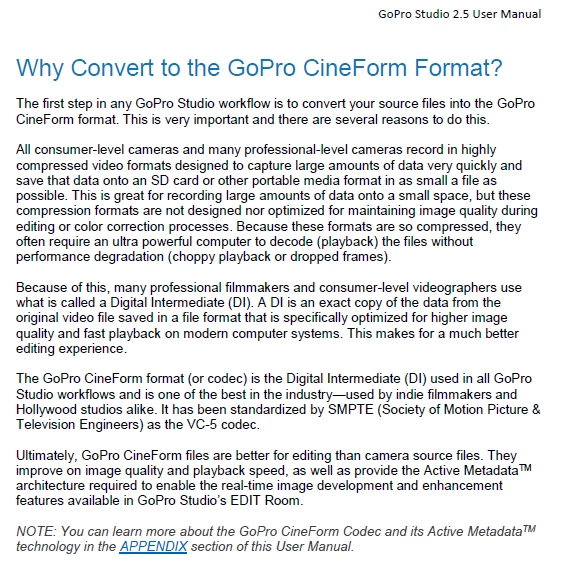
Some drone media even uses partial I-frames, so the distance between real complete image frames may be as much as 100 frames apart. To re-create all those frames of video from a few complete ones and then calculating the other frames is what's so hard to do. The GoPro Studio software manual included the following info ...

For that media source and computer, I'd recommend using the Ingestion process through the Media Browser in PrPro, with it set to create the smaller Cineform proxy files. Don't worry about the small frame-size, it works just fine. Then pull the icon onto your program monitor control bar to toggle proxies on/off. Turn them on (blue icon) for playback, off (gray icon) to check quality.

For media already in a project, in the bin, select/right-click Proxies/Create Proxies.

Neil

1 reply

R Neil Haugen
R Neil HaugenCorrect answer
Legend
April 8, 2018

Drone & DSLR media is recorded in-cam into long-GOP formats that are fast and small to write with a specially designed chip in the camera ... and a right bear for the computer for playback. You don't have but a complete frame every 15-30 frames, which are called I-frames ... in between are simple data-sets of the pixels that have changed since the last I-frame, will change before the next I-frame, or ... both!

Some drone media even uses partial I-frames, so the distance between real complete image frames may be as much as 100 frames apart. To re-create all those frames of video from a few complete ones and then calculating the other frames is what's so hard to do. The GoPro Studio software manual included the following info ...

For that media source and computer, I'd recommend using the Ingestion process through the Media Browser in PrPro, with it set to create the smaller Cineform proxy files. Don't worry about the small frame-size, it works just fine. Then pull the icon onto your program monitor control bar to toggle proxies on/off. Turn them on (blue icon) for playback, off (gray icon) to check quality.

For media already in a project, in the bin, select/right-click Proxies/Create Proxies.

Neil

Everyone's mileage always varies ...