
Inspiring
April 25, 2019
Answered

Premiere Pro Color / Gamma Shift still present after re-importing

  • April 25, 2019
  • 5 replies
  • 24776 views

I have recently started having issues with Color / Gamma shifts when exporting from Premiere Pro. I have read multiple threads on the issues people have been experiencing while trying to view exported content on QT / VLC / YouTube / Etc., and fully understand the issues with different settings causing the gamma / color space shifts. For me though, I am seeing the issues even when I import the video back into Premiere. 

I have tried exporting from DNxHD/HR and XDCAM timelines, both exported to DNxHD, H264, XMF output options and still have the issue. It does vary slightly depending on the flavor of the codec..... On the H264 I tried the REC2020 color options as well and get the same issues. The source content ranges from Sony Fs7, SHOGUN Apple ProRes, R3D, and A7riii / A7sii.

Some clips show just the slightest color shifts, ones that truthfully would never be noticed, but then other clips get the larger gamma shift issue and become very apparent. Washed out blacks, and missing a lot of the warmer tones. 

I have been editing TV in Premier since switching over to the platform in 2012 and have never experienced this. I was just exporting TV shows for both national networks, and digital platforms earlier this year (Jan 2019) and everything was fine, no matter what I was exporting to. Everything looked the same once exported as it looked in my timeline in Premiere.

Any insight or suggestions would be greatly appreciated. Thanks!

System Specs:

Windows 10

Premiere Pro (version 13.1.1 build 11) I was also having this issue before this latest update

Nvidia GTX 1080ti GPU

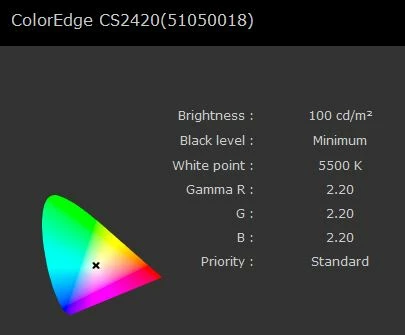
EIZO Color Edge CS2420 monitor

EIZO EX3 puck calibrator
This topic has been closed for replies.
Correct answer NRS-Media

Hi Neil,

This bug is also discussed in this thread:

Major lumetri rendering bug

I tried a test export to H264 with "Render at Maximum Depth" unchecked and it turned out perfect. But the export with that option checked had constricted the range unnecessarily.

5 replies

Participant
May 4, 2019

I ran into a similar problem today and have a solution that worked for me.

Problem: When I was exporting a quicktime or h.264 file (I tried both) from Premiere Pro CC 2019 (PP), the blacks looked washed out on the exported file.

Solution: I'm not sure why this worked, but I'm glad to have stumbled upon it accidentally and I hope that it helps others as well.

Go to your sequence settings for the sequence you are trying to export.

Uncheck/ turn off "Composite in Linear Color" and check the "Maximum Bit Depth" and "Render Quality" boxes.

Set your In and Out points in your sequence to export a short clip. I rendered an Apple Pro Res 4222 File at it's maximum quality.

Import that exported clip.

Right click that clip and make a new sequence.

Copy and paste your footage from the other sequence and paste it in the new sequence.
Export and hope to find your blacks as they should be.

Good luck!


Drew

R Neil Haugen
Legend
May 4, 2019

If you're on a Mac, with a P3 monitor  ... this ain't always obvious or easy.

The unique Apple P3-Display color space uses the wider gamut of P3, which alone can be problematic when dealing with an app like Premiere which is designed totally for use on Rec.709 broadcast standards.

Then the specs for P3-Display list a white point of D6500, unlike the other two professional P3 spaces.

Also unlike the other two P3 spaces, which use a 2.6 gamma, Apple simply says gamma as for sRGB ... which has a transform curve rather than a fixed gamma. Although the published specs for sRGB say that the total effect is roughly close to 2.2, what the Mac OS apps like FCPx, QuickTime player and the Safari and Chrome browsers seem to use is a scene-referred gamma of 1.96.

They don't list a brightness so it seems wiser to assume the intent is probably 100 nits as sRGB, but ... no way of knowing if that is correct. And I imagine the monitors come set up well over 100 nits anyway. Most do.

So internally Pr is hardwired for sRGB/Rec.709/gamma 2.4/100 nits. Working on such a system  ... works as expected.

Try the "enable display color management" option,  which is designed to mate the Pr monitors to a generic P3-Display monitor. This may help your work within Pr to be more correct.

It doesn't of course affect what the system, the monitor, and other apps do with the data.

Engineer Francis Crossman has a couple LUTs that are designed for 1) exports into a P3-Display space, and 2) import from a P3-Display app.

They're on a couple documents posted in this forum by Caroline Sears.

Neil

Everyone's mileage always varies ...
Participant
November 5, 2020

Hi Neil,


sorry fo ropening this thread again. And thanks for all the work you already put into this.

I see a lot of technical answers (which mostly I understand). The thing is that a lot of people are not industry professionals and just want to create a nice looking film to upload to their Vimeo and/or Youtube channels.

And to be honest no-one is adressing this issue in the correct way.

I understand Premiere was made for broadcast professionals and if set up coorectly, connected to an industry standard callibrated monitor will get the desired result when exporting (for broadcast).

The main question however is the following: How can you color correct within Premiere and have the exported film look exactly as you wanted to be shown that way on Vimeo or Youtube regardles of how thi slooks o other people's monitors or phones.

Say I'm color grading a film. I export it (to my mac) using the standard Vimeo settings provided by Premiere.

These settings are built into premiere so one would suppose that Premiere would handle this correctly and do the necessary Gamma correction on export. As you stated Safari, Chrome and Quicktime (and OSX) use 1.96

It would be an easy option to add into Premiere Export (or Media Encoder) where the end-user could check/unckeck a bow where he can specify if his work is intended for broadcast or social media.

That way all professionals working for boradcast can still use it the way they are used to and professionals working with online content also have an option that would show their work as intended.


Thanks for your time and input.

For now, I'm using this LUT provided on the adobe forum. 


Kind regards,

Erik Bulckens

Inspiring
May 1, 2019

It appears turning off "Render at Max Depth" when exporting has solved the issue for me.

However, I did get mixed results on 1 of 4 test exports. With the "Render at Max Depth" selected, it exported fine. Moving to another test area on the timeline though, it only looked identical when un-checking "Render at Max Depth" upon export.

Not sure why I didn't try un-checking that before in all the tests, but thanks NRS-Media for the insights. The other workaround you mentioned with adding an adjustment layer did not work for me, just to provide feedback for that as well.

Neil, I am working to get a source clip to upload so you can test it out.

Thanks again and I will update if something changes.

R Neil Haugen
Legend
May 1, 2019

Would love to test that.

Neil

Everyone's mileage always varies ...
Inspiring
April 29, 2019

Hi TheProductionDistillery,

I have a workaround solution for you, until this bug in Premiere is actually fixed.

In the sequence that you are going to export, add a new video track to the top of the stack. In that top video track, place an adjustment layer and make that adjustment layer cover the entire duration of your sequence. In the effects tab go to Lumetri Presets > Technical and drag the "Legal to Full Range, 12-bit" preset onto the adjustment layer. Now your sequence is going to look wrong to your eye and over range on the lumetri scopes but ignore it. Export your sequence with this adjustment layer enabled, this should cancel out the effect of the export bug.

Once the export is complete, bring the exported file back into Premiere and compare it to your sequence with the newly added adjustment layer track turned off. Your video export should match what you intended in your sequence.

Inspiring
April 29, 2019

Quick Update as I updated Premier Pro to the latest release 13.1.2    

The issue is still there with certain clips being washed out, but the other clips that were experiencing full on color shifts towards the cooler side is no longer present. I exported in various codecs and wrappers, and they all had the same results.  

I have boiled it down to the only clips that seem to be experiencing this are from a Shogun filming in Apple ProRes 422 HQ. Even if I remove Lumetri it still raises the blacks. I also tried taking the raw clip from a timeline that was created by dragging it to the new item tab, and it still exported with raised blacks, with nothing on the clip at all.

Inspiring
April 29, 2019

Hi TheProductionDistillery,

I am having this problem too. What seems to be happening, is that when I export, the colour looks like I have applied the lumetri technical preset "Full to Legal Range". When looking at the lumetri scope on a file that I have exported, the waveform shows that the range from black to white has been constricted as if that preset was applied, even though I had not.

I tried applying the "Legal to Full Range" preset to my original timeline before export, and the waveform shows black being below zero. But after export the output file looks like I expect and when I bring it into Premiere and look the scopes, black and white are where they should be.

I tried exporting the same materials in Premiere Pro 2017 which I still have installed, and everything worked perfectly without having to mess around with lumetri technical presets. This issue is a bug in Premiere Pro 2019 and it breaks the ability to trust in its exports.

A colleague has 13.0.2 still installed (before the spring update), and this bug is not present in that version.

R Neil Haugen
Legend
April 25, 2019

Kind of puzzled by a couple things on the ColorEdge graphic. D5500 especially, as Rec. 709 is by written standards D6500.

And while Rec.709 doesn't have a specified gamma, the vast majority of the colorists I work with are simply always set at 2.4 for broadcast unless they're doing theatrical and then shift to 2 6 for final trims.

Pr is hardwired to be used with D6500, video sRGB, white point 100 nits at gamma 2.4. That's what the Program monitor and Transmit Out monitors assume will be "there".

Neil

Everyone's mileage always varies ...
Inspiring
April 25, 2019

Thanks Neil, I wanted to try and add as much info as possible in case multiple things were crossed up. I will look into adjusting the settings for the current profile calibration.

My main issue though, is even when importing back into Premiere, the content looks different when viewing it in the program monitor, switching between looking at the source clip in the timeline, then the exported file, the color shifts cooler / blacks shift brighter...... this happens on my other two monitors as well as the ColorEdge. I hope that makes sense.

R Neil Haugen
Legend
April 25, 2019

Let's get the viewing situation nailed down first. Pr is expecting a gamma 2.4 monitor, and while the shift between the 2.2 and 2.4 is fairly minor for most things, something with a lot of deep shadow details will show a difference. I'm wondering if your monitor is 2.4 while correcting, if on re-import things will be consistent.

Same with the D6500 setting.

I tend to be someone who wants all "standards" hard-set things nailed down, as only then is a lot of puzzle-thinking trouble-shooting really useful.

Neil

Everyone's mileage always varies ...