sussanridley
Participant
March 13, 2017
Answered

Premiere Pro CS6 Frozen in taskbar

  • March 13, 2017
  • 2 replies
  • 1094 views

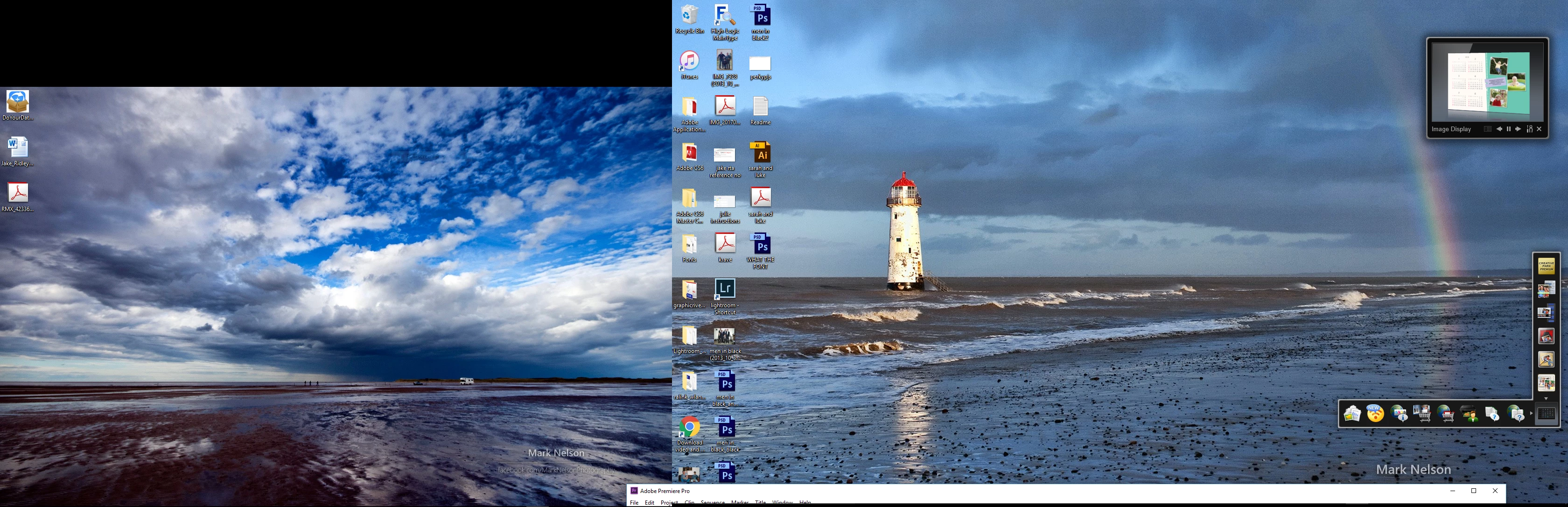
Hi I have premier pro cs6 64 Bit version on Windows 10, I am using 2 screens.

It has just frozen in the taskbar and everything is greyed out, the only way I can close program is to end task. I have tried to move it back up but its stuck and if I move the actual taskbar to the top then

prem pro moves up to the middle of the screen but still is all greyed out.  I have tried everything I know I have uninstalled and reinstalled also.

I will attach a screen shot.
This topic has been closed for replies.
Correct answer kulpreet singh

Hi sussanridley,

That seems to be an issue with the preferences of Premiere Pro.

Please try these steps:

Close all of the Adobe processes from the Task Manager and go to the following locations:

Location 1: C:\Users\<Username>\AppData\Roaming\Adobe

Location 2: C:\Users\<Username>\Documents\Adobe

In all the locations, rename the 'Adobe' folders to 'OldAdobe'

Launch Premiere, accept the License Agreement and see if it works.

Note: You will lose your customized workspaces and keyboard shortcuts.

Thanks,

Kulpreet Singh

2 replies

John T Smith
Community Expert
Community Expert
March 14, 2017

An idea that MAY work to install and/or run old programs in Windows 10... works for some, not for others

-RIGHT click the program icon or EXE and select a compatibility mode in the pop up option window

-or Run as Administrator http://forums.adobe.com/thread/969395 to assign FULL Windows permissions may help... says Encore, but sometimes required for ALL Adobe programs (this is NOT the same as using an Administrator account)

NOTE - Win10 anniversary update version 1607 has caused MAJOR problems with old programs, so the above may not work

-Notice http://www.computerworld.com/article/3157369/windows-pcs/new-windows-10-build-is-a-monster-update.html

sussanridley
Participant
March 15, 2017

Thank you for your reply John, I am back up and running now I used Kulpreet Singh above's instructions, but just wanted to thank you for your post.

kulpreet singh
kulpreet singhCorrect answer
Inspiring
March 14, 2017

Hi sussanridley,

That seems to be an issue with the preferences of Premiere Pro.

Please try these steps:

Close all of the Adobe processes from the Task Manager and go to the following locations:

Location 1: C:\Users\<Username>\AppData\Roaming\Adobe

Location 2: C:\Users\<Username>\Documents\Adobe

In all the locations, rename the 'Adobe' folders to 'OldAdobe'

Launch Premiere, accept the License Agreement and see if it works.

Note: You will lose your customized workspaces and keyboard shortcuts.

Thanks,

Kulpreet Singh

sussanridley
Participant
March 15, 2017

Oh Wonderful its fixed now, I will update in the forum.

Thank you so much.

On Wed, Mar 15, 2017 at 3:12 AM, kulpreet singh <forums_noreply@adobe.com>

kulpreet singh
Inspiring
March 15, 2017

You are welcome, sussanridley!

Thanks for confirming.

-Kulpreet Singh