
Participant
January 7, 2020
Answered

Premiere pro dialog box is too big for my screen

  • January 7, 2020
  • 4 replies
  • 14104 views

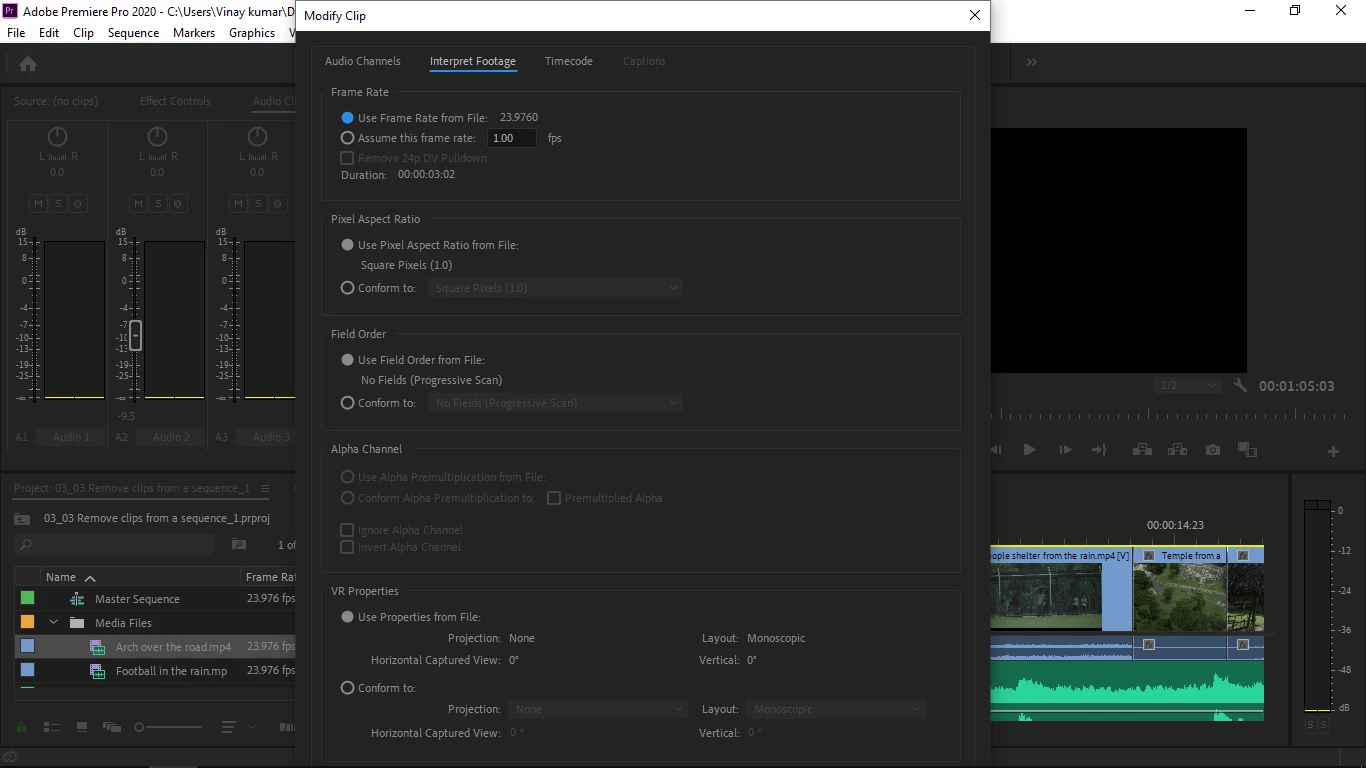
In Premiere pro dialog box is too big for my screen and I'm unable to access the options that are below the dialog box and I can't even move it or resize it, I think it is not a resizable dialog box, though my laptop diplay resolution is 1366 × 768. Now what can I do, how can I access the options that are below the dialog box. Please give your response.
Correct answer Averdahl

The minimum height of the screen resolution is 800 and since you have 768 that is probably what´s causing this issue. You should probably be able to access the options by using the TAB key/Shift+TAB key to move to the buttons, but the problem is that it is impossible to see which button that is selected...


In this case changing the settings and then press Enter should do the trick to close the window.


Premiere Pro system requirements

4 replies

Participant
November 24, 2024

Same issue my display resolution 1920×1080 

Participant
October 4, 2021

Alternative Solution:
Go to Settings> Display Settings on your Laptop/PC and tap on 
change the size of text,apps and other items option change its value to 125%. I have included a screenshot i am on Windows 10. See below...
Everything will now be in your screen you can keep it like that if you don't have an eye problem or change it back to 150%.

Participant
September 6, 2022

This is useful and fixed my issue. Thankyou!

Participant
October 4, 2021

The Solution:
Go to Settings > Display settings > on your PC/Laptop and Change the Orientation to Potrait Mode or Potrait (Flipped) . Do whatever you want to do in potrait (it will be hard because your pc screen will be rotated by 90 degrees i know but you just have to press the button). Now everything in Adobe Premiere Pro will be in Potrait Mode so you will be able to see the full Dialogue Box (even More than that). 
Later come back to display settings when you are done and change the Orientation back to Landscape.

Averdahl
Community Expert
AverdahlCommunity ExpertCorrect answer
Community Expert
January 7, 2020

The minimum height of the screen resolution is 800 and since you have 768 that is probably what´s causing this issue. You should probably be able to access the options by using the TAB key/Shift+TAB key to move to the buttons, but the problem is that it is impossible to see which button that is selected...


In this case changing the settings and then press Enter should do the trick to close the window.


Premiere Pro system requirements

Participant
May 15, 2020

Hello, I'm having the exact same problem with the exact same dialogue box. I also am running a 1366 × 768 resolution like the person above. However when I tried using the TAB key to move between buttons it would not work/go to any buttons that may be below my resolution. I also tried ENTER after I changed the settings however it does not apply my settings. 

I really need help as this is for a school project and I have no other was to fix this issue (ie, using another computer)


(btw I am using a different adobe account to the one that my subscription is on becuase I do not want to give away my schools identity)

Averdahl
Community Expert
Community Expert
May 15, 2020

If it doesn´t work, either get or lend a computer that meets the minimum system requirements. You wrote that you cannot do that, but minimum system requirements cannot be changed either.