



Premiere Pro Guided Workflow: Managing Highly Compressed Source Footage Before Editing
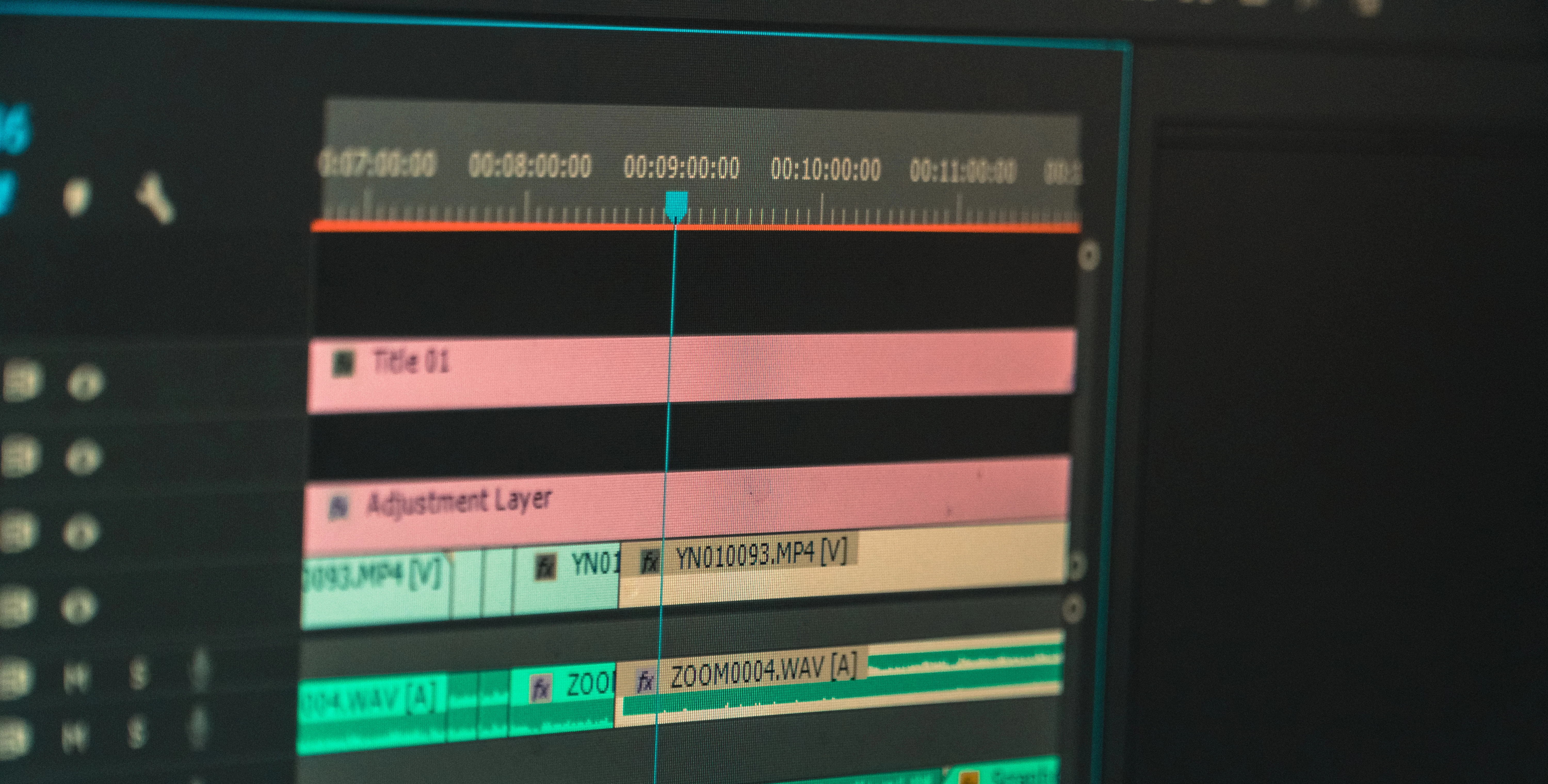 Dealing with highly compressed source footage before editing.
When planning a workflow using H.264 or HEVC footage, you need to get decent playback performance for editing. For that, you'll need to reduce the amount of stress on your supported computer system.
Tip: If your computer is not meeting system requirements, skip to the bottom of the page and read, "Adjusting the footage."
You can try the following steps as first steps in dealing with highly compressed video files:
- Copy the footage to your computer using a separate high speed drive like a SSD or RAID array connected internally or via USB 3.1 or greater prior to importing it.
- Adjust Program Monitor playback resolution settings to 1/2 or less.
- In the Settings menu (AKA the "Wrench" or "Spanner" menu) disable High Quality playback.
Proper hardware can really assist you with highly compressed source footage too. If you would like information on how a GPU can assist the editing and exporting of H.264 and HEVC media assisted by your GPU, see this article.
Adjusting the footage
If your computer is still showing signs of performance lagging during playback, etc., the next suggestion is to either transcode the footage to an intermediate codec, like ProRes LT, or create proxies with something like ProRes Proxy formats.
Ingest, Copy, Transcode, Proxies
By Chinfat
If the footage cannot be imported and cannot transcoded in Premiere Pro or Media Encoder, the free app Handbrake can probably your transcode footage. This is a fairly common problem that needs solving for video coming from screenrecorded material, game play, webcams, and mobile phones. Sorry about that! See the tutorial below for info on how to set up Handbrake.
Tip: If you have only edited with H.264 formats, you might try transcoding some clips to ProRes or Cineform to see if you like the performance you get. For many editors, smooth scrubbing and playback is worth the time and drive space it takes to edit with these other formats.
 AdChoices