gaidheal
Participant
August 21, 2017
Question

Premiere pro imported footage & exported videos look grainy

  • August 21, 2017
  • 2 replies
  • 630 views

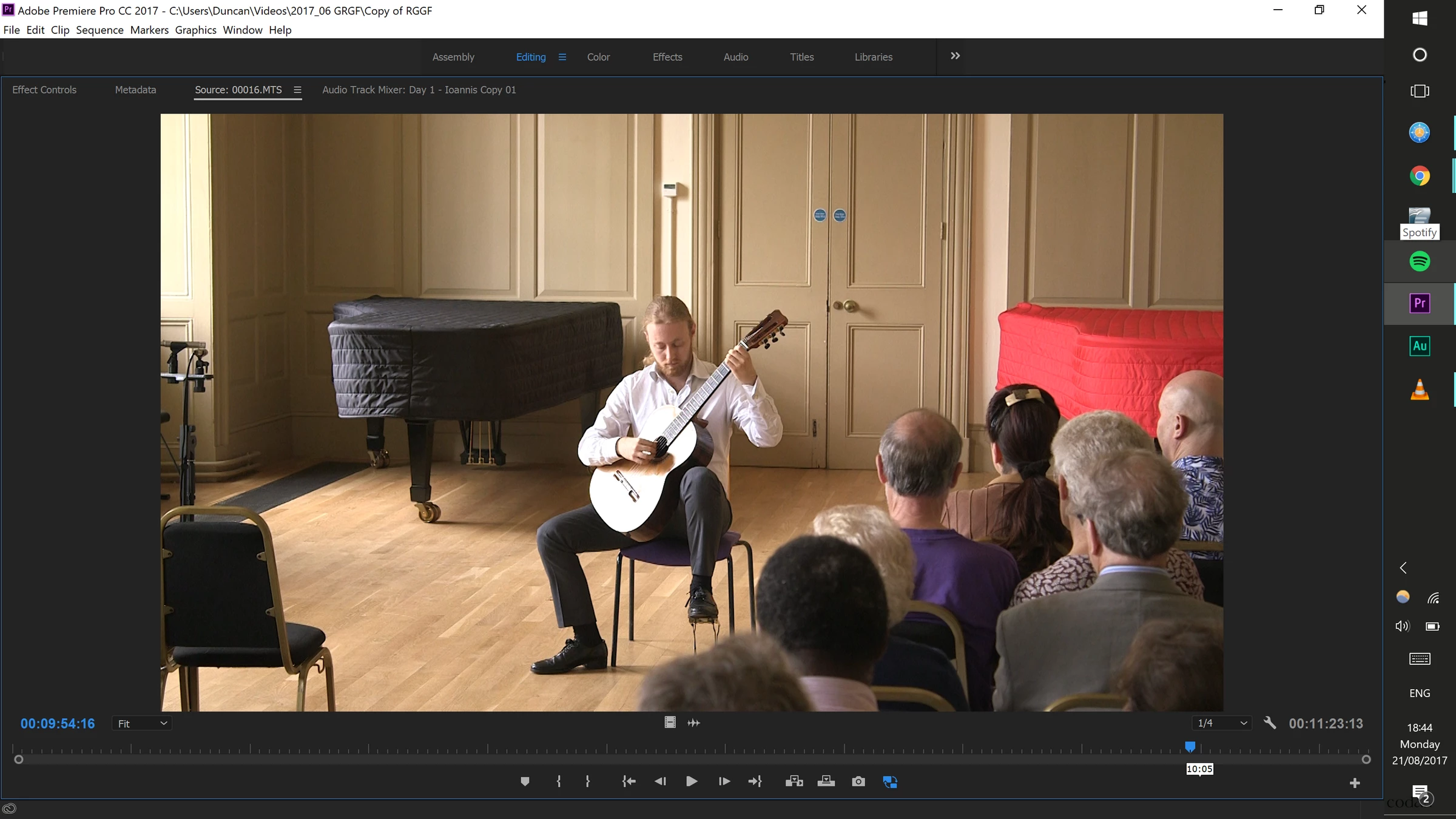
I'm having a problem with Premiere Pro where the imported footage, the edited footage within the sequences, and the exported footage, are all grainier than the raw footage viewed in (for example) VLC, with very obvious anti-aliasing.

My original footage was shot on a Canon C100 with no external recorder, so AVCHD in an MTS wrapper. Halfway through this project I read up in detail about codecs and so transcoded some of the later files to DNxHD and created proxies (with corresponding , but this is the original stuff.

Below are screenshots of the same file viewed in VLC, and then in Premiere Pro. My 'paused' resolution is full. When testing exporting (to h.264) of small clips I have tried using all the maximum quality export settings - 2-pass; Render at maximum depth; and 'use maximum render quality'. I've also increased the bitrate to that of the original footage, changed from the 'YouTube 1080p HD' preset.

I am using 2017.1.2 on Windows 10.0.15063. Hardware - Lenovo Yoga 900 with 8gb ram and Intel HD Graphics 520.

Does anyone have any ideas how to stop this?

This topic has been closed for replies.

2 replies

R Neil Haugen
Legend
August 25, 2017

I've done everything I can here to try & see what your problem is ... and on my twin 1920x1080 screens, comparing the images, there's a size difference and slight color/gamma differences, but past that, I just can't see anything in any of the smooth areas or along edges that is better/worse between them.

Your export settings are just a waste of processor time, btw ... 2-pass as Jim notes, these days mostly gets you a longer coffee break, doesn't normally add anything whatever to the quality of the output. Max depth ... that's only of use if you're doing pretty decent color work or something, and also have 10-bit media or so involved, other than that, it's rarely a help, and does also slow things down. Max render quality ... if you're resizing, maybe, might help. Rarely does.

Now, exporting to H.264 can of course get you some interesting bits to the file, so ... if output quality is so high on your radar, why are you exporting in H.264? If you want to maintain "original" quality, I'd think you'd be exporting into an intraframe codec ... something like Cineform, DNxHD/R, or ProRes at an upper setting ... something designed for visual quality not max compression.

Neil

Everyone's mileage always varies ...
Legend
August 21, 2017

Don't use VLC or even your computer as a reference.  Too many variables that can affect the signal.

Hook the camera up to a calibrated TV and play it there.  Report back.

gaidheal
gaidhealAuthor
Participant
August 22, 2017

Thanks for your recommendation. However, I don't own a TV! I thought there might be something I'm doing wrong with Premiere given the difference between an external file viewer and inside Premiere, which is where my problem is.
Plus, the footage has to get through my computer (and PrPr) at some point, and the guy I'm sending the video to (who is the guitarist in the images) noticed the lower quality.

I suppose I could try editing on my desktop instead, although that means copying everything over onto a hard drive.

Legend
August 22, 2017

You produce videos without a calibrated TV and 5.1 surround sound for quality control?

You should correct that as a first step.