
Shane Jimmink
Participant
September 12, 2019
Answered

Premiere Pro Media Browser does not show Google Drive File Stream Files or Folders

  • September 12, 2019
  • 5 replies
  • 6828 views

In Premiere Pro (at least), any folder that has been stored on Google Drive File Stream (offline or online) does not show up in the media browser. This also happens if you copy a folder from the Drive File Stream to a local hdd/ssd. To show the files, the desktop.ini file needs to be remove. I understand one should use local files, but file stream allows for files to be available (even if slow transfer speed). 


It is more of an annoyance to have to delete the desktop.ini in the local file (not part of Drive File Stream's directory) just to see a media file even when copied to a local disk. 
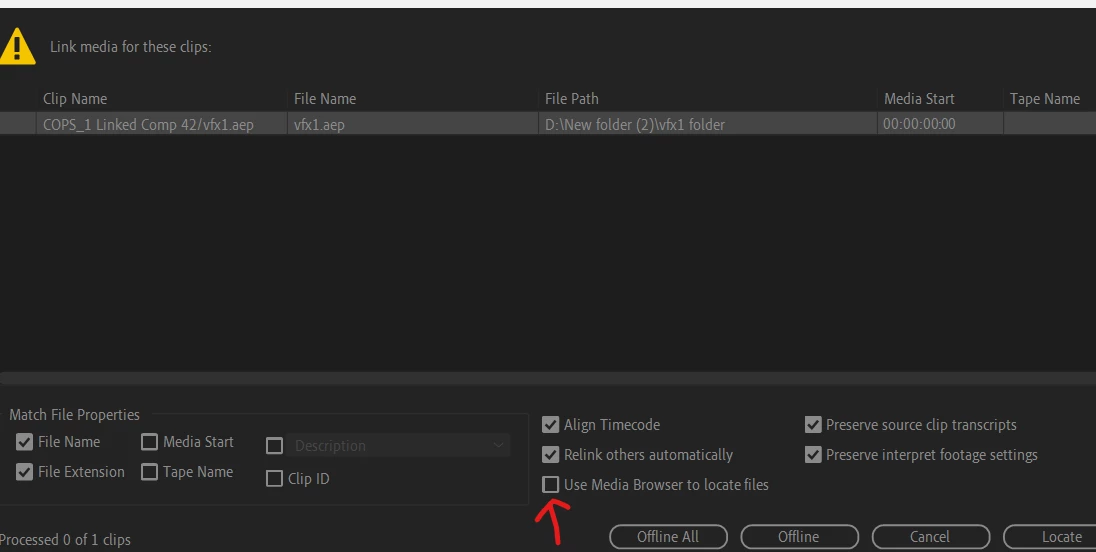
Correct answer jakesb

UNtick use media browser  to Locate files,then it will be  visible 

5 replies

jakesbCorrect answer
Participant
January 23, 2024

UNtick use media browser  to Locate files,then it will be  visible 

Participant
February 3, 2024

Wooo hooo! Thank you! 👏👏👏

Kevin-Monahan
Community Manager
Community Manager
February 5, 2024

Are you on macOS, @kain22684384? If so, you can unlock drives in Privacy & Security Settings in System Settings under Full Disk Access. See if that might work for you. Many people actually do prefer using Finder instead of Media Browser, so if that works for you; all good.


Thanks,
Kevin

Kevin Monahan - Sr. Community and Engagement Strategist – Adobe Pro Video and Audio
Known Participant
October 10, 2022

Which desktop.ini file needs to be removed? Where can I find it?

Kevin-Monahan
Community Manager
Community Manager
October 10, 2022
Kevin Monahan - Sr. Community and Engagement Strategist – Adobe Pro Video and Audio
Kevin-Monahan
Community Manager
Community Manager
July 18, 2022

Sorry about that, douglaslambert. Have you tried other remote file storage apps like DropBox or Creative Cloud? What happens with those services? Let us know.


Thanks,
Kevin

Kevin Monahan - Sr. Community and Engagement Strategist – Adobe Pro Video and Audio
douglaslambert
Participating Frequently
July 17, 2022

I'm trying to do this, but I'm not able to delete the desktop.ini files... Don't know what else to do.

Participant
April 15, 2021

OMG I have been trying to figure this out for YEARS! Deleting the desktop.ini files did the trick!


Pro Tip: If you dealing with a deep folder tree with lots of desktop.ini files to delete, simply go to the root folder and search for desktop.ini. It will show you all of them and you can then delete them all at once! SOLVED!