



Premiere Pro multicam audio waveforms disappear every time the project is reopened and must be regenerated
I’m dealing with a persistent audio waveform problem in a Premiere Pro project using multicam sequences, and I’ve reached the point where I need someone familiar with Premiere’s underlying audio/waveform system to look at what is happening.
The core problem is that the waveforms for these multicam interview clips simply do not reliably exist in the project. Every time I open the project, I end up having to rebuild/regenerate waveforms again. There does not appear to be any troubleshooting step that makes them persist.
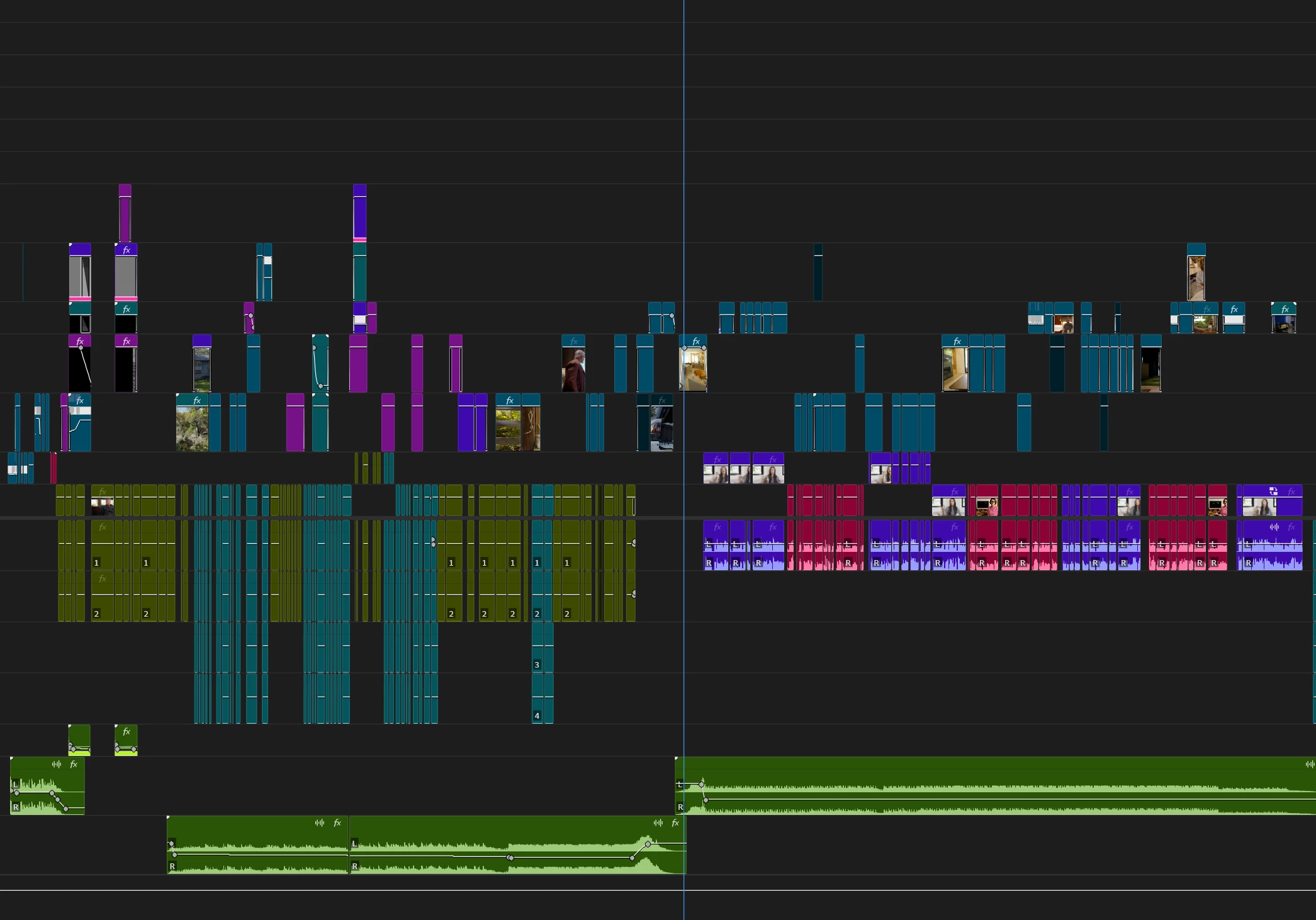
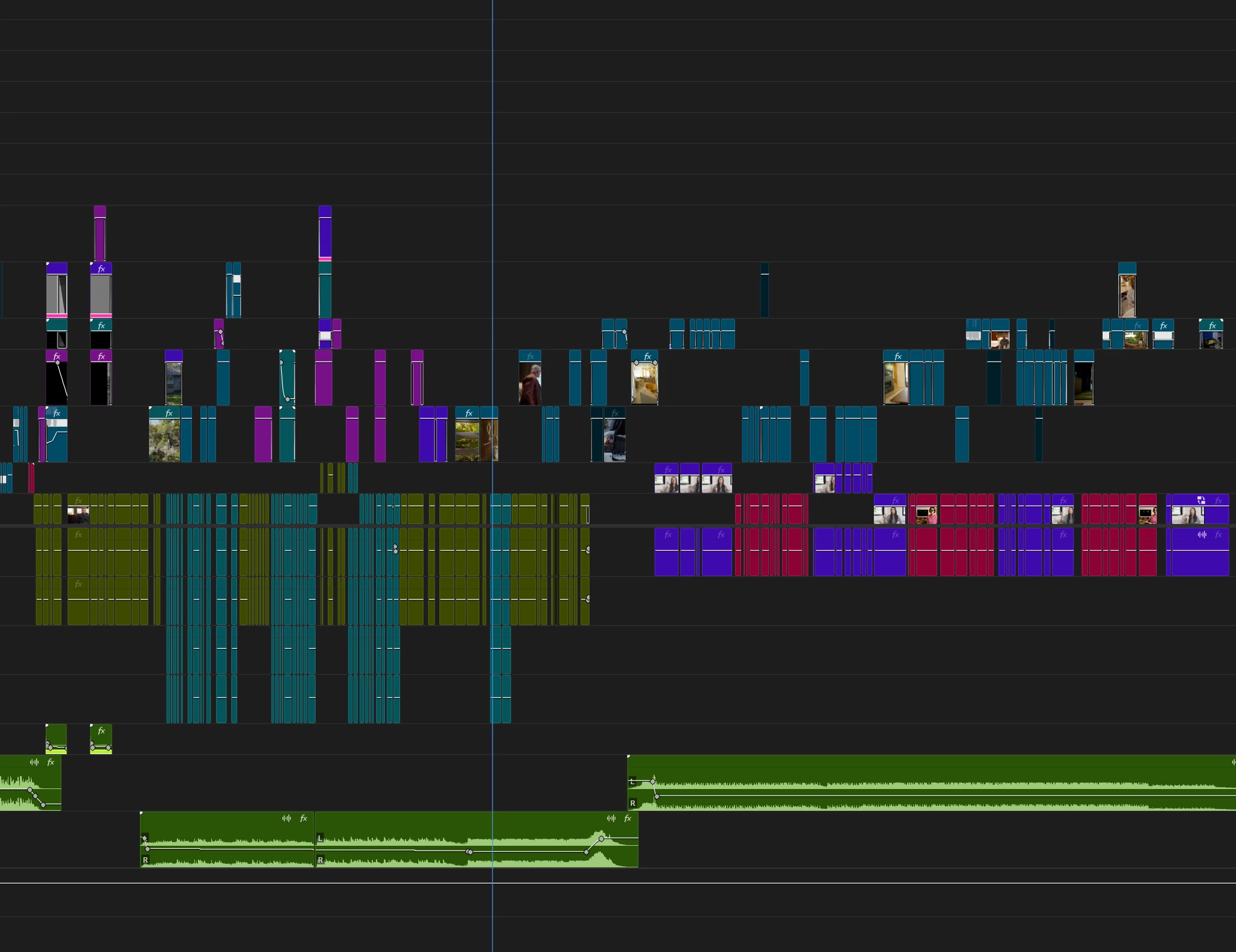
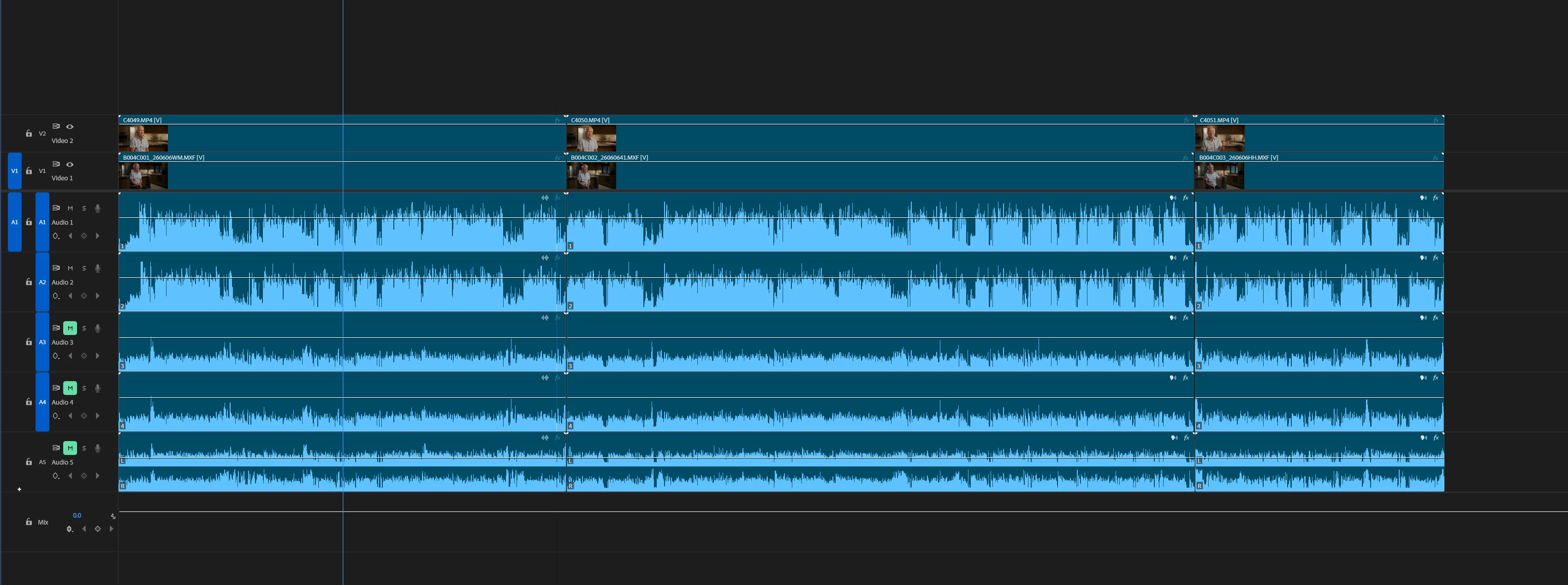
One particularly strange behavior is visible in the attached screenshots: while the project is initially loading, some of the interview waveforms actually appear in the main timeline. Then, after Premiere finishes loading, those same waveforms disappear.
But the disappearing waveforms are only part of the problem. The larger issue is that the multicam waveforms never reliably remain available from session to session, despite repeatedly rebuilding them.
I have already tried:
- Deleting Premiere’s Media Cache
- Closing Premiere and verifying that the cache files were actually removed
- Manually deleting the .PEK peak files
- Allowing Premiere to recreate the peak/conformed audio data
- Using Premiere’s Generate Audio Waveform / rebuild waveform command directly in the timeline
- Reopening the project and allowing Premiere time to finish all background loading/conforming
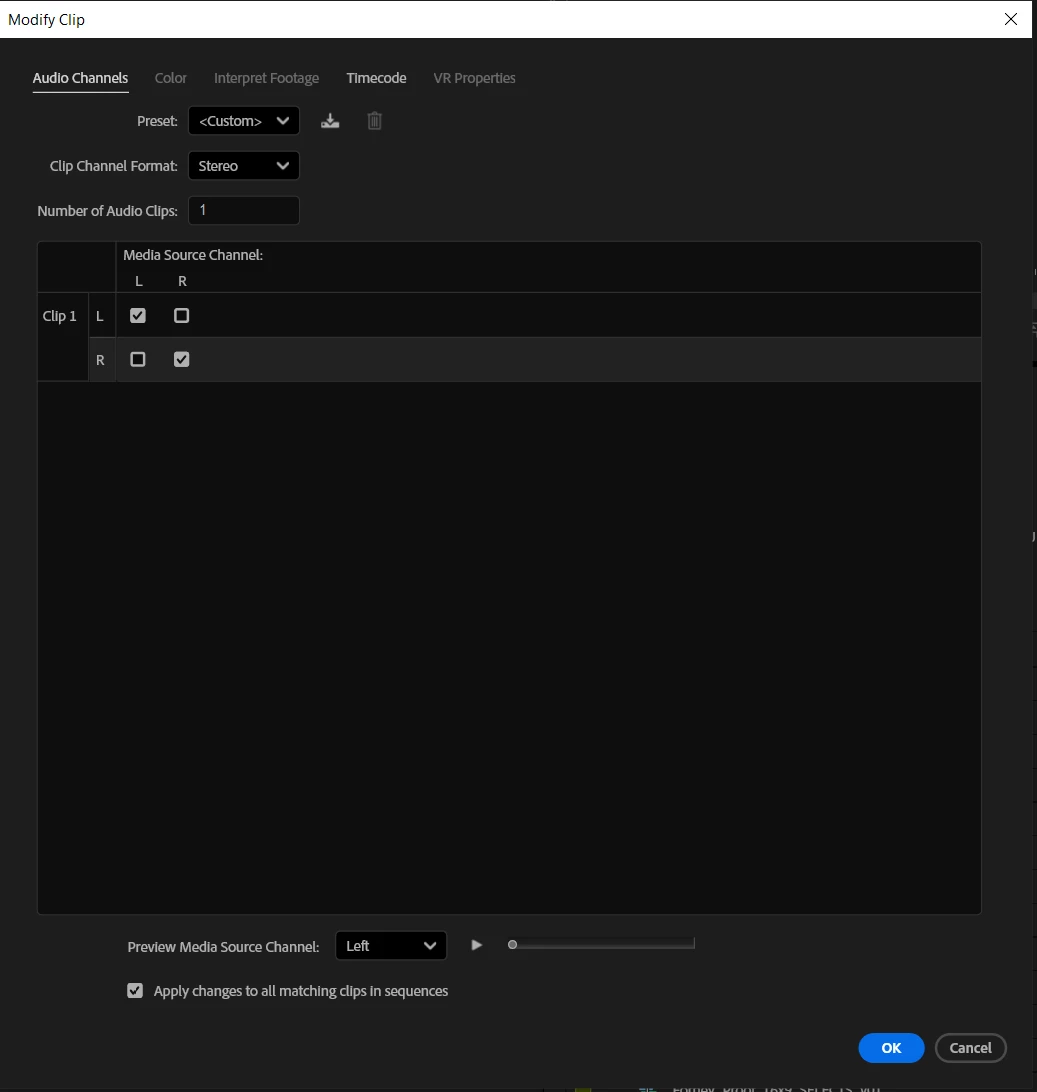
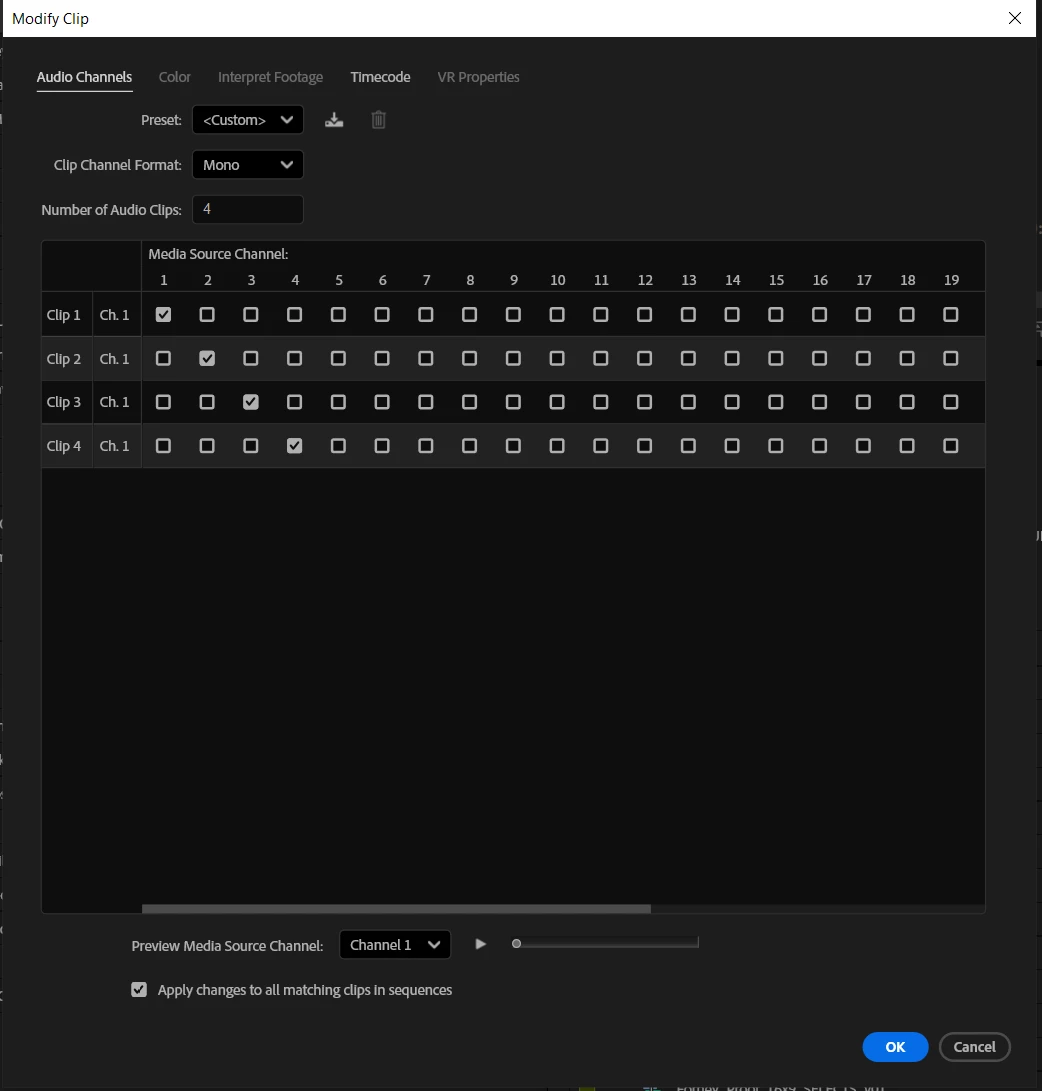
- Checking the audio channel configuration of the main sequence
- Checking the audio channel configuration inside the multicams
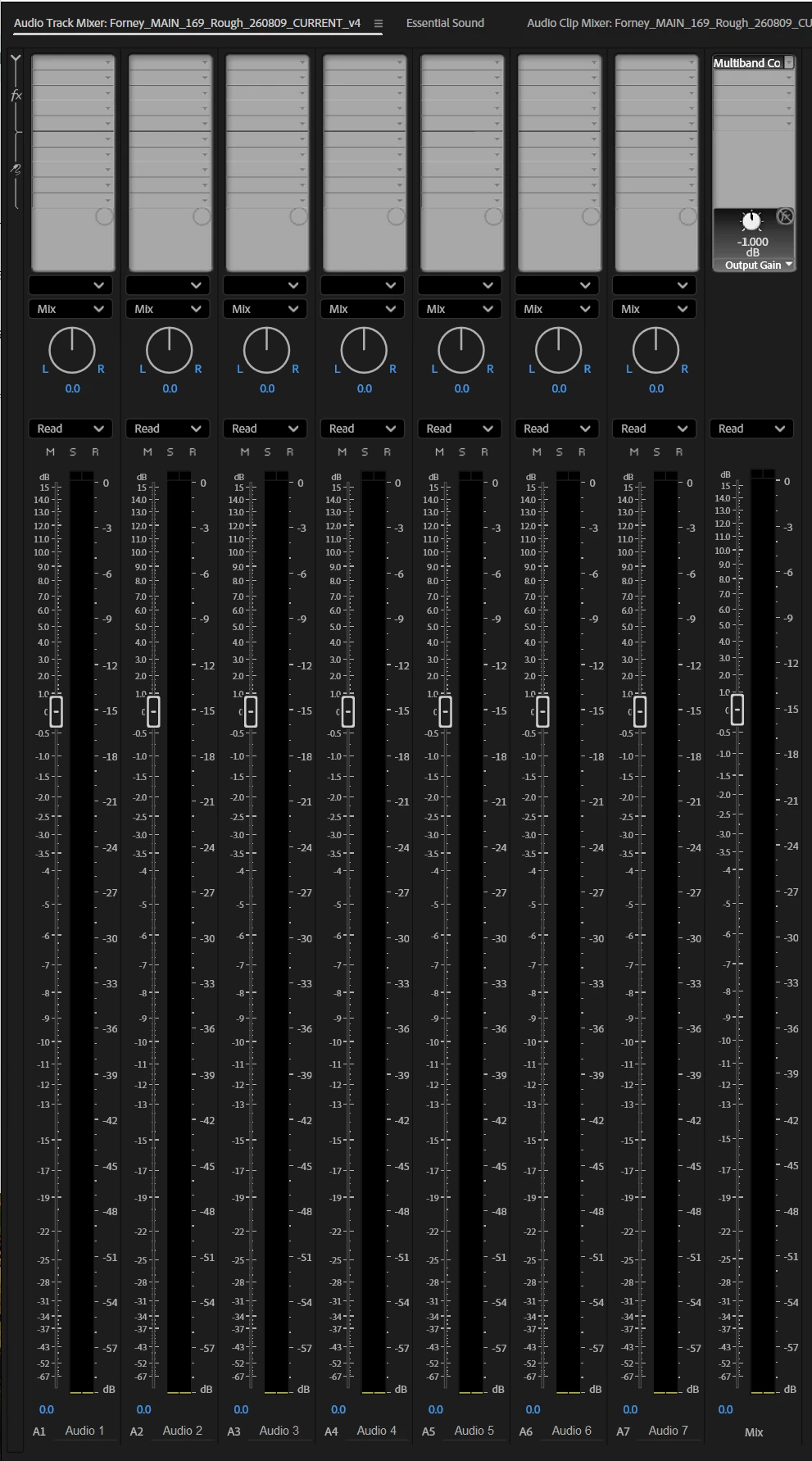
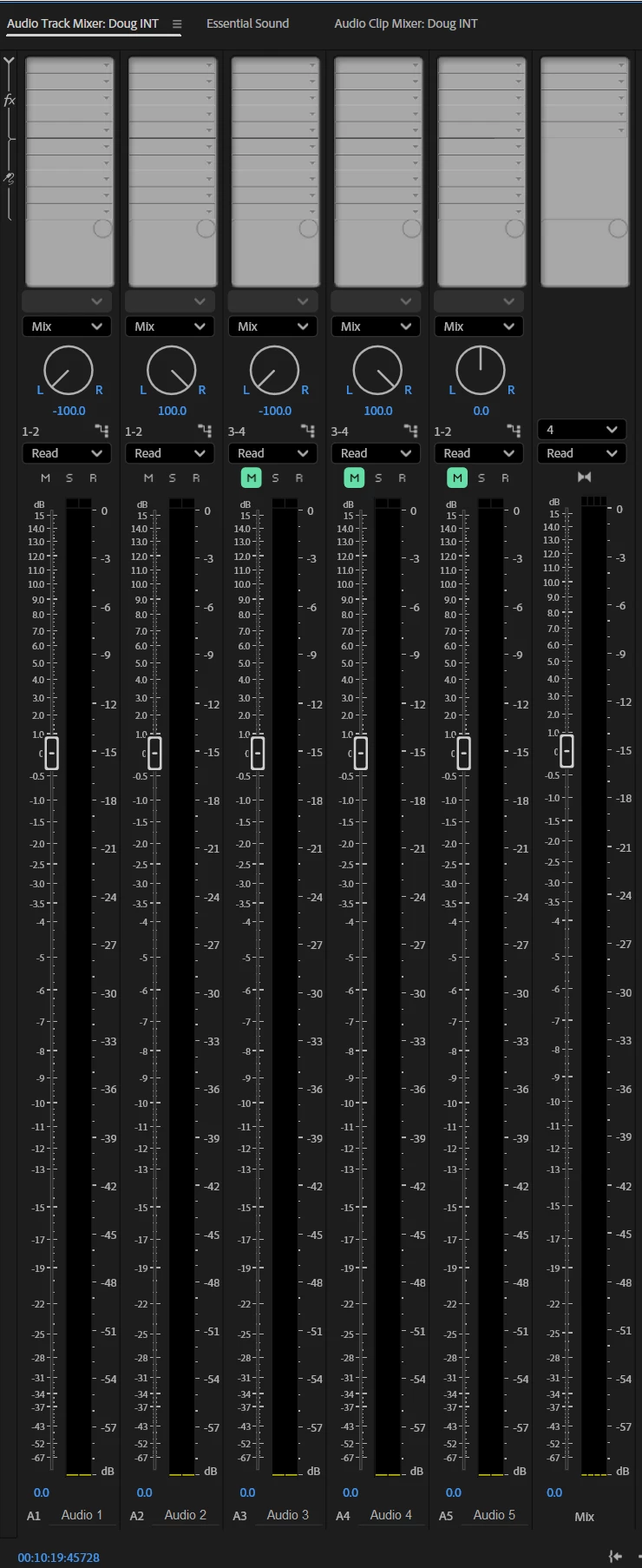
- Checking the Audio Track Mixer configuration and routing in both the main sequence and multicam sequences
The audio itself plays correctly. This is specifically a waveform/peak-file problem.
I’ve attached screenshots showing:
- Main Timeline Project Loading — some interview waveforms are visible while the project is loading
- Main Timeline Waveform Disappearance — those waveforms disappear after the project finishes loading
- Main Timeline Audio Channel Setup
- Main Timeline Audio Track Mixer Setup
- Multicam Timeline Setup
- Audio Channel Setup in Multicam
- Track Mixer Layout in Multicam
At this point, deleting caches, deleting PEK files, rebuilding the waveforms, and regenerating them from the timeline does not solve the problem. I can regenerate them during a session, but I am effectively back at square one when the project is reopened which is not sustainable because it takes like 15 minutes for it to render the waveforms.
I would like to know whether this is a known Premiere Pro bug involving multicam/nested sequence waveform generation, peak files, or audio channel routing, and whether there is an actual fix beyond repeatedly rebuilding the waveforms.
The fact that Premiere sometimes displays the waveforms during project loading and then removes them once loading completes seems especially relevant, because Premiere clearly has access to waveform information at some point during initialization.
I’m happy to provide additional screenshots, logs, or whatever else is necessary for someone at Adobe to reproduce this -- ideally, an Adobe engineer.
 AdChoices