Participant
November 6, 2018
Question

Premiere Pro old projects open with misaligned or greyed out clips

  • November 6, 2018
  • 7 replies
  • 5260 views

Hi there, I am facing a massive problem where every single old project, and I mean EVERY project I have ever worked on has a completely messed up timeline.

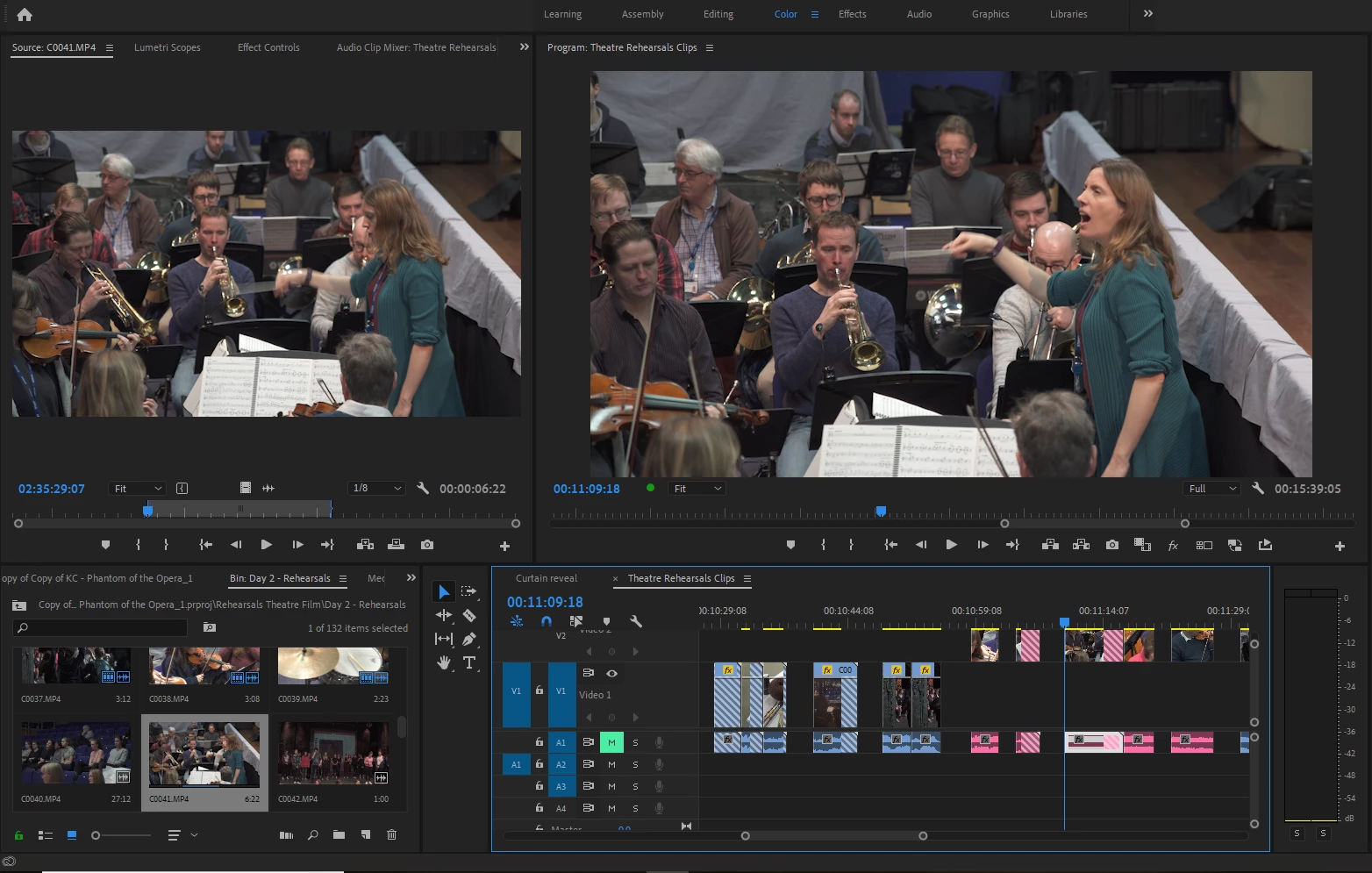
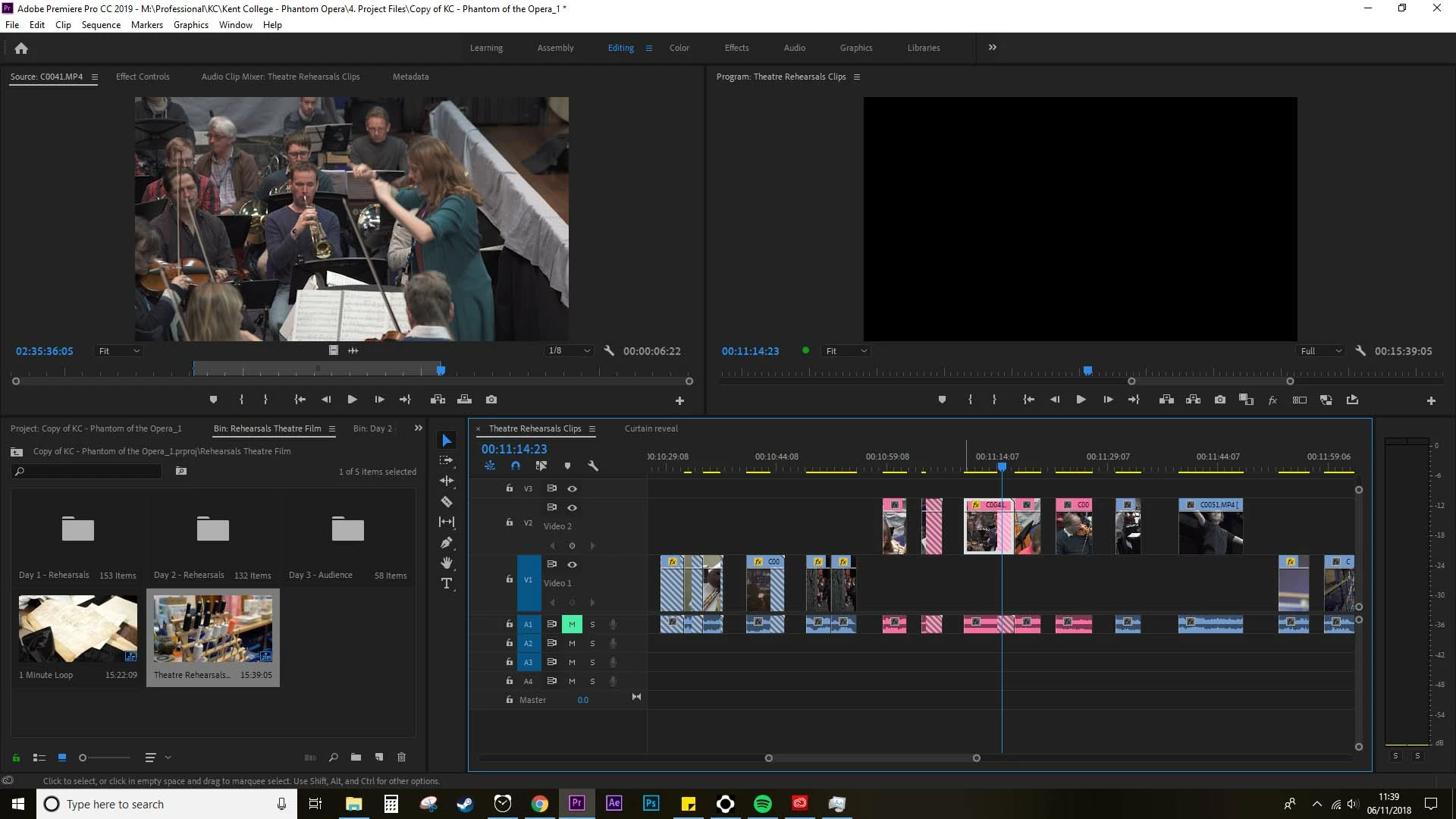
Each clip is either greyed out or showing in the wrong part of that clip (see image attached). It's slightly awkward to explain, and probably why I haven't found a solution yet. But essentially, the clips in the timeline are not in the correct 'in and out' selection of the source clip. So if a clip is selected between 2.30 -2.45 (i.e. a 15 sec clip) then what appears in the timeline is between 2.55-3.10.

Which, as you can image, is a problem when this is happening to every clip in every project I have ever worked on (100+).

To further the problem. Lets say, the clip as mentioned above, is only 3 mins long. So anything beyond 3.00 appears as a grey crosser hashed out and the video plays as black because it is trying to play video that doesn't exist. This has happened for part of clips and entire clips. You'll see in the second image that the beginning of the source clip is different to the timeline clip when they should be the same. I assume this is some kind of timecode error? Not sure how to fix it though.

Off-lining and re-linking the clip hasn't worked (not to mention I just tried this again quickly and Premiere crashed, which is happening a lot recently).

Any help you can give would be so appreciated!!

Thanks,

James
This topic has been closed for replies.

7 replies

Participant
August 2, 2020

Hello together.


I found a solution to a similiar problem. I'm using Windows 10. After cloning my system to a m2 SSD with the magician tool. My speedsramps were messed up, after i updated to a newer version of Premiere Pro. So every drive had a new drive letter that was not the same with the footage were i left it. So my fix was this:

Open your bugged project with the actual premiere pro version and remember the drive letter that is premiere asking for where the footage should be.

Mine was D:. So change the drive letter to D : and restart your computer. Then i opened the project again and it worked. All my speedramps are correct again! That would have been a pain to re-speedramp the whole video. Adobe i hope this helps you and everybody that has the same problem after cloning your system or having trouble with speedramps and linking the footage.


Greetings,

freddY

Ann Bens
Community Expert
Community Expert
January 2, 2020
Ann Bens
Community Expert
Community Expert
January 2, 2020
Participant
December 1, 2018

Hey all,

I had this problem too. The solution for the misaligned clips in to uncheck Align Timecode in the dialogue box that pops up when relinking your media. After that all the media should return to its normal spot in your timeline. As far as the greyed out clips go I still haven't found a good solution to this problem. My work around right now is to have the editor who created the timeline send me the clips that they used exactly from their drive. This seems to work for the time being, but I just tried to open a project file for work and almost half of the clips had this greyed out error so maybe someone has come up with something better or has found a way around it?

Ann Bens
Community Expert
Community Expert
December 1, 2018

I would make the clips off line

Rename the folder the footage is in and relink.

ryoshiina
Participant
November 20, 2018

I am encountering the same issue, and I believe it has something to do with how CC 2019 sees the timecode differently.

I found this post to be very helpful.

Premiere Media Start timecode issue MXF

Because of this, the timeline gets affected by the clips which now have different timecode.

Unfortunately, I haven't found a real solution yet. Hope Adobe comes up with a fix real soon.

Stan Jones
Community Expert
Community Expert
November 6, 2018

While waiting for someone else to respond, what version of PR are you using? How "old" are these projects (what PR version are they from)?

Can you create a new project with new clips, save, close, and reopen and it work okay?

Averdahl
Community Expert
Community Expert
November 6, 2018

You have already tried it, but it all seems to behave like this since the clips are linked to wrong clips.

If you have a camera that creates files with names such as C0001.mp4 a file with the same name, iow C0001.mp4 will be created when you insert a new memory card in the camera. So if you have filmed for three days you end up with three C0001.mp4 in three different folders. This can trick the end user and in the end Premiere Pro. (Been there, done that...)

So, when you unlink the project and relink it it is very important to link C0001.mp4 to the correct C0001.mp4. And since there are three of them it is very critical to link to the correct file. If you don´t, you end up with what you see today.

What you can do is to unlink the whole project and then link up the project by linking up one memory card at a time. I assume that "Day 1 - Rehersals" contain one memory card. Double check on the HDD so you are 100% sure which folder actually contains that specific card.

Sometimes even that is not enough and one is forced to temporary either rename folders or just move them so Premiere Pro don´t find them and auto-relink when selecting the first file. The problem can be solved.

Participant
May 14, 2021

Big help. Thank you!!