


Participating Frequently
October 17, 2017
Answered

Premiere Pro – Photo Time Lapse Issues

  • October 17, 2017
  • 1 reply
  • 6877 views

Hi all,


Today I took my first stab at creating a time-lapse video from still photos in Premiere Pro. I followed a tutorial which had me batch edit the photos (150 shots, to be exact) in Lightroom. I then imported them into Premiere and created a new sequence (0 clip overlap, 1 frame per still), but the video exported extremely choppy:

Does anybody know what happened and how I can correct it?


Thanks,
Chris
This topic has been closed for replies.
Correct answer Meg The Dog

This was just a test for my first time, but ultimately I'd be posting to web (i.e. Instagram, Facebook)


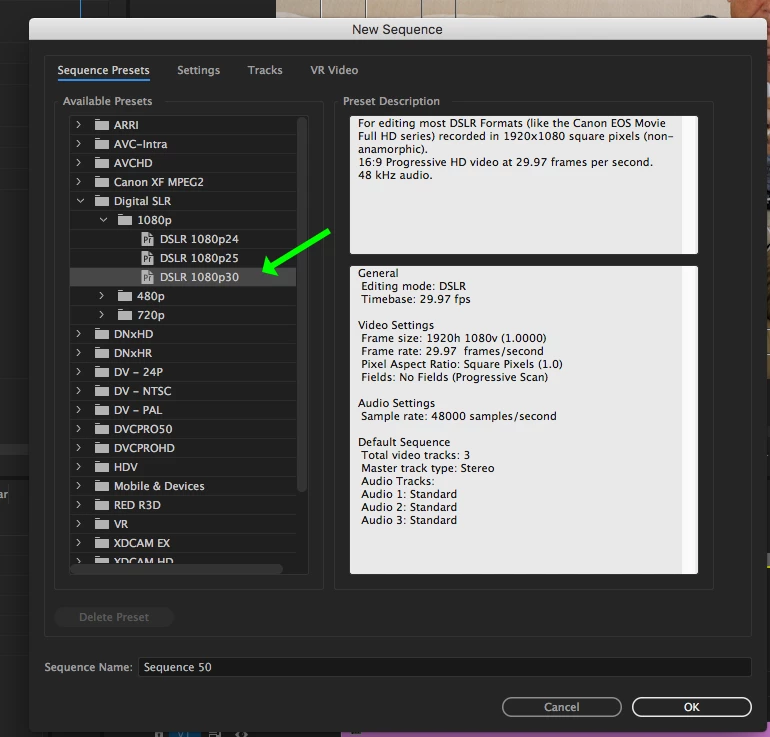
As a test, go to the menu File > Sequence.

When the New Sequence Settings pane opens, choose DSLR 1080p and click OK.

When the new (empty) timeline opens, drag your still images to the timeline. If you are prompted to match the sequence settings to the source properties, say no.

Your images may not fill frame completely - there may be black areas on the sides of the images - don't worry about this now.

Render the timeline. Does it playback smoothly now?

Export the timeline using the Format: H.264 YouTube 1080p Preset.

Does the exported file play smoothly now?

MtD

1 reply

Legend
October 17, 2017

I think to get a proper time lapse, you need to shoot it that way.  Did you?

cmander36Author
Participating Frequently
October 17, 2017

Thanks for the response, Jim. Yes– I used the Time Lapse app that is built into my Sony a7ii. It was set up to take 150 shots at a 3 second interval.

Inspiring
October 17, 2017

Is the problem only in the export, or does it also do that when playing back the sequence?

Can you post a screen shot of your export settings summary, like this example below:

MtD