
Participant
June 2, 2023
Question

Premiere Pro Scaling Issue

  • June 2, 2023
  • 3 replies
  • 430 views

Hi there. I am having an issue where the project I was working on crashed and I ended up having to save it elsewhere as it was the only way I could exit and it would save my work. Upon re-opening the project, it now looks like the below image, totally zoomed in, despite it appearing to be at a normal 100% scale value. It looks like this in the export too.
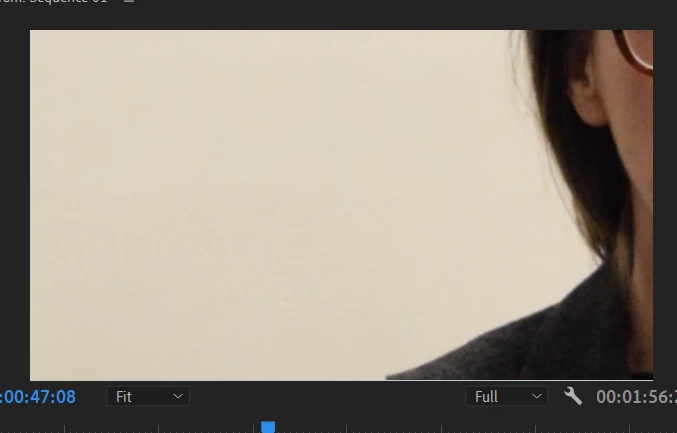
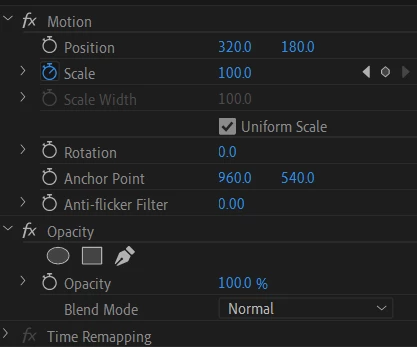
 

The weirdest part is that I ended up opening up older projects to see if they were ok and the same thing had happened in those projects as well! The image is just totally zoomed in. However, those have thankfully since fixed themselves but that is not the case with this project. Please help as I'd hate to have to start over. Any words of advice would be helpful, thanks!

This topic has been closed for replies.

3 replies

Richard van den Boogaard
Community Expert
Community Expert
June 24, 2023

Could it be that this was originally a 4K project and for some reason you're now viewing this inside a 1080p sequence?


Please share your footage and sequence settings.

Peru Bob
Community Expert
Community Expert
June 2, 2023

If that doesn't work, try creating a new project and import the old one into it.

Participant
June 5, 2023

Hi Peru Bob, thanks for your reply. Unfortunately, I have tried this already to no avail 😞 

MyerPj
Community Expert
Community Expert
June 2, 2023

The first thing I would try is deleting the cache, hold down shift as you start PP then select that from the options. If that doesn't work, do the same thing and restore the user preferences to default.


let us know.

Participant
June 5, 2023

Hi MyerPj, thanks for your reply. If I shold down shift as PP is opening, this is the message I end up getting, unfortunately no further options. I clicked OK to this pop-up but the project is still showing up zoomed in. Any other way you know of to access cache settings? Thanks so much.

MyerPj
Community Expert
Community Expert
June 5, 2023

So, you're not on version 23, still using 22? Here's how otherwise to do it:


• Start PP from it's normal desktop icon (IE: don't open from a project file link).
Close the Open/Home screen (and you will be in PP without a project open).
• Go into Edit/Preferences/Media Cache (Mac users adjust menu name)
• Then Press: Remove Media Cache Files: and Delete...
• Select: Delete all media cache files from the system and OK
Close PP - It will create any needed cache files on the fly as you edit.