
Participant
September 12, 2023
Answered

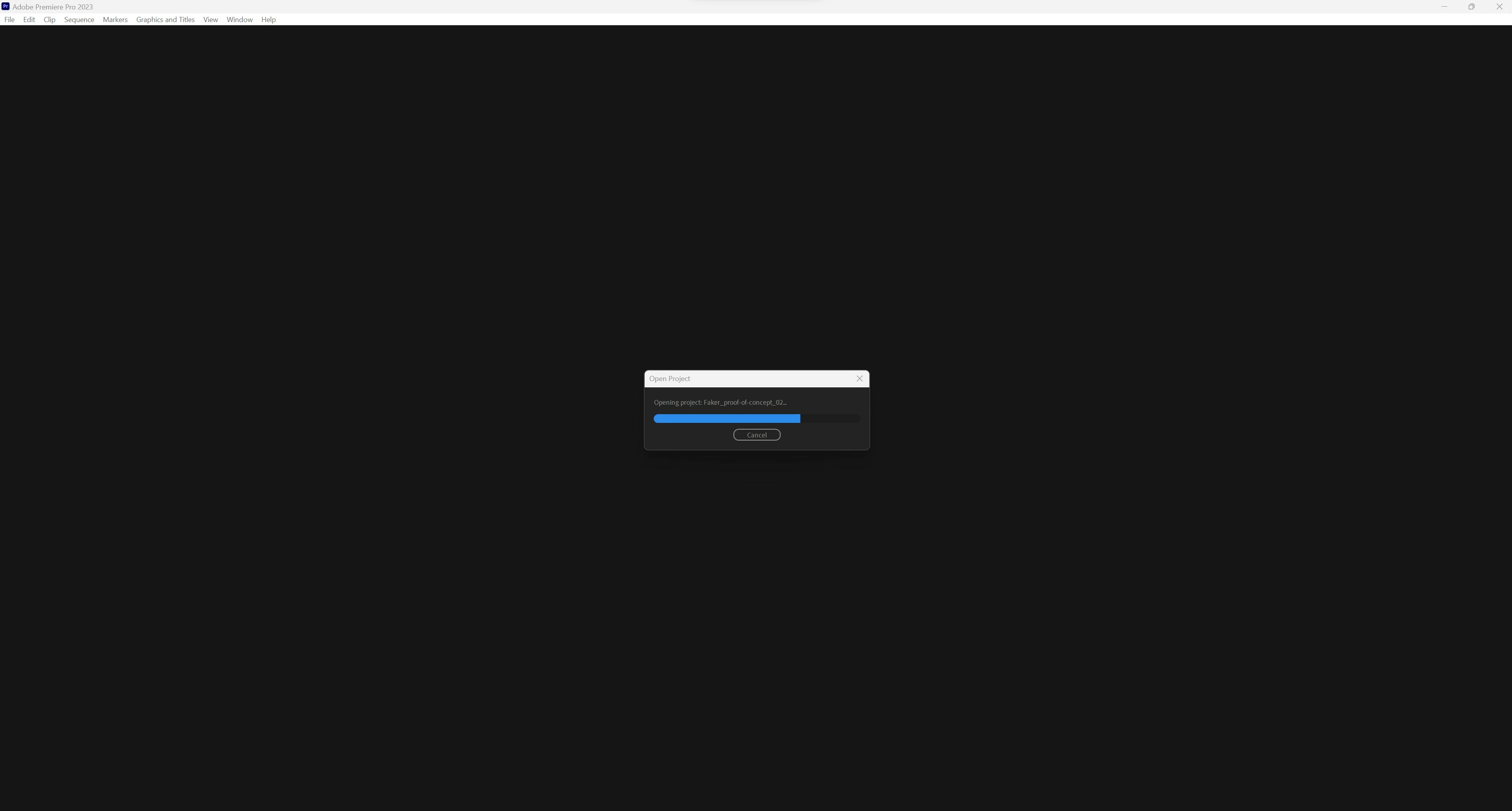
Premiere Pro stuck on "opening project" loading screen when opening project on Windows

  • September 12, 2023
  • 18 replies
  • 5166 views

Hi,

I have a Premiere Pro project, that I've been working on for the last couple of days, which now can no longer be opened. When opening the file premiere is stuck in the "opening project" loading screen at approximately 70%. I've been patient and on my task manager I can see that Premiere Pro is operating at 0% when stuck, so it stops working somehow.


I've tried several solutions/workarounds, including deleting chache, deleting preferences, reinstalling premiere, updating graphic drivers, disabling plugins, creating a new project and importing sequences from old project (stuck at "loading project", no sequences show up), opening old auto-save files (same issue), trying opening in different premiere pro versions (23.0-23.6).

Other projects open fine.


I've recently moved the project over from a NAS to an external hard drive (Seagate Expansion HDD SCSI Disk Device) and since then I've had the problem.

I am somehow able to open the project on a Mac no problem - but all 3 Windows PC's in my office present the same issue, so it seems to be a Win problem and not that I'm working off of a external hard drive. I've held a backup copy of the premiere project on my built-in-SSD but that is also not working.


I'm working in Premiere Pro 23.6 with ARRI footage and use proxies created in Premiere, use Soundly Pro for sound effects but no third party plug-ins are used on the footage, no Dynamic links to AE, no heavy grade (just the built-in Alexa LUT), nothing that would feel like it could 'overload' the project or something - and as mentioned; it opens fine on Mac.


Hope someone can help.


PC specs:

Windows 11 Pro (OS build 22621.2134)

Processor: AMD Ryzen 9 3900X 12-Core Processor 3.80 GHz
Installed RAM 64,0 GB
System type 64-bit operating system, x64-based processor

C-drive: GIGABYTE GP-ASM2NE6100TTTD

NVIDIA GeForce RTX 3070 - Driver version 536.99
 

Correct answer Media Mogul17741148

@samjackgilmore 
It's a problem with 3rd party plugins like Boris FX after upgrading to a new version of Premiere Pro.  
If you need to get a job out quickly the temporary workaround is to launch Premiere Pro and immediately hold down the Option (Mac) or Alt (Windows) key until the reset preferences dialog appears. Select just the 'Reset plugin loading cache' tick box. If that doesn't work, do it again and select just the 'Disable third-party plugins' tick box - but be warned that if you have a IO card or control surface it will disable these as well. 
The only true fix is to reinstall your third party plugins after upgrading Premiere Pro. 
It's a good idea to completely uninstall all of your Adobe software and clean up all of the old folders that may still be hanging around. On my workstation I had folders for previous versions going back to 2019. 
Plugins live in C:\Program Files\Adobe\Common\Plug-ins
 

18 replies

jstrawn
Legend
September 15, 2023

@Simon28514220gtgc After looking at the minidump file that we got when trying to open your test project, we see that you have recently had a next drive and a z drive attached to your systems.

Specifically, it looks like that next drive is beeing used for your Media cache:

<VideoPreviewLocation1>S:\Adobe Cache files\Media Cache Files</VideoPreviewLocation1>
<CapturedVideoLocation1>S:\Adobe Cache files\Media Cache Files</CapturedVideoLocation1>

Besides that, it looks like we're trying to load some assets off of your z:\ drive, which is either very slow or inaccessible.

If you can make sure that those drives are active before launching the project on win, that should speed up the open project and allow you to get Pr back into a usable state.

Participant
September 13, 2023

ive been having this same issue for two days now. 

jstrawn
Legend
September 13, 2023

@Simon28514220gtgc I can repro this on win using the project you sent me (no media needed because it does not get that far). I'll create a bug report for this and try to figure out what the problem is.

Participant
September 13, 2023

@Media Mogul17741148 Thanks, but I've tried that already, didn't work.

Inspiring
September 13, 2023

Yes unfortunately this happens a lot with v23. 
Hold down the ALT key when you launch Premiere Pro, when the Reset options box appears, tick just the third option 'Reset plugin loading cache', then open your project.    

jstrawn
Legend
September 12, 2023

OK thanks for responding That's progress. Can you send me the project file without media using the direct message feature on this forum? If you don't have a virtual drive to share it with I can send you sharing info directly.

Participant
September 12, 2023

Thank you for replying,


Yes, I moved all the footage on to the external hard drive, and I also tried to open just the project locally while the hard drive was disconnected - same result, unfortunately, it never gets to the window that tells me to relink offline media.

jstrawn
Legend
September 12, 2023

Thank you for reporting this. Let's see if we can get more information about why projects are not opening for you on win.

  • Did you move the project file AND all media together onto that external drive? Or is the media spread out across locations?
  • If you copy the project file (rename it!) to a local folders and then disconnect the drive that the media is on, does the project still fail to open? It will prompt to you relink media of course, so just make everything offline and see if the project opens. That way we will know if its the project itself that's the problem or some piece of media inside of it.
  • Once the project is open, can you use Link and Locate to relink everything? Even if it does not relink everything successfully, this might give you some indication of what sort of media is failing to load on project open.


Thanks in advance for any info you can provide for us.