

tbreb11
Participant
March 23, 2021
Released

Premiere Productions: Invalid Settings

My company is using Premiere Productions and started getting this message when loading one up:
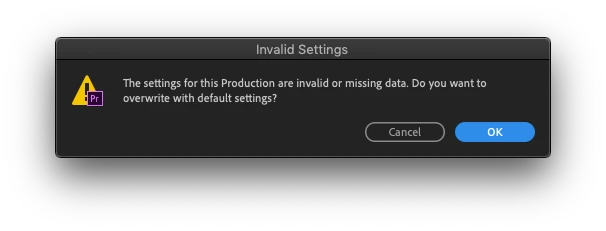


Has anyone seen this before and what is the solution? I have not found anything in Adobe's guides on this.

This topic is closed to new replies. Start a new post to keep the conversation going.
Pinned Reply By Amy the Stuv

We have an update,

Thank you for your initial report of this issue. The team is following up to let you know that this bug should be resolved in 26.5. Please update to the latest version of Premiere.

It was found that Opening a Production created with a newer version of Premiere Pro could incorrectly flag it as invalid and overwrite its PRODSET file, and A Production saved in a newer version of Premiere would silently fail to open, when it should have shown an error message.

https://helpx.adobe.com/premiere/desktop/whats-new/release-notes.html


Best,
Amy

11 replies

Amy the Stuv
Community Manager
Community Manager
September 28, 2026

We have an update,

Thank you for your initial report of this issue. The team is following up to let you know that this bug should be resolved in 26.5. Please update to the latest version of Premiere.

It was found that Opening a Production created with a newer version of Premiere Pro could incorrectly flag it as invalid and overwrite its PRODSET file, and A Production saved in a newer version of Premiere would silently fail to open, when it should have shown an error message.

https://helpx.adobe.com/premiere/desktop/whats-new/release-notes.html


Best,
Amy

Translate
Participant
March 7, 2023

It looks like this issue was solved for the user.

I ran into the same error, but clicking the OK button did not fix the issue. 

We were using Lucidlink. It took us a while to realize that one of the users was having issues with files uploading fully on LL, and so the .prodset file was constantly incomplete/corrupted. We ended up switching over to our NAS and that fixed the issue. We weren't able to figure out why LL wasn't working correctly.

I hope this might help somebody in the future!

Translate
mattchristensen
Legend
May 13, 2021

This can happen if the Production's shared settings were corrupted in some way. The Production's settings are stored in the .prodset file which is located in your production folder. If you production is called "Season 1" you'll see "Season 1.prodset".


It is safe to let Premiere Pro regenerate the file by clicking OK. When you have a production open and go to File > Production Settings, these options here are what is stored in the .prodset file. So if you do have Premiere Pro reset the .prodset file, just check the settings there and make sure to put any settings back how you had them. Most productions don't change any of the defaults there other than perhaps the scratch disk locations.

Translate
R Neil Haugen
Legend
May 13, 2021

Thanks for popping in @mattchristensen !


Neil

Translate
Everyone's mileage always varies ...
R Neil Haugen
Legend
May 13, 2021

Not a staffer of course, so I can't say precisely. I would guesstimate the user who created the production should probably go first if something in it crashed ... but that's a wild outside guess.


Wonder if Team Projects staffer @michaelgoshey might be able to pop in. I think the Productions and TP folk are pretty versed in the both processes.


Neil

Translate
Everyone's mileage always varies ...
R Neil Haugen
Legend
May 13, 2021

How are you accessing the Production?


Neil

Translate
Everyone's mileage always varies ...
May 13, 2021

The Production is on a shared area network.  The error message occured after a hard crash within the production.  


What settings does this overwrite effect exactly? 


Simultaneously what's the best practice for deleteing and re-creating the .prodset file?  


thanks!

Translate
May 13, 2021

Getting the same error using Productions workflow.   Any suggestions or insight on this?


Translate