
Participant
August 5, 2021
Question

Preset Mismatch error message

  • August 5, 2021
  • 3 replies
  • 4278 views

"The preset you have selected is an encoding preset which is not supported for ingest operations. Please try adding an ingest preset."


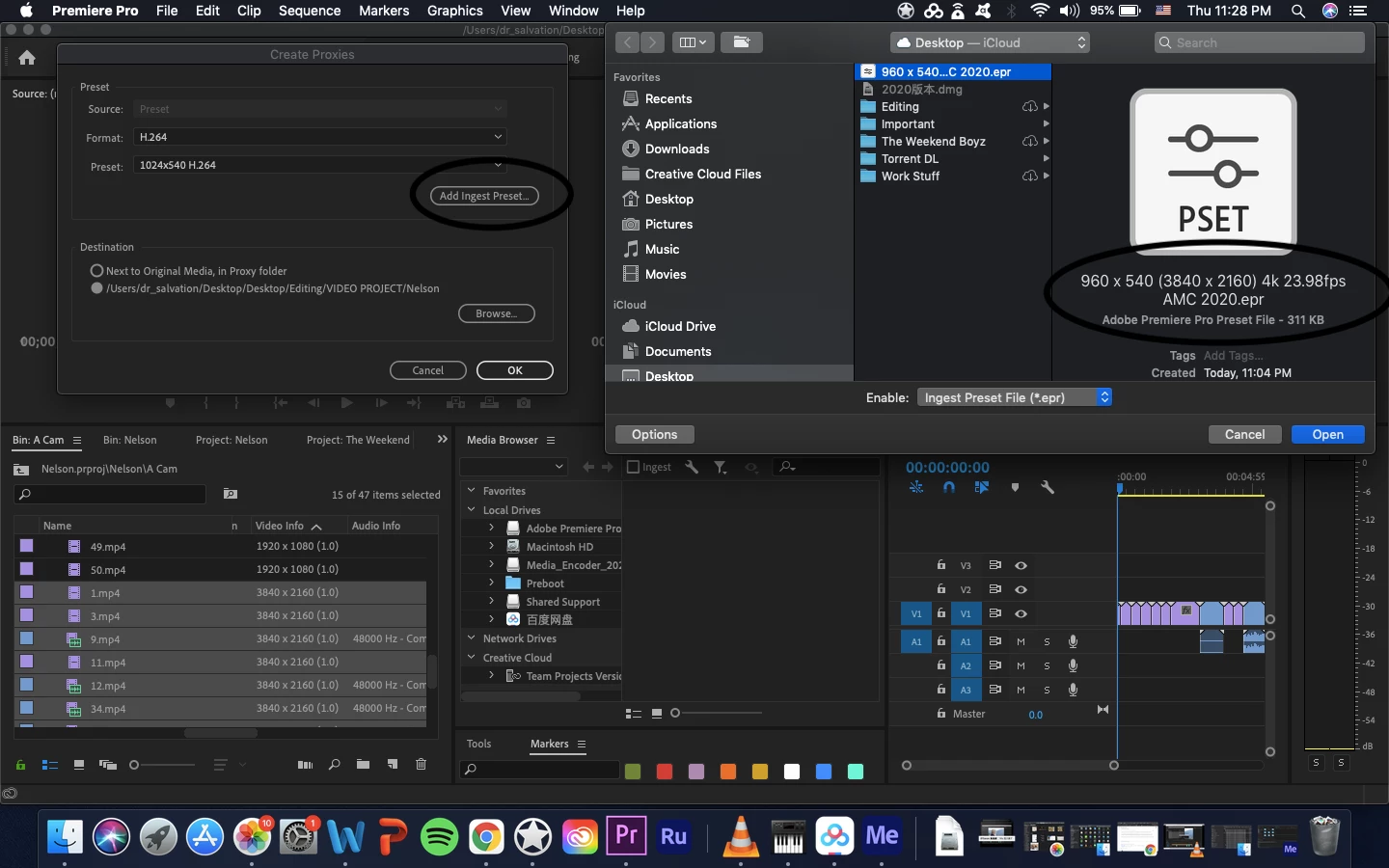
I just created the proxy preset (using Adobe Media Encoder) that I need to use with my footage, but when I select the footage -> proxy -> create proxies I am unable to select the proxy that is saved on my desktop. When I do so, the above error message flashes on my screen. 

Could anyone help with what I am missing here please, I'm very new to this and still learning everything so would appreciate the help greatly. 

3 replies

MeKevinB
Known Participant
December 31, 2022

I am finding in version 23.1.0 that creating Ingest presets based on the steps in this thread that Premiere Pro is not recognizing Inget presets as ingest presets. I get the mismatch error dialog. This is not making any sense and I'm surprised no one else is seeing this.

R Neil Haugen
Legend
December 31, 2022

First ... never assume that just because you are getting X behavior, all other users are. I found out long ago in computer work that this assumption is often wrong. It might be correct, but until you know, assume you're getting a unique situation. And check.


I can't replicate on my PC, just created a proxy preset a few days ago. Make sure that Premiere and MediaEncoder are both showing identical numbers for versions. Close projects, dump the cache files, or ... when launching, before selecting a project to open, go directly to Pr's menu ... Preferences/Cache files, dump all cache files. Then open the project.


Might help.


Neil

Everyone's mileage always varies ...
MeKevinB
Known Participant
December 31, 2022

Thanks for the feedback but I didn't assume one single thing. I meticulously replicated the steps illustrated in this post and got the error message 100% of the time. Is that assumption? Absolutely not.

MatinKaz
Participant
February 7, 2022

Change default ingest & encoding presets:

First Step: in Media Encoder > Preset Browser > Plus Icon > Create Encoding Preset > Name, Format, Based on Preset, Basic Video Settings, Effects > Name Overlay > Format: Prefix and Suffix Only. Prefix: Proxy.

Second Step: in Media Encoder > Preset Browser > Plus Icon > Create Ingest Preset. Check Trascode Files > Fromat: same as the created Encoder. Preset: Find the one you just created.

Third Step: in Premiere Pro: File > Project Settings > Ingest Settings > Ingest: Create Proxies > Add Ingest Preset.

R Neil Haugen
Legend
August 5, 2021

It's a three-step process in MediaEncoder.


First, you make an encoding preset. Then you make a proxy preset 'based on' that encoding preset. Then you export that proxy preset to the folder that PrPro looks in for such things.


And yea, it's more complicated than it should be.


Neil

Everyone's mileage always varies ...
Participant
August 6, 2021

Hello Neil thanks for the reply,


I apologise as I'm a complete beginner (watching step-by-step Udemy course videos to learn PrPro) and have little experience doing anything this technical on a computer.


I have made the encoding preset already. Can you please further explain the next steps you mentioned: 

"Then you make a proxy preset 'based on' that encoding preset. Then you export that proxy preset to the folder that PrPro looks in for such things."


Thanks again, Daniel

R Neil Haugen
Legend
August 6, 2021

In MediaEncoder, in the typical layout, the presets are in the lower left quadrant. There's some icons at the top of the panel.


One allows you to make a new thing ... as I recall, same icon to make the original encoding preset, but this time take the option to create a proxy preset. For which encoding preset it will be based on, choose the encoding preset you made.


Then Export the proxy preset. You kinda hafta dig to find where the proxy presets are stored in PrPro. It should know where they are and just put them there, but you do have to navigate to the right folder.


This all is explained in MediaEncoder's Help files, you can get there from the Me Help menu.


Neil

Neil

Everyone's mileage always varies ...