
Known Participant
August 28, 2022
Answered

Previews Perfectly -- Exports Choppy & Jittery

  • August 28, 2022
  • 3 replies
  • 489 views

Hiya Everyone,


Please Note: Before I explain what it is I am having difficulties with, please first understand that I am visually impaired and require a ~500% magnification enabled to use my computer which varies; To read and post this, I can touchtype and my magnifier is on x500%, however, using shapes and figures, I can get about using Adobe Photoshop & Dreamweaver very well, however there can be times, such as when I came here to post, where my magnification viewport has not moved over the "Cteate new thread" button, it can become tedious to locate.


I have a basic understanding of Premiere Pro, I've been using 'i' and 'o' to gather the clips needed when the video needs trimming down, but pretty much, this is just 4 videos, 5 video clips in the sequence;
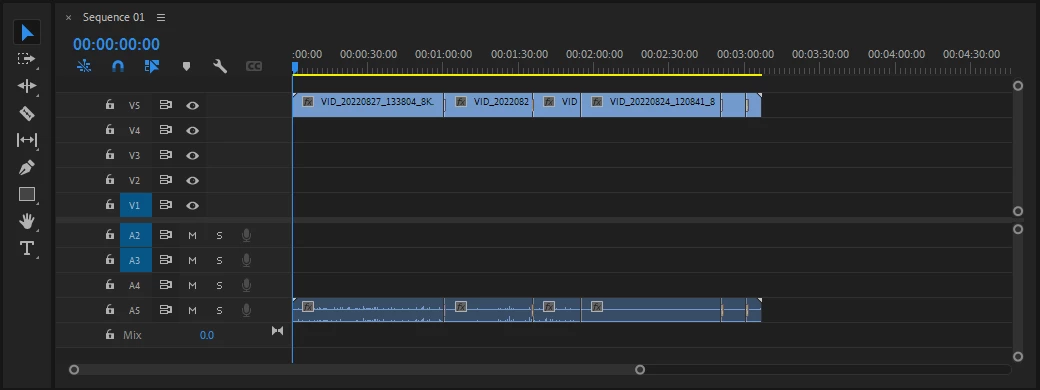
 

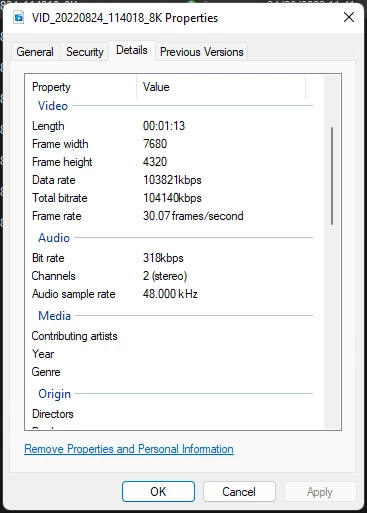
All of our videos have been recorded in 8k at 30fps, please see example below;
 

Windows can struggle a little from time to time with me using the magnifier, at times I will turn it off such as when rendering the final export as, although I won't be able to see the progress percent, I can still see the progress bar and when the window goes off my screen with the additional factor that my PC fans only kick in when doing so, I've a somewhat modern PC, 16GB RAM purchased earler this year.


On my sequence, I've simply added the video clips onto the timeline, added the default transaction between scenes and all, apart from one small section, plays perfectly well within Premiere, however I turned down the Playback Resolution. The only thing I have done, based of YouTube tutorials I have came across, is that my fps show as 30.7 and I modified all clips to presume they're 30fps, all still playing perfect within Premiere Pro.


Come to exporting, a brief look over the settings, 30fps, right resolution, and whatnot, takes about 15-20 or so minutes to render, at this point I just sit back and wait, let Premiere Pro use up the resourses it requires, however, I've attempted twice so far, such a choppy export which seems like there are only half the frames.


I really appreciate any help, we are trying to push forward as a disabled start up business, work can be slow and tedious for us as it is, and we just lack too much knowledge of Premiere Pro to look into our problem as many results are speaking about choppy videos within the program itself and not after export.


Thank you for taking your time on my thread!

Best Regards,

Tyler

This topic has been closed for replies.
Correct answer Warren Heaton

Based on your computer specifications, I'd suggest that you continue to shoot 8k and transcode to either 3840-by-2160 ProRes 422 LT or 1920-by-1080 ProRes 422 LT for editing.  If you think you might use this for broadcast rather than social media, bump it to ProRes 422 HQ.  Then edit in Premiere Pro with your Sequence Video Previews set to matching ProRes settings.

3 replies

Warren Heaton
Community Expert
Community Expert
August 28, 2022

Have you had a chance to review the Premiere Pro Proxy Workflow?  It's specifically designed to allow for smooth playback while editing a proxy files (lower resoluiton video clips, like 1080p30 or 720p30) and finishing with a full resolution file (like 4230p30).

What is the intended use of your exported videos?  1920-by-1080 is still the most common frame size with 3840-by-2160 next after that.  Even if you were to get smooth 4320p30 playback on your machine (let's say via an H265 export), that may not play well on anything but the newest devices.


Known Participant
August 28, 2022

The intended use is primarly to showcase products, so this can vastly vary. Sometimes, it is a simple one take, but as we're progressing, we're finding ourselves to be taking several shots to peice together.


I have no problem with dropping from 8k, I've simply always known to produce the highest quality and then export in lower for web or whatnot. I haven't properly looked into exporting in lower resolution, several points others have mentioned I need to look into as well, just you have asked about intended use.


We are looking at doing bigger videos down the road, however want to get a comfortable grasp on these 5-minute videos first.


I learnt parts of Premiere Pro, but this was more than 10 years ago now, a lot is familiarities, although my eyes were not ad bad as they were back then.


I apprecaite all the replies, thank you very much!

Warren Heaton
Community Expert
Warren HeatonCommunity ExpertCorrect answer
Community Expert
August 28, 2022

Based on your computer specifications, I'd suggest that you continue to shoot 8k and transcode to either 3840-by-2160 ProRes 422 LT or 1920-by-1080 ProRes 422 LT for editing.  If you think you might use this for broadcast rather than social media, bump it to ProRes 422 HQ.  Then edit in Premiere Pro with your Sequence Video Previews set to matching ProRes settings.

Peru Bob
Community Expert
Community Expert
August 28, 2022

To add to the reply by Ann Bens , here is a Handbrake tutorial:
https://www.youtube.com/watch?time_continue=34&v=xlvxgVREX-Y

Shutter Encoder may also be used to convert to Constant Frame Rate:
https://www.shutterencoder.com/en/

Known Participant
August 28, 2022

Thank you for this very useful video demonstrating the application we can use, if only I had started out here as we recently purcahsed, albeit just $0.99 per PC for 2 PC's, we just bought the codec to view the 8k videos on our computers.


The 30.7fps on our 8k videos has confused me, all shows perfect within Premiere, so this just gave an impression we were simply good to go, then ran into issues exporting. Now hoping our recordings can still be used as they can't be retaken.


Thnk you for your help 🙂

Known Participant
August 28, 2022

I cannot find how to edit my above thread, I forgot to mention that I've got Adobe CC and I am using Adobe Premiere Pro 2022.

Ann Bens
Community Expert
Community Expert
August 28, 2022

New users cannot edit their post. Please use MediaInfo in Treeview for clip info.


Two issues:

You need a beefy machine to properly edit 8K. You need at least 64 gig Ram.

Footage is variable framerate convert to constant framerate with Handbrake or Shutter Encoder before bringing into Premiere.


Known Participant
August 28, 2022

Thank you for your reply, I am looking into what you have said and once set up with the MediaInfo I'll be able to reply more details, just want to thank you and let you know I've taken on what you've said 🙂