Participant
September 6, 2026
Question

Program and source monitor keep going black, exporting is being struck in the middle, can anybody please hep
  • September 6, 2026
  • 3 replies
  • 26 views


Program and source monitor keep going black, exporting is being struck in the middle, can anybody please hep
 

    3 replies

    Community Expert
    September 8, 2026

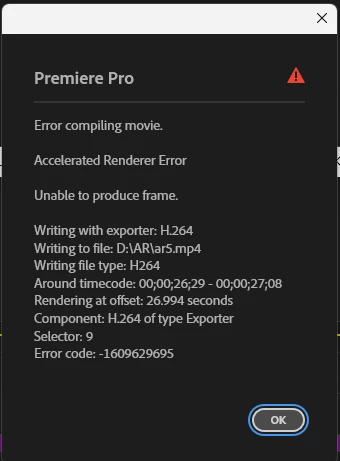
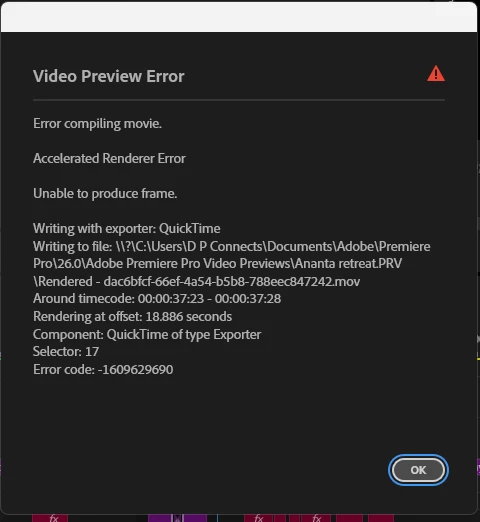
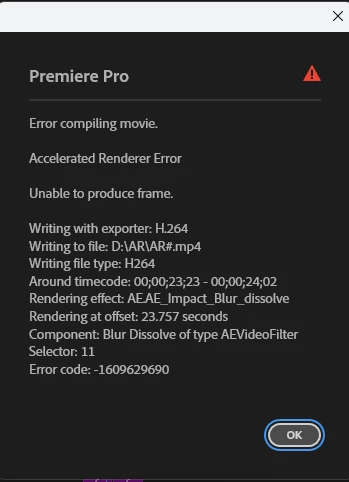
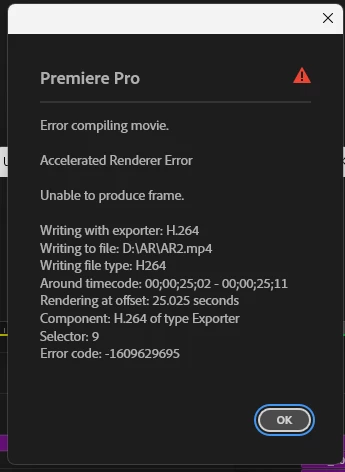
    This is a known Accelerated Renderer Error (error codes -1609629690 and -1609629695). Since it's showing up during preview generation as well as export, and across more than one sequence, it points to something at the GPU acceleration layer rather than a single damaged clip. A few things worth checking, in addition to the driver update:

    1. Confirm free space on the destination drive. The export is writing to D:\AR. Make sure that drive has several gigabytes of free space well beyond the size of the finished file. A nearly full destination drive has been linked to this same error.

    2. Turn off GPU hardware decoding. Go to Edit > Preferences > Media (Windows) or Premiere Pro > Settings > Media (macOS), and deselect the hardware decoding options under Video Rendering and Playback. This isolates whether GPU-decoded source footage, rather than the export renderer itself, is triggering the crash.

    3. Isolate the Blur Dissolve transition. One of the error dialogs names Blur Dissolve (the Impact transition) as the failing component, around timecode 00;00;23;23. Delete and reapply that transition at that point in the sequence. GPU-accelerated transitions and effects are a common trigger for this error, and rebuilding the effect often clears it.

    4. Export through Adobe Media Encoder instead of exporting directly from Premiere Pro. Use File > Export > Media, then choose Queue instead of Export, and render from Media Encoder. This runs the export in a separate process and often succeeds where a direct export fails on the same frame.

    Note: This error can have different root causes on different systems, so it's worth working through these in order rather than expecting any single step to be the fix.

    Peru Bob
    Community Expert
    Community Expert
    September 6, 2026
    John T Smith
    Community Expert
    Community Expert
    September 6, 2026

    I can’t help with the compiling error, but the screen going black MAY be a video problem


    IF you are on Windows some links that may help

    Do not count on Windows to be fully up to date when it comes to device drivers
    Go to the vendor site to be sure you have an updated driver for your graphic adapter
    There have also been reports in the past that the latest driver is not the best driver
    .
    Also check (copied link) https://www.tomshardware.com/reviews/gpu-hierarchy,4388.html

    .
    https://helpx.adobe.com/premiere-pro/kb/gpu-and-gpu-driver-requirements-for-premiere-pro.html

    .
    nVidia Driver Downloads https://www.nvidia.com/Download/index.aspx?lang=en-us

    -for all Adobe programs use the STUDIO driver, not the GAMING driver
    -To achieve the highest level of reliability, Studio Drivers undergo extensive
    -testing against multi-app creator workflows and multiple revisions of the top
    -creative applications from Adobe to Autodesk and beyond
    .
    If you have a laptop you MAY also need to check for a laptop specific nVidia driver
    -SOME laptops require an approved driver from the laptop company, not nVidia
    .
    AMD/ATI Driver https://www.amd.com/en/support

    .
    Intel https://downloadcenter.intel.com/product/211969/Intel-HD-Graphics-Family

    https://www.askwoody.com/newsletter/free-edition-working-with-the-intel-driver-support-assistant/