
Participant
February 10, 2018
Answered

Project Window Stuck Off-Screen. Any ideas?

  • February 10, 2018
  • 36 replies
  • 81087 views

-- I'm running Premiere Pro CC 2018 on a macbook pro 15" running High Sierra 10.13.3 --

I had previously opened Premiere at home with my dual monitor setup. Now I'm on the road and when project opens the top windows are off-screen:
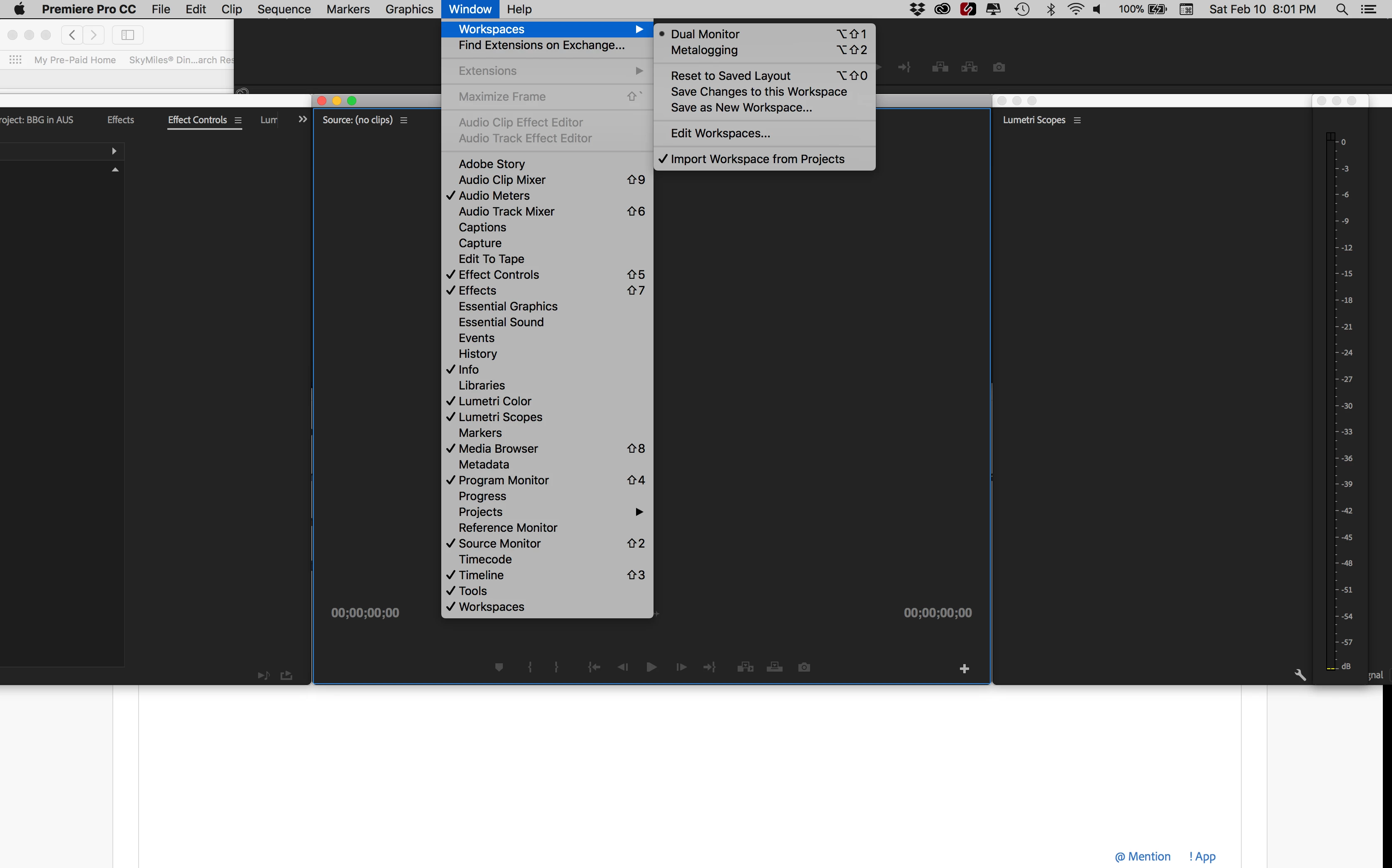
When I select a different window arrangement, it gets worse:
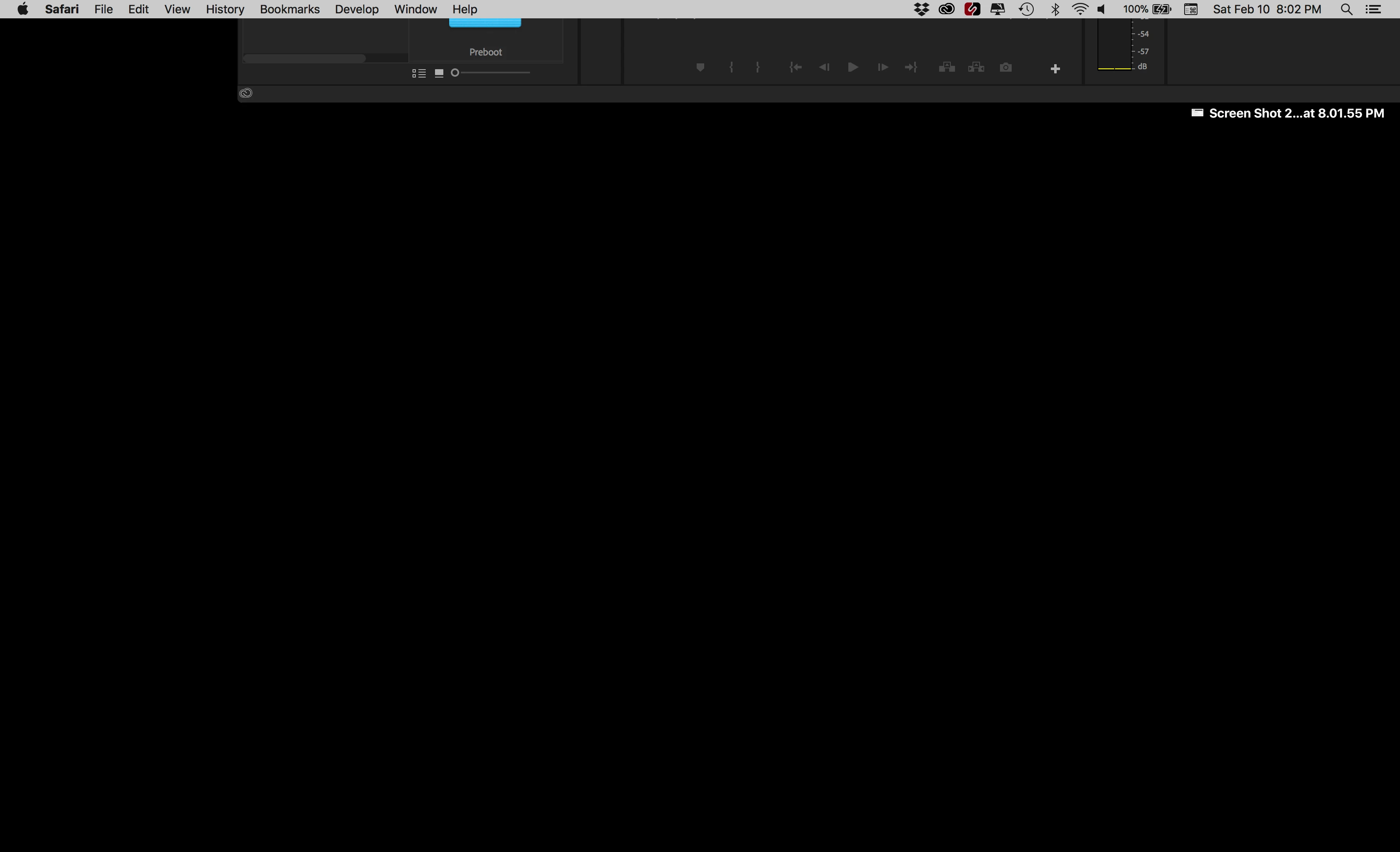
I can drag the bottom of the window and resize it but I can't get to the top to arrange it.
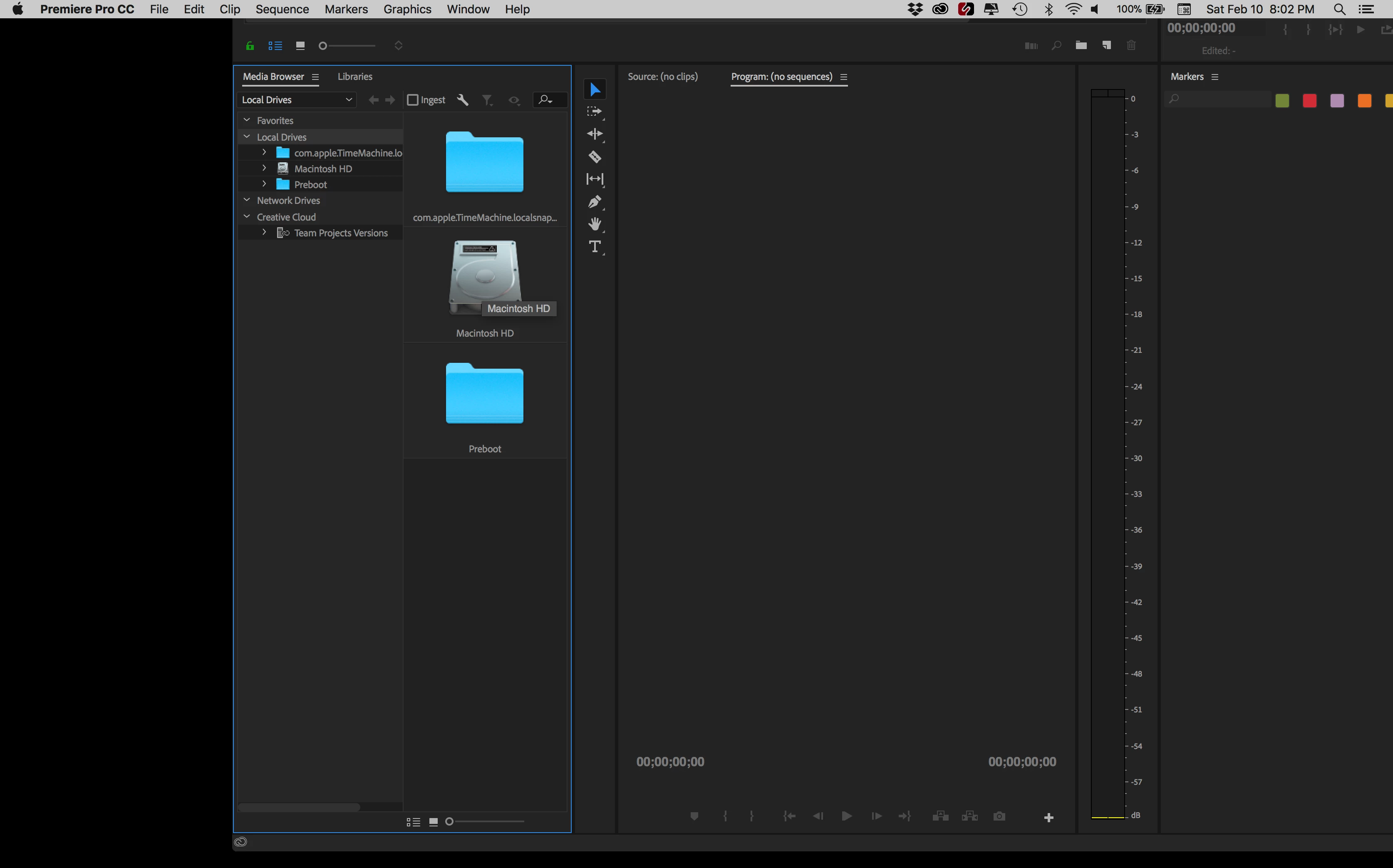
Here's how I have attempted to fix it:

- Hooked up an additional monitor. When monitor is attached I can move windows, but the moment I unplug monitor, the windows go back to original off-screen position (no matter where I had placed them while add'l monitor was running).

- I uninstalled and reinstalled Premiere. Same problem as before.

- I restarted Premiere while holding the option key (to trash preferences). Problem still there.

- I created a new project. No change in problem.

Anybody have a good idea? Thanks!

Correct answer trashcaneron

Command+\ worked for me, just brings the entire app to take up the whole screen (in Premiere), easy. THIS is the correct answer. The answer that is marked correct requires you to delete your preferences which is totally unecessary. 

36 replies

John Hepworth
Inspiring
January 31, 2026

Command- \ DID NOT work for me, but the workaround I’ve used is to reduce the display’s resolution until I can grab the window and reposition it.  Clumsy, but worked

Participant
October 16, 2024

Right click on the lower edge of the window and select "collapse to icons" and then reopen the winow. That seemed to do the trick for me. Hop it helps!

ut_peenoid
Participant
March 11, 2021

I read this in the AE forum with the same problem and an Adobe Employee posted this:

@stefan_gru wrote:

This happens to me on occasion as I move from large monitor to laptop while on the go. Just press Command+\ (macOS) and everything will snap into view on the smaller monitor. I assume Control+\ does the same thing in Windows. This works in Premiere Pro too.


Also, I found this. It might work with PR:

@Byron Cortez wrote:


1) Close After Effects.

2) Set your screen at resolution you want.

3) Shft  + Alt + Cmd immediately when you click in application icon to run it, clic OK.

With this action you clear the preferences and when AE opens it's gonna be ok in fullscreen.


Hope this helps.

trashcaneron
trashcaneronCorrect answer
Inspiring
February 16, 2022

Command+\ worked for me, just brings the entire app to take up the whole screen (in Premiere), easy. THIS is the correct answer. The answer that is marked correct requires you to delete your preferences which is totally unecessary. 

Participant
February 7, 2023

COMMAND   \     worked for me too. Thank you trashcaneron !!!

Known Participant
December 19, 2020

I wonder if anyone else finds it incredible that so many of the "solves" for Premiere problems are things like this one:  "problem solved, but I had to completely remake my workspaces."  I know I shouldn't write to this forum when it's late in the evening and I just want to go home but Premiere did FILL-IN-THE-BLANK therefore making my night longer and my work flow a frustrating mess, but for god's sake, Premiere sucks.


Kevin-Monahan
Community Manager
Community Manager
December 19, 2020

Sorry for the frustration. Make sure you let your feelings known on User Voice where your complaint may be heard by the actual devs of the app. It's mainly users here, sandefilms, so complaints to Adobe devs are largely unheard here. 


Regards,
Kevin

Kevin Monahan - Sr. Community and Engagement Strategist – Adobe Pro Video and Audio
Known Participant
December 19, 2020

I appreciate the info, thank you. 

Participant
October 16, 2020

EUREKA!!!! I HAVE THE ANSWER! LoL

Put your curser on the edge you CAN see, hold down the SHIFT button while dragging the edge inward. It will shrink the entire pasteboard! Keep dragging until the bottom right corner is back in view. I was struggling with this ALL day, then my wonderful IT guy happened to call and told me what to do. YaY!!

jmstovepipe
Participant
December 8, 2020

I found that if I just open a new doc that it pops in the correct place then I just scroll down to my missing file on the Windows menu and my missing file appears as a tab also. Then I just delete that new file I made. Pretty quick. I didn't like the sound of searching for folder, deleting files and rebuilding my workspace settings.

Participant
October 15, 2020

I deleted the contents of my "Layouts" folder, restarted my computer, and am still having issues. I initally had my laptop set up with a monitor, and was able to close any windows that popped up on screen when opening Premiere. Now, since I disconnected it, I think the window is still popping up but I am unable to see it and therefore cannot use Premiere. I would've thought I'd be able to see "All Windows" in the task bar, but I read through the thread and some people are saying that's not an option anymore with the new updates. How do you think I should go about solving this?

R Neil Haugen
Legend
October 15, 2020

Do you have "Import workspaces from projects" checked? If so, uncheck that. Then delete the Layouts folder again.


Neil

Everyone's mileage always varies ...
Participant
October 17, 2020
Hi Neil,

I waited until I got home and plugged my laptop to the monitor, opened
Premiere, then drug the pop up window to my laptops screen. I restarted my
laptop and since then it’s been working just fine. I guess my laptop didn’t
register being disconnected to the monitor for some reason?

Anyway, thanks for taking your time to give me that suggestion though. If
it happens again I’ll try that way and see if it works for me! 👍
rdolishny
Participating Frequently
July 29, 2020

For Windows, I have the same problem occationally. 

Simple solution: hit Windows+P and toggle on and off 'duplicate screen' or 'single screen'. Fixed! Nothing to delete. 

Participant
May 22, 2020

I had this problem with InDesign: with multiple monitors (Mac laptop and external), only the bottom half of the InDesign window was visible on my laptop screen. I tried several solutions but none worked. Here's what I figured out I could do:


1. Use Display preferences to mirror the two monitors. The InDesign panel became fully visible.

2. Resize window corners to make InDesign quite a bit smaller.

3. Unmirror displays. The InDesign window was small enough that I could see it all and maximize the window normally. Note that maximizing in step #2 didn't work; the window was back to its bad position after step 3.


Jeremy

Participant
October 21, 2019

Hold the option button and double click the bottom left corner. It worked for me.

Participant
June 22, 2019

FIRST OF ALL, sorry guys but you're all wrong.You're making it more complicated than it should be.

It's actually a pretty easy fix. Go to the bottom left hand corner of the window (since you can't reach any other part of the top) So...Go to the bottom left hand corner of the window, hold down Option and double click. The window will resize automatically.

Just in case I found this video online to show you:

Adobe Premiere Pro is Stuck Off Screen - HOW TO FIX! - YouTube

You're welcome fellow filmmakers!

Follow my crazy adventures in the industry @jalenjames on IG

stefan_gru
Inspiring
October 17, 2019
I found that just pressing Command+\ (macOS) will snap everything into view on the monitor. I assume Control+\ does the same thing in Windows.