
Participant
February 10, 2018
Answered

Project Window Stuck Off-Screen. Any ideas?

  • February 10, 2018
  • 36 replies
  • 81087 views

-- I'm running Premiere Pro CC 2018 on a macbook pro 15" running High Sierra 10.13.3 --

I had previously opened Premiere at home with my dual monitor setup. Now I'm on the road and when project opens the top windows are off-screen:
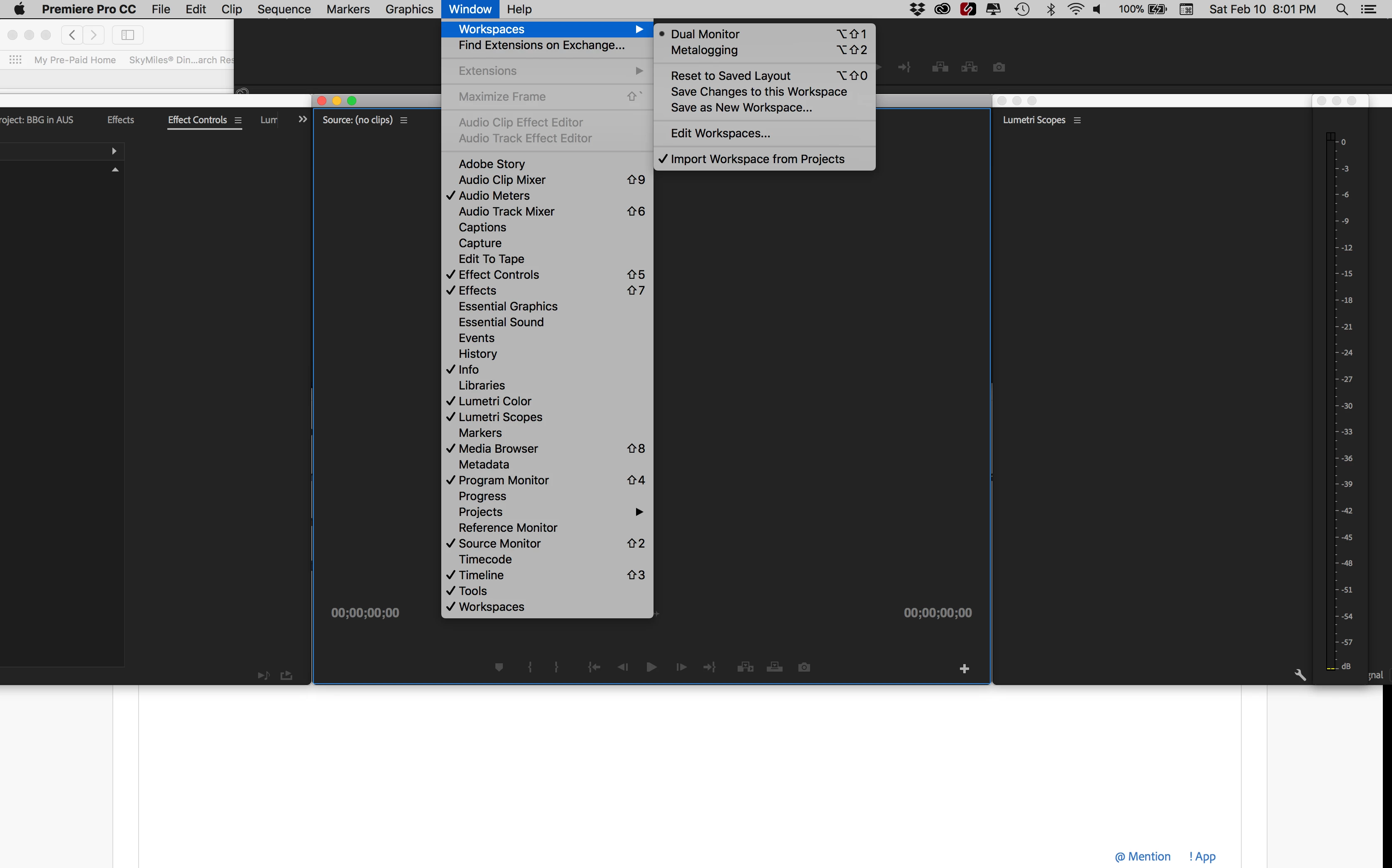
When I select a different window arrangement, it gets worse:
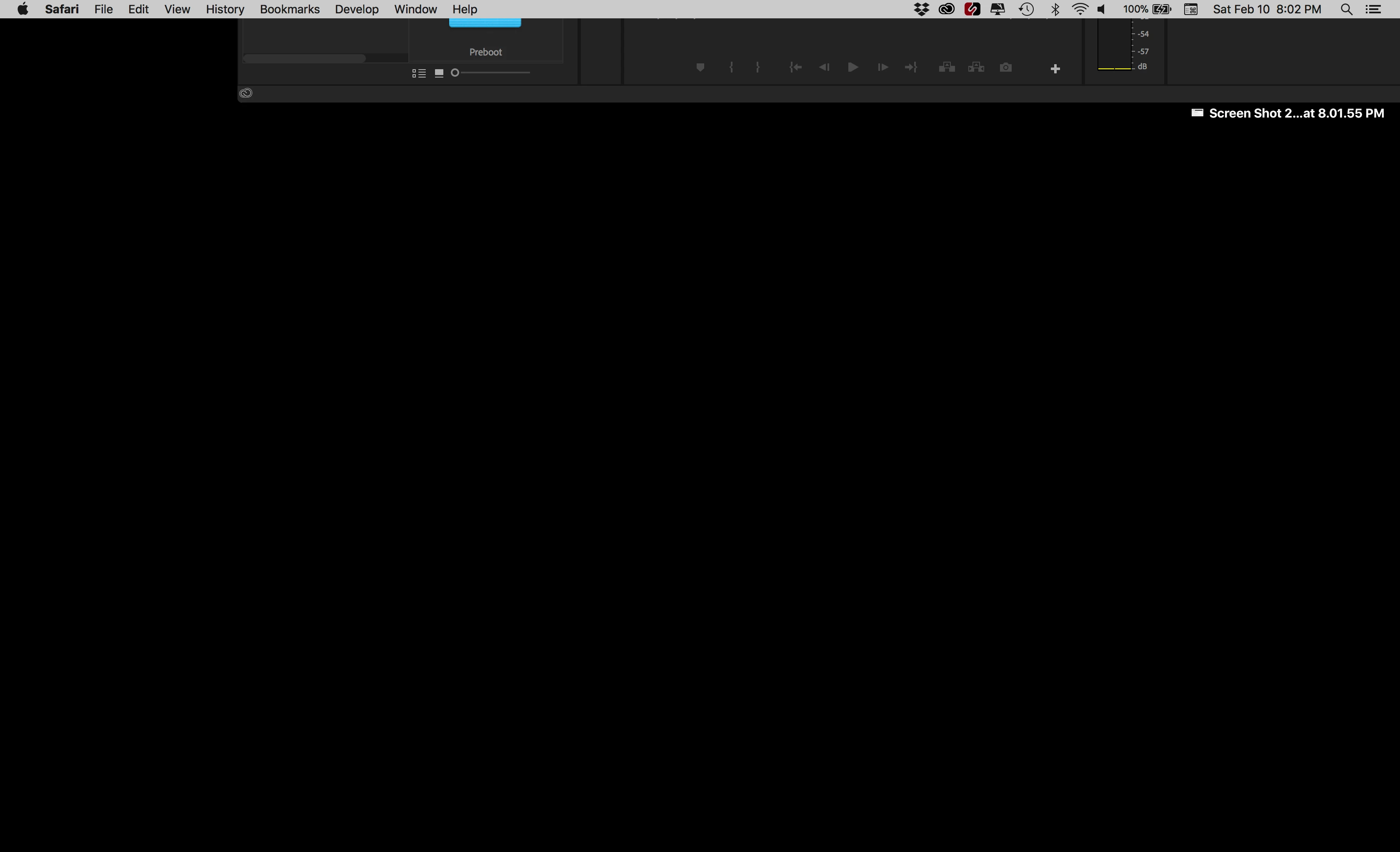
I can drag the bottom of the window and resize it but I can't get to the top to arrange it.
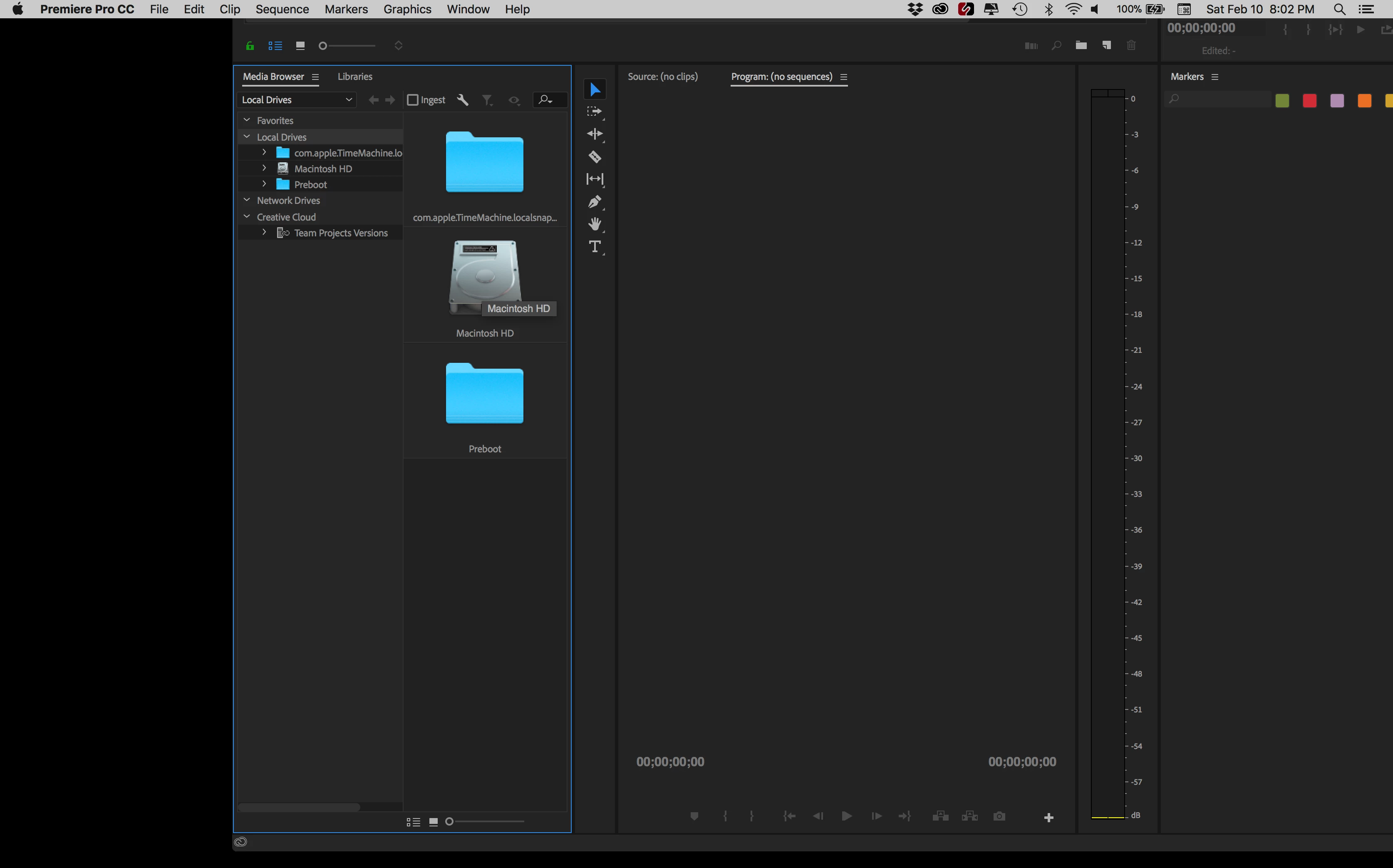
Here's how I have attempted to fix it:

- Hooked up an additional monitor. When monitor is attached I can move windows, but the moment I unplug monitor, the windows go back to original off-screen position (no matter where I had placed them while add'l monitor was running).

- I uninstalled and reinstalled Premiere. Same problem as before.

- I restarted Premiere while holding the option key (to trash preferences). Problem still there.

- I created a new project. No change in problem.

Anybody have a good idea? Thanks!

Correct answer trashcaneron

Command+\ worked for me, just brings the entire app to take up the whole screen (in Premiere), easy. THIS is the correct answer. The answer that is marked correct requires you to delete your preferences which is totally unecessary. 

36 replies

enzogreco81
Participant
May 18, 2018

Have the same problem on my MacBook Pro and After Effetcs.

The work around with the right click dock works on the single screen mode.

If you attach a second screen the workspace keeps getting out of screen.

I use macOS High Sierra version 10.13.4 and After effects version 15.1.0

@Adobe: please fix this! It makes working on After Effects totally impossible.

enzogreco81
Participant
May 18, 2018

I had success doing the following:

1. installing the latest update (don't know if this was important)

2. launch After Effectsd

3. selecting the bottom bar of AE so it turns blue.

4. Normally it only lets you resize the program.Somehow I could reposition everything sao the top bar was again accesable

Hope this works for everyone else as well.

Good luck.

ps. would still be awesome if AE simply would not allow the software being resized out of the screen resolution.

smashkirk
Inspiring
May 2, 2018

I have this problem with Indesign. Must be a dual monitor issue because I had 2 screens yesterday, today I'm just on the laptop screen.

Dr.Rek
Known Participant
March 11, 2018

Still a problem today. Deleting my custom workspaces everytime is a not an ideal solution.

shmopolympian
Participant
March 19, 2018

Please fix this. This only started happening since the last update.

Dr.Rek
Known Participant
March 19, 2018

I've experienced this problem for years, but since the last major update, the "show all windows and then click on the program window bar" work around doesn't work anymore. Which btw, was a shitty hidden work around to deal with as well.

It's really silly that all other software can figure out where to place the window, and Adobe software can not.

Seems to be a global issue, as I have the same problem with Audition.

And deleting workspaces doesn't solve the problem in Audition's case.

Participant
February 10, 2018

SOLVED: Using a finder window I searched for "Layouts" and found the Premiere Pro layouts folder. I deleted all files inside that. When I restarted my windows were back to normal. (All my previously saved custom workspaces were gone, so I made new ones.)

Dr.Rek
Known Participant
February 19, 2018

In the past I would right click on the dock icon and select show all windows for Premiere, then if I clicked on the top bar of the premiere window in the show all windows view it would resize it's height to be the same, and I can get the window to move since the top bar is now visable. Unfortunately today that stopped working for me.

Guess I have to delete custom workspaces? Reseting the workspace of any default workspace doesn't help either.

Participant
May 5, 2018

OK Try this- I just had success--

Go to Premiere in the dock and right click. Hit Show All Windows and then go to top left green button on premiere open window and click that. It will resize to full page, and you can grab the bottom and drag it up, etc from there.

Legend
February 10, 2018
GWR71
Inspiring
February 27, 2018

Doesn't work. Been there, done that.

Participant
February 10, 2018

I have exactly the same issue, anyone have any ideas how to fix this? I want to return to default layout but it doesn't change the layout

Participant
February 10, 2018

Adobe Premiere help page is telling me that the only way to reset to default layouts is to 'delete workspace config file from Layouts folder'  Where is the layouts folder?

R Neil Haugen
Legend
February 10, 2018

Also, for the laptop running a single screen, you may want to turn off the preference to import workspaces with the project.

Neil

Everyone's mileage always varies ...