Participating Frequently
November 2, 2023
Answered

QT Gamma Compensation LUT has oversaturated all my imports

  • November 2, 2023
  • 4 replies
  • 65653 views

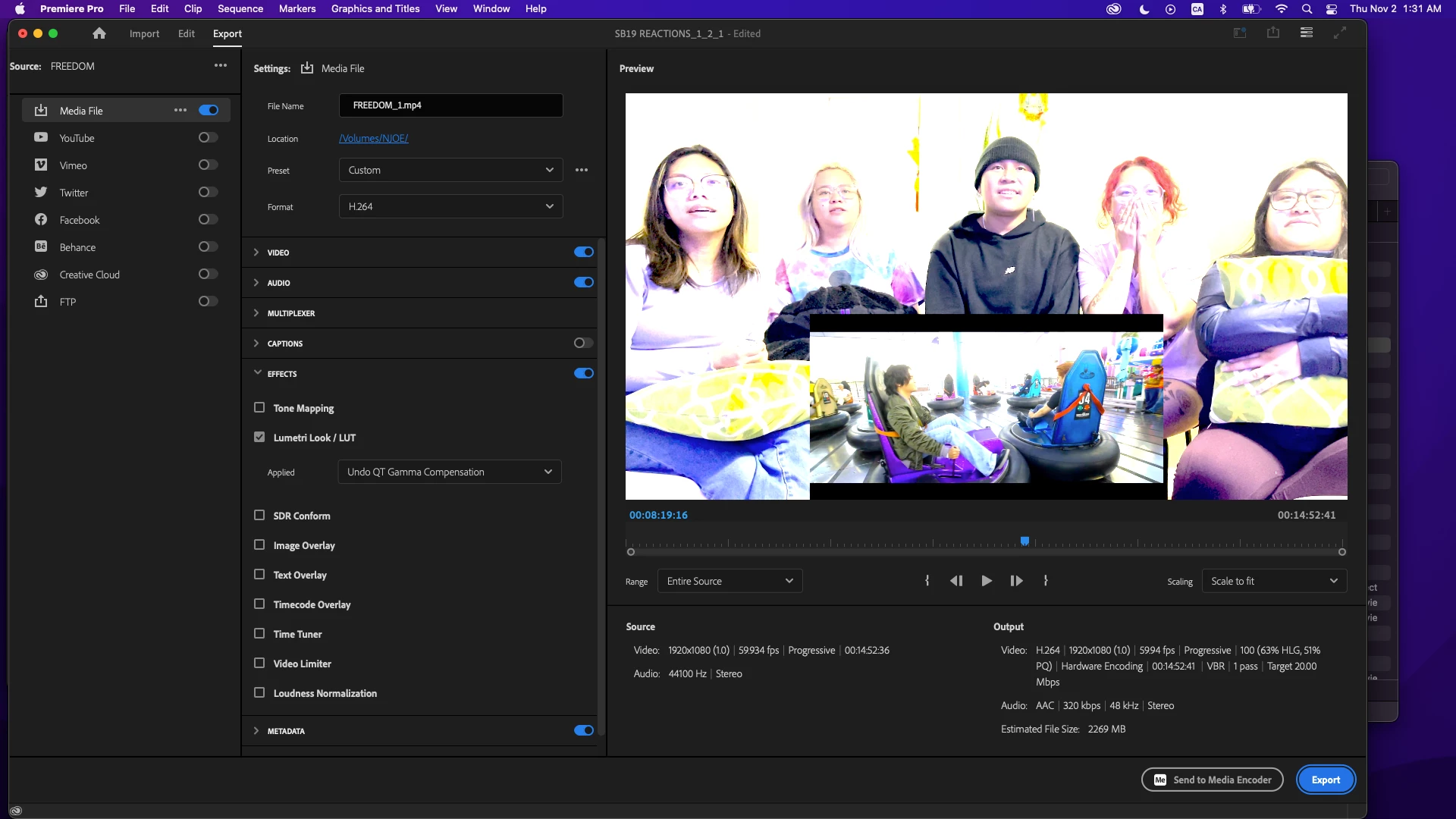
Hello everyone! I've recently realized I had issues with my video exports' colors being washed out and found this QT Gamma Compensation LUT trick online. These are the assets I downloaded for those LUTs. It fixed my issue with my project at the time but now, I'm working on a different project and as I import pictures or videos, all of them look oversaturated.


I know there was also an Undo LUT for it but it doesn't seem to work (or I'm probably just not using it right). I tried downloading the newest version (and deleting the old one) of Premiere Pro as well as resetting some of my preferences but the issue persists. I also unchecked the "Display Color Management" & "Extended Dynamic Range Monitoring" options under Preferences which fixes the color while I'm editing or during playback but it still exports oversaturated.


I'm spent trying to figure out what's wronff & I'm struggling to finish my work so any and all help is very much appreciated!


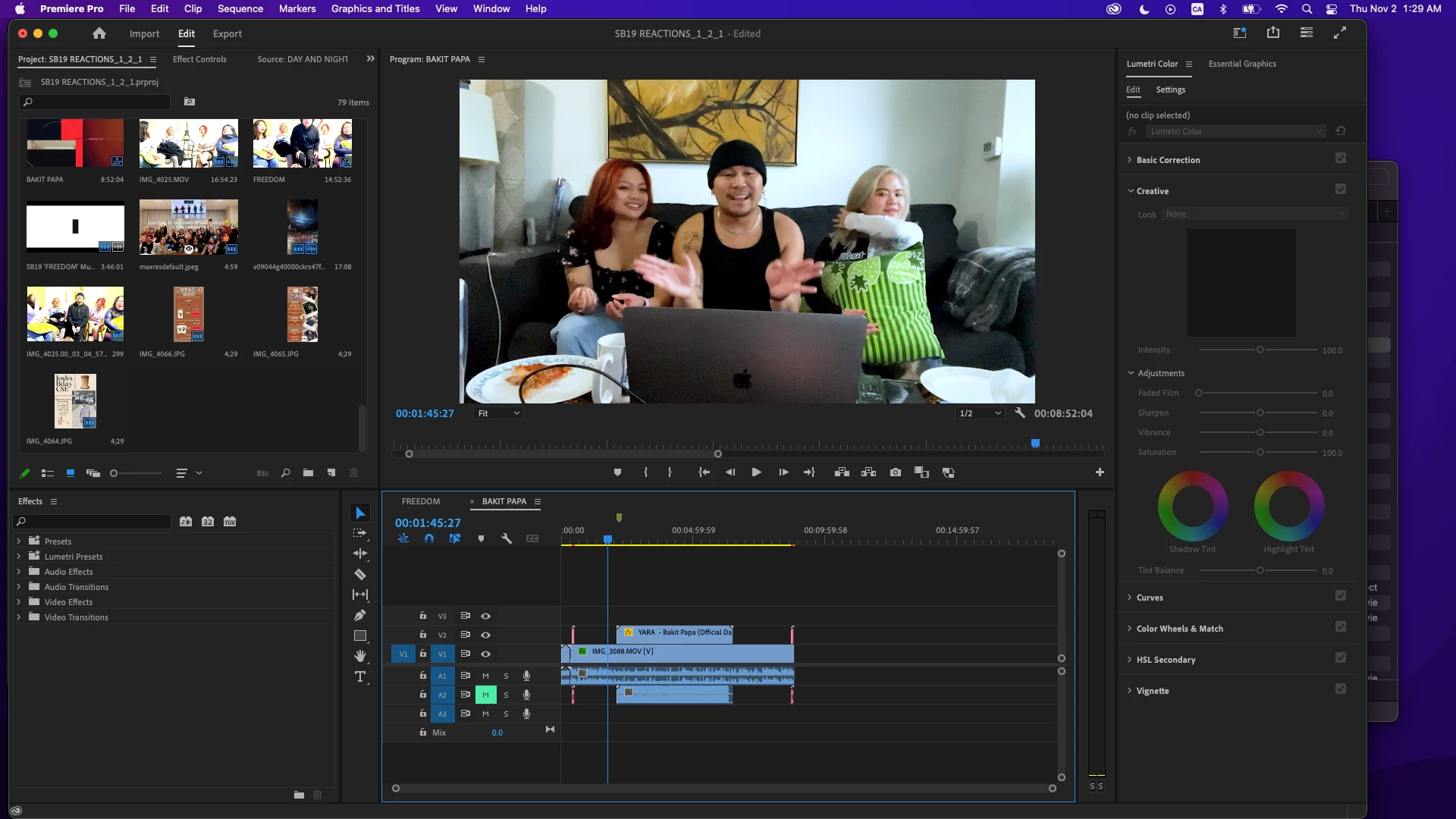
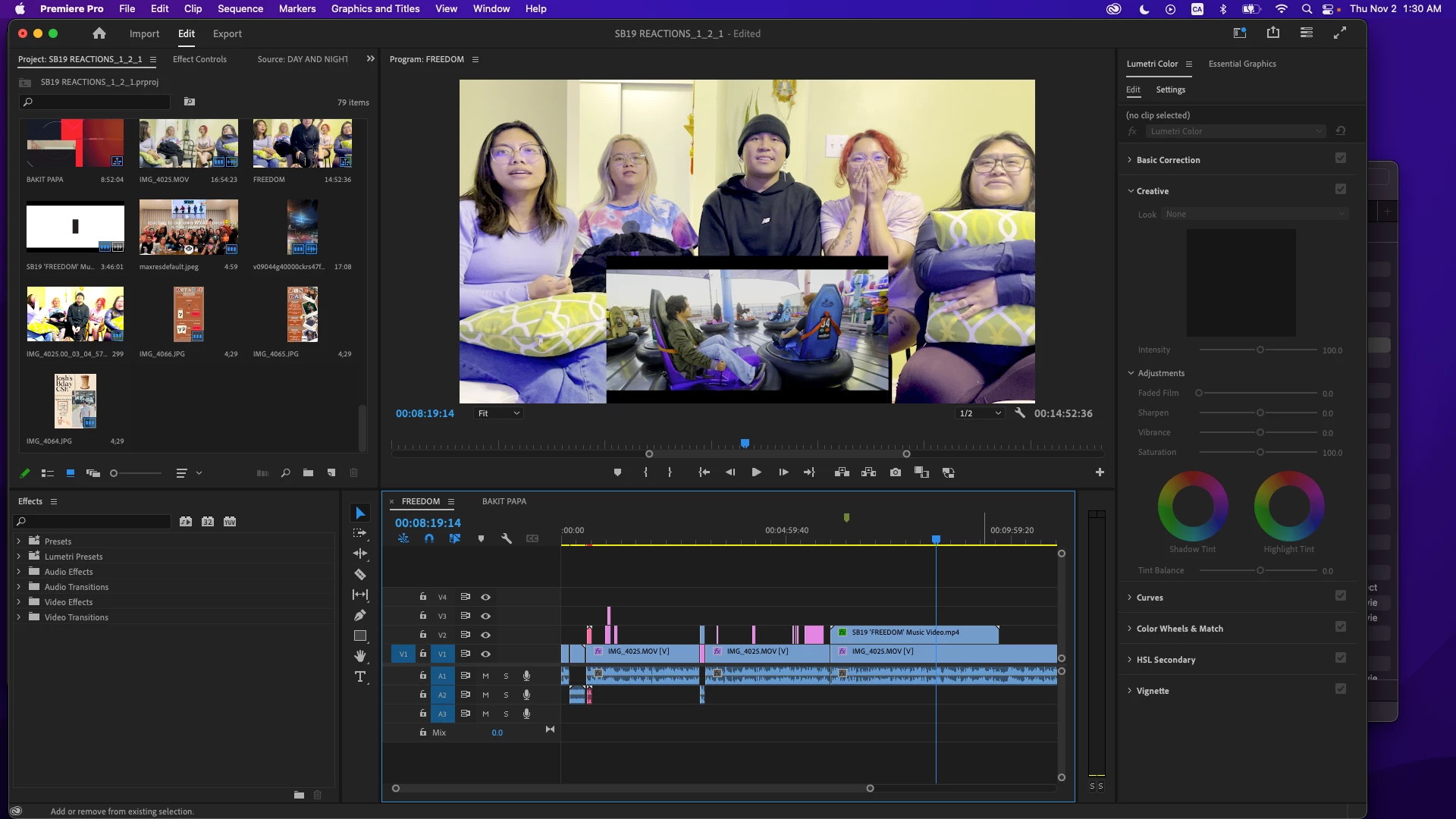
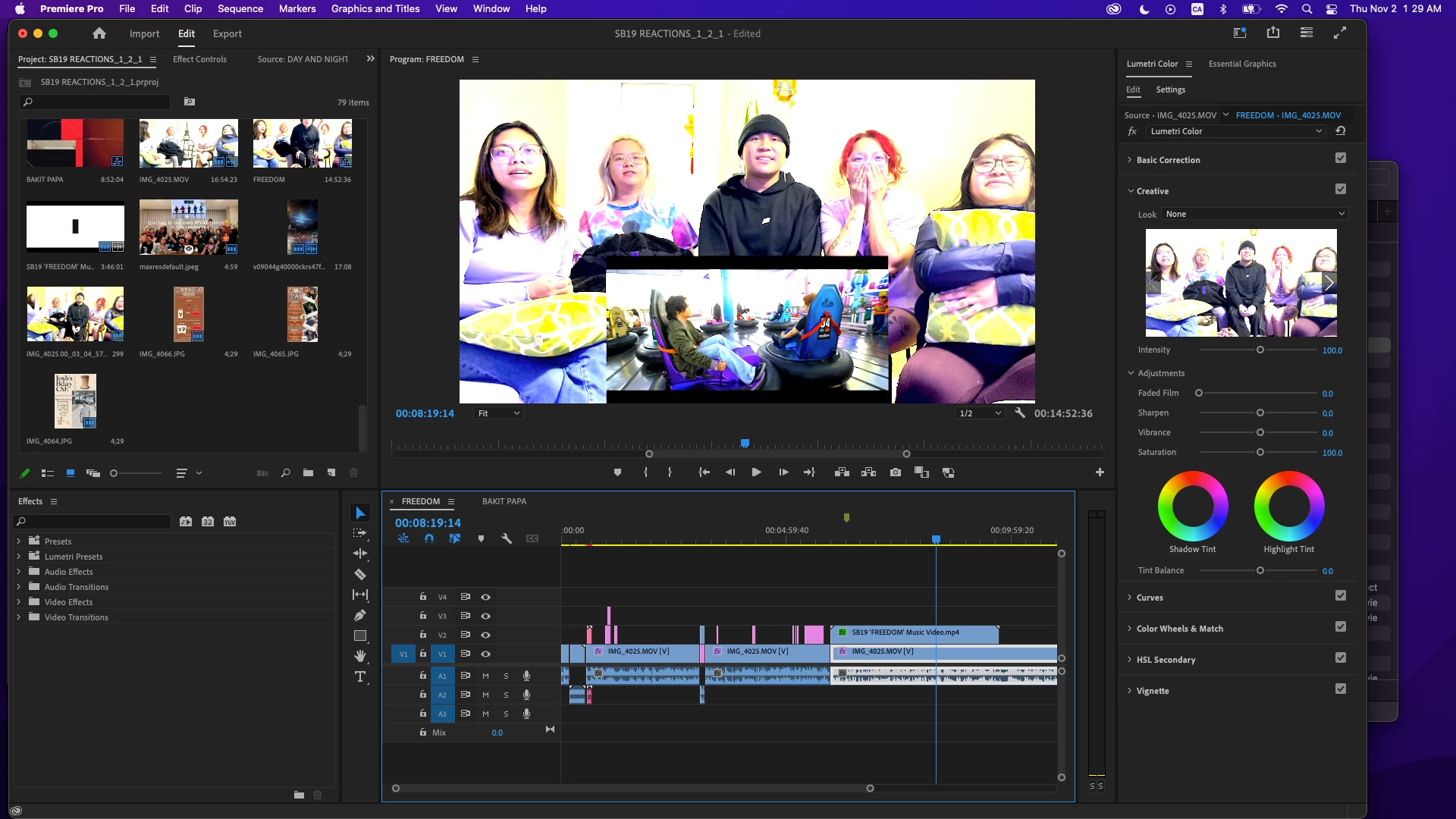
P.S. I've attached screenshots of my workplace so you can see the difference between previous clips and the new oversaturated ones.

Correct answer R Neil Haugen

Ok ... this is a thorny issue, and you're probably better off dropping the LUT now anyway. This last thing first ...


In Premiere 24.x and on, there's a new panel in the Color Workspace/Lumetri panel, the Settings tab. This is a HUGE step forward, and one I'd requested like four years ago finally come to fruition.


ALL color management settings are available there, and there's some new behaviors to the app in general ... so you need to know how to work now because it's different than it was!


Lumetri Settings tab settings

First, some of your media may be like iPhone or something, that shoots HDR in the HLG format. That's much easier now. Set the "auto detect log" switch on in the Project section of this tab.


In Sequence settings, which now applies to the current active sequence, set the working color spaces as you wish. Rec.709 for 'general' stuff, HLG if you want to export HDR, either one works.


And in the Sequence settings, set "auto-tonemapping" to on. This will remap the image ... safely,  with an algorithm rather than a LUT thankfully ... to the color space and dynamic range of the sequence. For either Rec.709 or HLG workflows.


Now ... go to the section for display ... there's a setting for Display Gamma ... I don't recall exactly what it's called and I'm on my tablet ... which has three options:

  • Broadcast gamma 2.4
  • QuickTime gamma 1.96
  • Web gamma 2.2


For Mac users, if you set the option to gamma 1.96, you will see a very similar view of the media inside Premiere and outside of it on a Mac with any app that allows the Mac utility ColorSync to control color management.


This would  include QuickTime player and Chrome and Safari browsers. VLC will probably display too dark/contrasty/saturated on your Mac, because it will still use broadcast Rec.709 standard for a display gamma of 2.4.


Why the difference?


Apple for some reason set the ColorSync controlled Rec.709 display to the camera transform ... essentially gamma 1.96, rather than the standard broadcast standard for display of Rec.709 media with gamma 2.4. That's why outside of Premiere on your machine, Premiere's native (previous) behavior looks "light". 


Understand, that will only look light on a Mac, my standard PC with a fully broadcast calibrated/profiled monitor will show the 'darker' image you've been seeing in Premiere ... of the same export that on your Mac looks too light.


But be aware: some Macs have the screen/display option for "HDTV Rec.709 gamma 2.4"!


That is the "correct" broadcast standard gamma that Premiere natively uses. That my system, nearly all PCs and Android devices, and any broadcast compliant system users. And if that is the option set on a Mac monitor, ColorSync will show the darker, contrastier view of the file. (Consistent with the rest of the non-Mac world, then.)


So ... set your Display gamma in the Lumetri Settings tab to QuickTime gamma 1.96, forget the LUT, and be happy. It will be light on my machine, but you're not watching on my machine anyway, right?

4 replies

Participant
December 2, 2024

  • @Lorenzo266318582n1d wrote:

    Hello everyone! I've recently realized I had issues with my video exports' colors being washed out and found this QT Gamma Compensation LUT trick online. These are the assets I downloaded for those LUTs. It fixed my issue with my project at the time but now, I'm working on a different project and as I import pictures or videos, all of them look oversaturated.


    I know there was also an Undo LUT for it but it doesn't seem to work (or I'm probably just not using it right). I tried downloading the newest version (and deleting the old one) of Premiere Pro as well as resetting some of my preferences but the issue persists. I also unchecked the "Display Color Management" & "Extended Dynamic Range Monitoring" options under Preferences which fixes the color while I'm editing or during playback but it still exports oversaturated.


    I'm spent trying to figure out what's wronff & I'm struggling to finish my work so any and all help is very much appreciated!


    P.S. I've attached screenshots of my workplace so you can see the difference between previous clips and the new oversaturated ones.


    Spam and advertisement
Inspiring
January 18, 2024

I too have been using QT+Gamma+Compensation for a while and it was great.  Now with Premiere 24 it seems to be way oversaturated.  Isn't it wonderful to spend a lot of time constantly changing your workflow to compensate?  

R Neil Haugen
Legend
January 18, 2024

They finally updated the user controls for color management in Pr24, and perhaps you haven't taken care to set them up as you desire. Do so.


The "gamma compensation LUT" is only of use on Macs with Retina monitors, that do not have the correct (new) reference modes, and therefore use Apple's badly implemented "Rec.709" color management. Apple uses an incorrect display gamma is the root of the problem, seen with QuickTime player, Chrome and Safari browsers.


But not with VLC and Firefox that do their own color management.


The LUT actually darkens the shadows and up into the midtones so that outside of Premiere on that Mac, the image in Qt player looks as it did inside Premiere.


Of course, on all PCs, Androids, and all proper broadcast-spec systems, that file will have crushed blacks, over-dark shadows, and too-deep mids. But ... it's a pick your poison thing thanks to Apple, so ... you have choices.


In the new Settings tab in Lumetri ... you can set the display gamma to Qt 1.96, then you don't need the LUT at export because you are seeing the same display as outside the program in Qt player.

Everyone's mileage always varies ...
Participant
January 31, 2024

Thanks for all of this great advice. I too am trying to wrap my head around the new gamma display preferences and change my workflow after using the QT adjustment lut for the last year. I'm a mac user and do youtube content. I see that gamma 2.2 says WEB next to it. Would this be the best option over 1.96 to use? Then my video grade would be middle of the road and hopefully display decent on both PC and Mac displays? Or should I stick to 1.96 and not worry about what it looks like on anything but a mac? I'm concerned because a lot of our content is display on tvs as well which I believe uses the 2.4 standard. Thanks in advance!

Participating Frequently
November 4, 2023

Windows 11 PC

Adobe Premiere Pro 24

h264 rendering (no i dont want to change that) btw the bug is also the case in quicktime ProRes 4 2 2 HQ


I insert a Picture in Adobe.

I render it.

Colors washed out/too bright compared to the original

I google.

Its a known Problem, users have even made their own QT GAMMA COMPENSATION LUT

I download this.

I use it.

Now the picture is too dark compared to the original


Is this some joke of Adobe?

For that price users pay for this Program we get this?

And mostly i read answers about that problem wich focus on the user "change this and this and that" and "have u this monitor or that hardware" 


But why does Adobe dont change the program?


I do the same with Davinci Resolve:


I insert a Picture in Adobe.

I render it.

It looks exactly like the Original.


That is proof where the failure is: ADOBE and not on Userside.

Adobe has to change.

Any real fixes wich doesnt mess around with my General Setting of my Monitor/PC aside from adobe? (because this Failure exists now a long time so i dont think adobe will change)


Participating Frequently
November 4, 2023

"

I do the same with Davinci Resolve:


I insert a Picture in Adobe.

I render it.

It looks exactly like the Original."


I do the same with Davinci Resolve:


I insert a Picture in Davinci.

I render it.

It looks exactly like the Original.

Participating Frequently
November 4, 2023

So I have to come up with my own half-fix: go from the export window back into your video project editing window where you edit the video, then click on "File" then on "Project Settings" then on "Colors" and set the "viewer gamma value" to 2.2(Web)


the colors are now closer to the original and just a touch too washed out/bright (if you have certain standards this is still not acceptable but better than nothing)


(the QT GAMMA COMPENSATION LUT is NOT used on this semi-fix)

R Neil Haugen
R Neil HaugenCorrect answer
Legend
November 2, 2023

Ok ... this is a thorny issue, and you're probably better off dropping the LUT now anyway. This last thing first ...


In Premiere 24.x and on, there's a new panel in the Color Workspace/Lumetri panel, the Settings tab. This is a HUGE step forward, and one I'd requested like four years ago finally come to fruition.


ALL color management settings are available there, and there's some new behaviors to the app in general ... so you need to know how to work now because it's different than it was!


Lumetri Settings tab settings

First, some of your media may be like iPhone or something, that shoots HDR in the HLG format. That's much easier now. Set the "auto detect log" switch on in the Project section of this tab.


In Sequence settings, which now applies to the current active sequence, set the working color spaces as you wish. Rec.709 for 'general' stuff, HLG if you want to export HDR, either one works.


And in the Sequence settings, set "auto-tonemapping" to on. This will remap the image ... safely,  with an algorithm rather than a LUT thankfully ... to the color space and dynamic range of the sequence. For either Rec.709 or HLG workflows.


Now ... go to the section for display ... there's a setting for Display Gamma ... I don't recall exactly what it's called and I'm on my tablet ... which has three options:

  • Broadcast gamma 2.4
  • QuickTime gamma 1.96
  • Web gamma 2.2


For Mac users, if you set the option to gamma 1.96, you will see a very similar view of the media inside Premiere and outside of it on a Mac with any app that allows the Mac utility ColorSync to control color management.


This would  include QuickTime player and Chrome and Safari browsers. VLC will probably display too dark/contrasty/saturated on your Mac, because it will still use broadcast Rec.709 standard for a display gamma of 2.4.


Why the difference?


Apple for some reason set the ColorSync controlled Rec.709 display to the camera transform ... essentially gamma 1.96, rather than the standard broadcast standard for display of Rec.709 media with gamma 2.4. That's why outside of Premiere on your machine, Premiere's native (previous) behavior looks "light". 


Understand, that will only look light on a Mac, my standard PC with a fully broadcast calibrated/profiled monitor will show the 'darker' image you've been seeing in Premiere ... of the same export that on your Mac looks too light.


But be aware: some Macs have the screen/display option for "HDTV Rec.709 gamma 2.4"!


That is the "correct" broadcast standard gamma that Premiere natively uses. That my system, nearly all PCs and Android devices, and any broadcast compliant system users. And if that is the option set on a Mac monitor, ColorSync will show the darker, contrastier view of the file. (Consistent with the rest of the non-Mac world, then.)


So ... set your Display gamma in the Lumetri Settings tab to QuickTime gamma 1.96, forget the LUT, and be happy. It will be light on my machine, but you're not watching on my machine anyway, right?

Everyone's mileage always varies ...

Participating Frequently
November 3, 2023

This seems to have been the fix, thank you so much for the super insightful and easy to follow instructions! As this was the first time I've ever used a LUT, can you advise me on how to remove the LUT completely? If I have the Effects section toggled on at Export (even without Lumetri Look/LUT checked), the display still shows this oversaturation. Did I make a permanent change on my program?

R Neil Haugen
Legend
November 3, 2023

If toggling on the Effects section changes the view, twirl down the section, go through and see what the settings there are set to.

Everyone's mileage always varies ...