Inspiring
October 1, 2017
Answered

Reconfiguring the LFE channel in Adobe Premiere Pro CC

  • October 1, 2017
  • 1 reply
  • 3083 views

hi

I'm working in Premiere Pro CC 2017 (updated to most recent version).

I've created a sequence in which the soundtrack is composed for an 8-channel sound system. In the sequence I have mono tracks, stereo tracks, and 5.1 tracks.

I want to change the routing of the LFE channel (which I don't require). In SETTINGS > AUDIO HARDWARE > OUTPUT MAPPING I have dragged the LFE symbol from channel 4 to channel 9. As far as I can tell, this is the only place the LFE channel can be reconfigured.

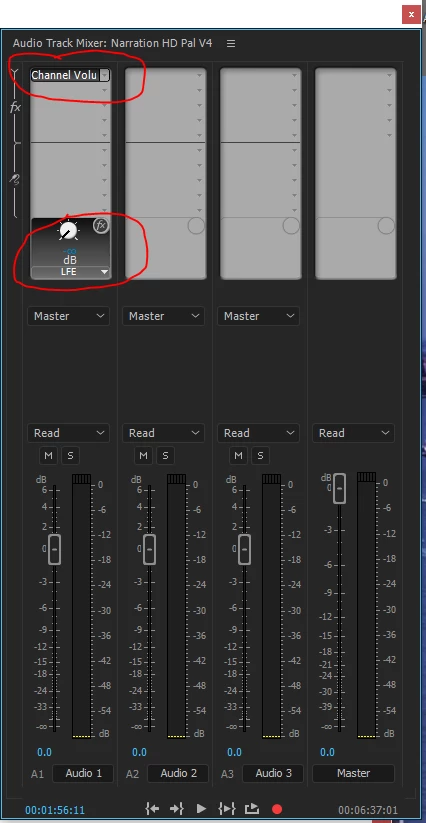
Now strangely, in the audio mixer my 5.1 tracks continue to the LFE channel as routed to output channel 4.

Does anyone know why this is, and I can reconfigure it? As far as I can, the track mixer should be showing the LFE output channel as 9 (as specified in AUDIO HARDWARE SETTINGS)

Cheers
This topic has been closed for replies.
Correct answer Richard M Knight

I think the Audio Hardware settings only alter the routing of a 5.1 sequence to your physical audio outputs so anything on the LFE will still go to track 4 of the mixer but the track 4 output should now come out of physical op 9. One way to stop the LFE is to turn the level down in the track mixer using the volume effect.

or breakout the 5.1 to mono tracks and delete it, you could then use a 5.1 submix track to recombine the 5 remaining tracks to surround for easier mixing.

1 reply

Community Expert
October 1, 2017

Are you saying you don't want to hear the LEF or you don't want it in the final mix

elkalamarAuthor
Inspiring
October 1, 2017

hi Richard,

the deal is that I sound going out to 8 discrete channels, so I'm exporting a Pro Res file from PP with 8 channels. 

The sequence has 5.1 tracks containing 5.1 WAVs which have nothing in the sub channel (channel 4 by default). Hence in theory even if I had signal in the sub channel of these 5.1 tracks, by assigning the sub to output channel 9 there would be no sub in my final .MOV file.

Does that make sense?

Richard M KnightCommunity ExpertCorrect answer
Community Expert
October 1, 2017

I think the Audio Hardware settings only alter the routing of a 5.1 sequence to your physical audio outputs so anything on the LFE will still go to track 4 of the mixer but the track 4 output should now come out of physical op 9. One way to stop the LFE is to turn the level down in the track mixer using the volume effect.

or breakout the 5.1 to mono tracks and delete it, you could then use a 5.1 submix track to recombine the 5 remaining tracks to surround for easier mixing.