Participant
Nov 12, 2026 1:12 PM UTC
Answered

"Reconnect Full Resolution Media" resets all Warp Stabilizer clips

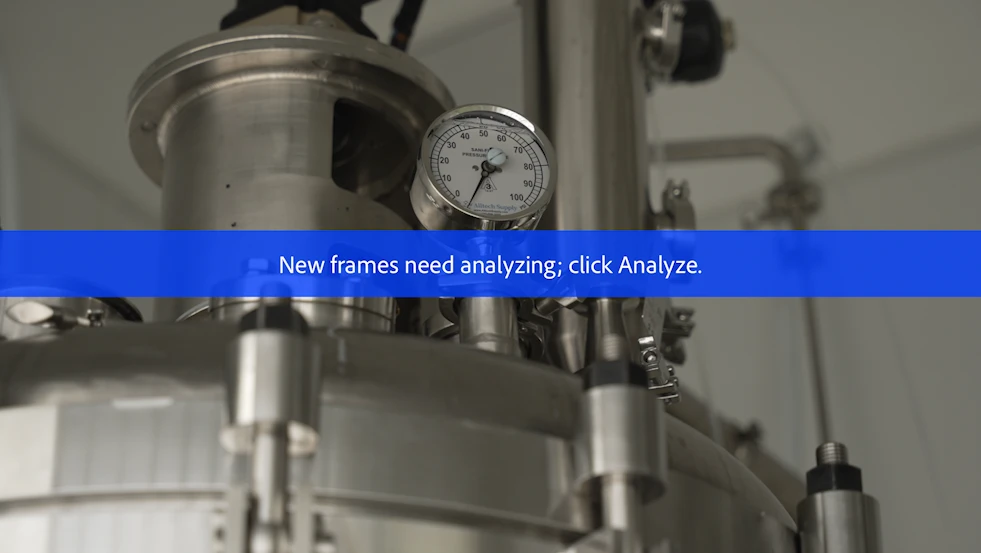
We use proxies to edit and then always check "Reconnect Full Resolution Media" before final export. Recently (Q3-Q4 2026), using the reconnect function resets all Warp Stabilizer clips, meaning that the final export has the “New frames need analyzing; click Analyze” burned into the render. Since we have several dozen warp stabilized clips per episode, this is a problem. 

Has anyone else found this to be an issue and if so, have you found a workaround?
 

    Amy the Stuv
    Amy the StuvCorrect answer
    Community Manager
    Nov 12, 2026 2:33 PM UTC

    Hello ​@dvdlndn 

    Welcome to the Premiere Forums. Unfortunately this is expected behavior. Because Warp Stabilizer depends on analyzing the pixels to stabilize and the Proxy will have a different resolution than the Hi Rez, switching between the two will result in the need to Re-analyze anything you’ve applied Warp Stabilizer to. 


    To Avoid this you can Stabilize the Hi Res then use Render and Replace before you return to Proxies. Make sure your Video Previews in Sequence Settings are set to your intended Resolution, as that will dictate your Render Resolution. For best practice here I would also keep a version of the original on the track below the Rendered and Replaced clip so you can always quickly go back to the original. 


    I’ve also applied Markers on Clips where I Warp Stabilized to remind me to go back through and re-analyze for the final. Then you can use your Markers Panel to jump through them in the timeline. 


    Hoping this helps!

    Amy

    1 reply

    Amy the Stuv
    Community Manager
    Amy the StuvCommunity ManagerCorrect answer
    Community Manager
    Nov 12, 2026 2:33 PM UTC

    Hello ​@dvdlndn 

    Welcome to the Premiere Forums. Unfortunately this is expected behavior. Because Warp Stabilizer depends on analyzing the pixels to stabilize and the Proxy will have a different resolution than the Hi Rez, switching between the two will result in the need to Re-analyze anything you’ve applied Warp Stabilizer to. 


    To Avoid this you can Stabilize the Hi Res then use Render and Replace before you return to Proxies. Make sure your Video Previews in Sequence Settings are set to your intended Resolution, as that will dictate your Render Resolution. For best practice here I would also keep a version of the original on the track below the Rendered and Replaced clip so you can always quickly go back to the original. 


    I’ve also applied Markers on Clips where I Warp Stabilized to remind me to go back through and re-analyze for the final. Then you can use your Markers Panel to jump through them in the timeline. 


    Hoping this helps!

    Amy

    Translate