


Known Participant
January 19, 2021
Answered

Red numbers in Audio

  • January 19, 2021
  • 5 replies
  • 11449 views

Hello,


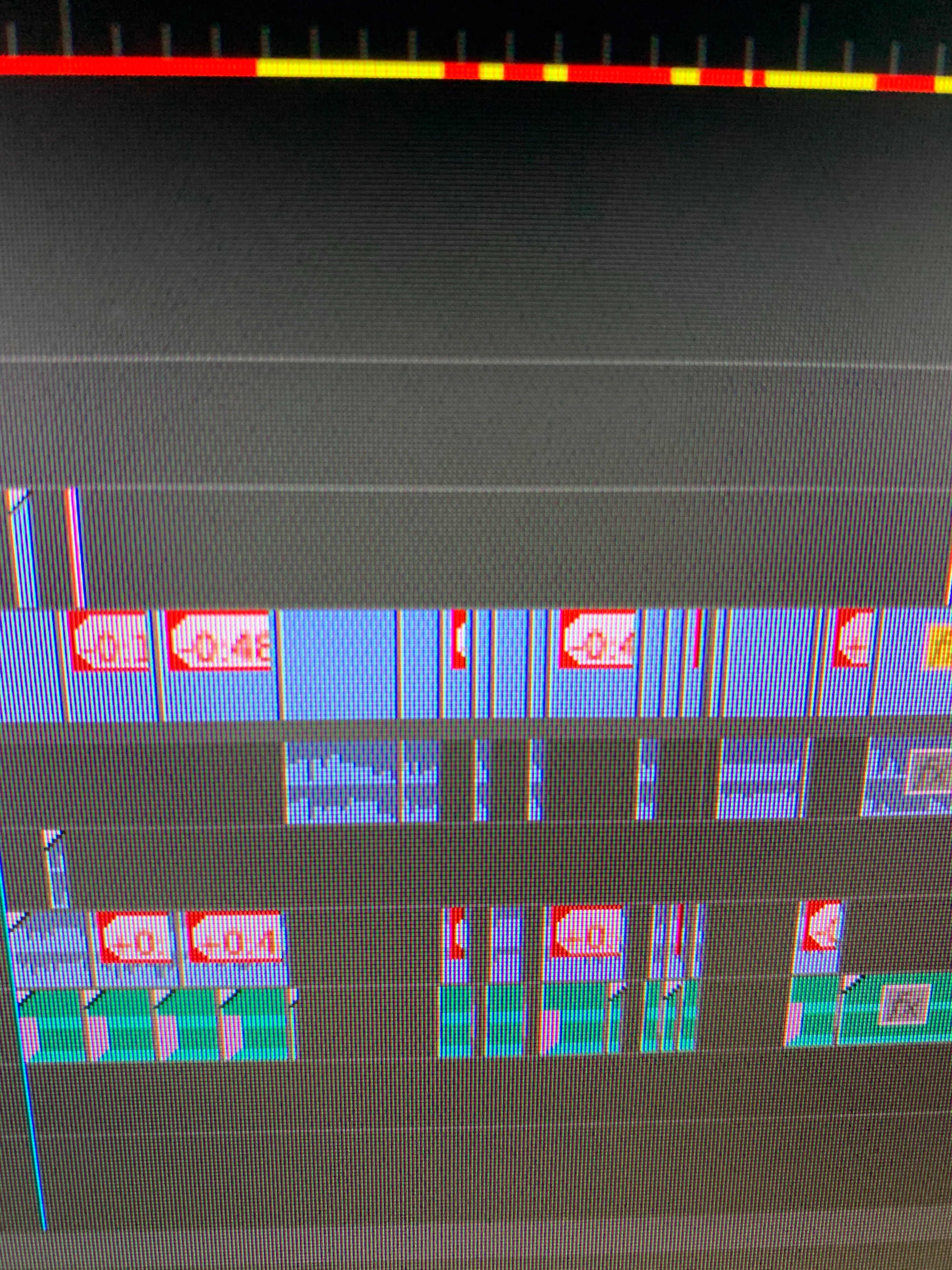
After a few trys trying to follow people's videos on how to export my video, somehow I now have red numbers along the audio clip.  What are they I have included a photo of them sorry for the distortion but I believe you can see what I am talking about.  Thank you,


Luey
Correct answer Richard M Knight

This is an indicator that the audio clips and their associated video clips are out of sync by the shown amount. If you click on the red numbers you will be givne the option to move the clips back into sync or to slide the clips back into sync. Make sure you are moving the correct clip, either the audio or video, depending which has moved. It might be that you want the keep the out of sync, in which case ignore the numbers.

5 replies

Bando
Known Participant
April 29, 2025

Hello:

I found out that these red numbers may also appear in audio only clips (with no video) . Meaning there is nothing to synch with.


But after an hour of troubleshooting I realized that these red numbers also show when you have two different sections of the audio clip overlaping on the timeline. 

Participant
March 4, 2024

how to turn off this

Community Expert
March 4, 2024

Try this option:

Peru Bob
Community Expert
Community Expert
January 19, 2021

What did I do to have them move?

You likely did it with an errant mouse click.  I do it occasionally.  Control + Z is my friend.

Joost van der Hoeven
Community Expert
Community Expert
January 19, 2021

They are called "Linked Selection"the link audio en video of one source to keep them sync. See this document: https://nofilmschool.com/2018/07/3-timeline-buttons-you-need-use 

Participant
June 20, 2023

this is a offset marker. not linked selection. what you posted doesn't really help. as i don't have them showing after an update, and can't find where to turn on the option for the time line to see offset audio sync markers, and unfortunetly that article you posted doesn't mention them.

R Neil Haugen
Legend
June 20, 2023

If you used the Merge Clips option, then cut either end of the clip, you will also get these.


And just need to ignore them.


One of the numerous reasons the Multicam clip option is the preferred one for joining separate audio to video.


Neil

Everyone's mileage always varies ...
Richard M KnightCommunity ExpertCorrect answer
Community Expert
January 19, 2021

This is an indicator that the audio clips and their associated video clips are out of sync by the shown amount. If you click on the red numbers you will be givne the option to move the clips back into sync or to slide the clips back into sync. Make sure you are moving the correct clip, either the audio or video, depending which has moved. It might be that you want the keep the out of sync, in which case ignore the numbers.

LueyDAuthor
Known Participant
January 19, 2021

Thank you so very much......  What did I do to have them move?  The only thing consistently that I have done was the rendering.  Was told if I rendered befor eexporting then it would make the video upload way faster UGH