Answered
Remove shadows from subject
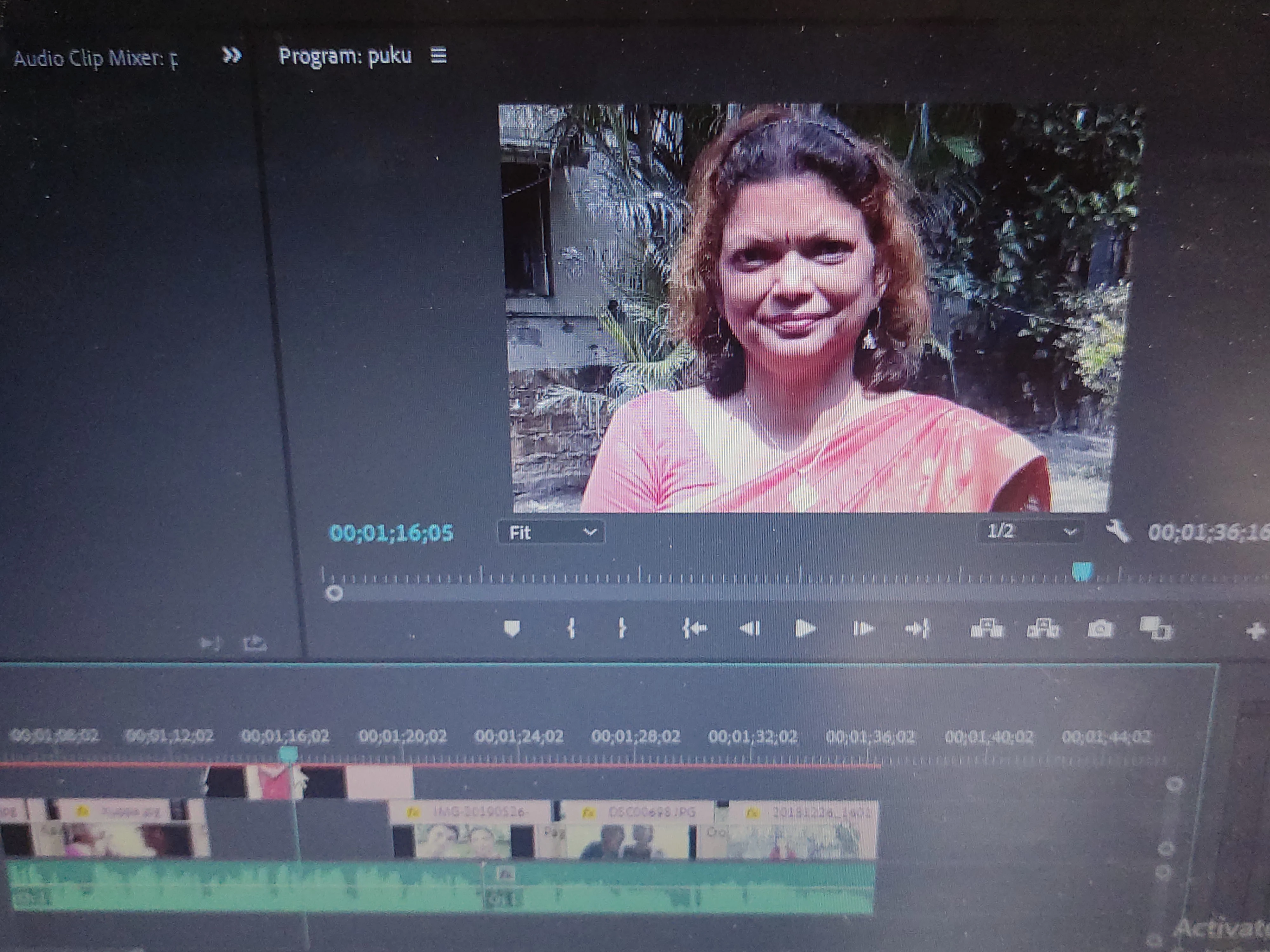
I want to adjust/reduce the shadows on the face of the person and get the natural tone of the skin similar to the rest of the areas which have sufficient lighting. Which video effects can help me in doing so?

I want to adjust/reduce the shadows on the face of the person and get the natural tone of the skin similar to the rest of the areas which have sufficient lighting. Which video effects can help me in doing so?
Use the HSL Secondary tab of the Lumetri Color effect. Select the shadow you want to change with the dropper, then fine-tune with the H S & L sliders. It helps to click the "Color/Gray" box to see exactly what you've selected as you dial in with the H S & L sliders. Once everything you want changed is selected, make adjustments in the Correction section of the tab.
For the image you've posted, you are going to need to mask the effect to only the subject's face. Otherwise, you're going to be bringing all of those background shadows up along with the shadows on the face you want to reduce.
Already have an account? Login
Enter your E-mail address. We'll send you an e-mail with instructions to reset your password.
 AdChoices