Inspiring
October 11, 2018
Answered

Render issues - error code: -1609629695

  • October 11, 2018
  • 18 replies
  • 216963 views

I have issues with exporting clips I edited some months ago. I have these issues in Premiere Pro as well as with the Media Encoder.


  • Interestingly, Premiere and Encoder are sometimes able to render the clips, sometimes not.
  • When I export the material in full HD, the video looks OK, but when I export in HD the video looks grainy
  • When the Media Encoder is unable to render the video, closing & reopening seems to help sometimes. However, after one or two clips, I get the issue again.


Unfortunately, I have to export about 25 clips and will have to export them several times for iterations.


Fehler beim Export

Fehler beim Kompilieren des Films.


Fehler bei beschleunigtem Renderer


Frame kann nicht produziert werden.


Schreiben mit Exporter: H.264

Schreiben in Datei: \\?\F:\Export\02 - Genium EN.mp4

Dateityp wird geschrieben: H264

Um Timecode: 00:00:06:15 - 00:00:06:21

Rendering bei Offset: 8,880 Sekunden

Komponente: H.264 vom Typ Exporter

Selektor: 9

Fehlercode: -1609629695


I tried:

  • switching to CPU rendering only
  • copying the content of a sequence to a new sequence
  • downgrading premiere and encoder, but then I was unable to open the document because I already saved it with the newest Premiere version.
  • Removing Lumetri Color correction


System: Win 10, i7-7700, Nvidia Gtx 1060


Thanks!
Correct answer Mikay²

What is the bug? how do you solve it?


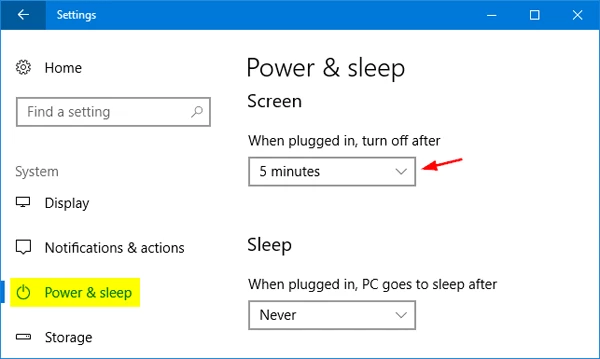
In my case, the bug was - as described - that the Media Encoder cannot handle the screen locking.

Thus you should prevent that Windows locks the screen. 


In the Windows settings, set "turn off after" to "never"


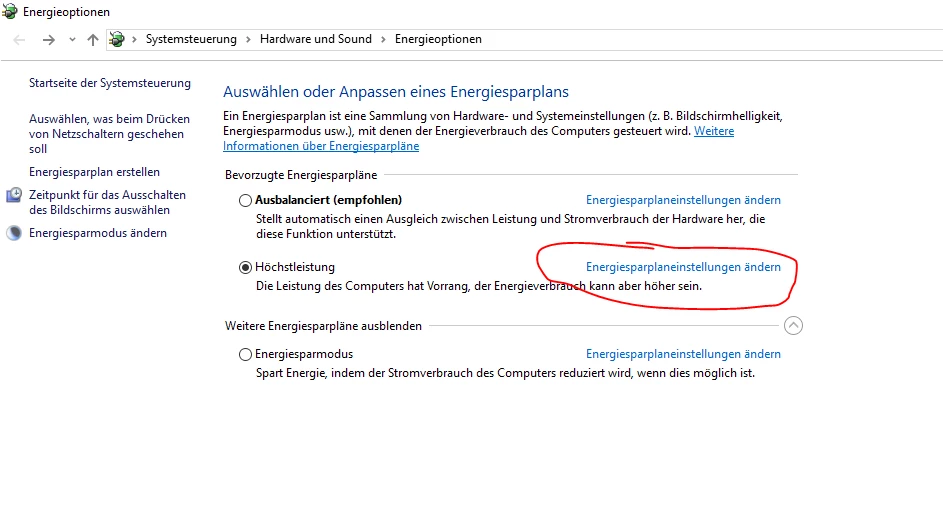
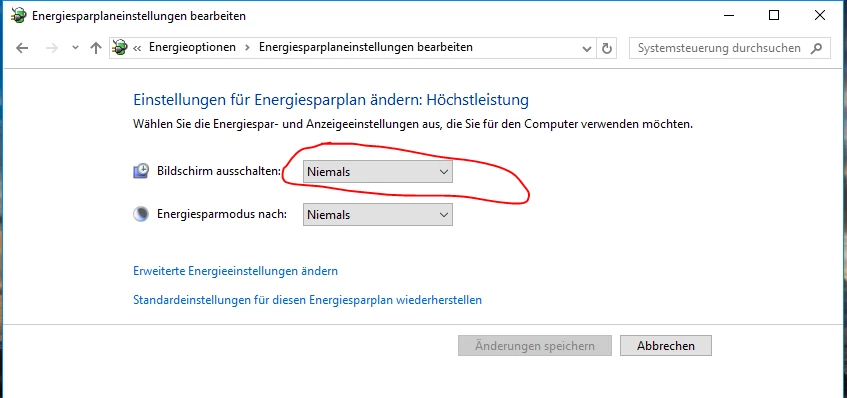
Or go to your power plan settings in windows ...

...and set it to never:


18 replies

Participant
October 15, 2020

How is this a solution? What did you do to fix it?

@Shweta23 this is marked as the correct answer?

Anyone else find out how to fix it?

Mo Alani
Community Expert
Community Expert
December 23, 2020

Solved by clean(delete) the Media cach files and in my case i changed the location and i will be solved. 

Participant
July 30, 2020

I know this thread is kinda old but it seems there are a number of reasons for this to happen, some of which aren't so obvious.

I've been fuming for the past hour trying to figure out why my stupid video wouldn't render.

The reason?

Hard drive was full. Sometimes it's the simple solutions! However, it would be nice to get an error message that simply says "no can do, not enough space" would have saved me a lot of time and frustration.

Participant
August 6, 2020

"Shadow Highlight & RGB Curves are "Obsolete Effects"


this was the aha! moment I needed. once I removed the fx that had rgb curves on it it worked just fine. just FYI 

Participant
June 5, 2020

I experienced this same issue exporting from After Effects to AME, which drove me nuts for hours on end. After reading through these and other suggestions with no luck, I finally discovered it was because one of the layers had time interpolation settings. This was a file previously created in After Effects CC 2015, but opened and edited in AE CC 2020. I hope that helps anyone else having the same issue!

Kevin-Monahan
Community Manager
Community Manager
June 15, 2020

Thank your for sharing your story, panoptic.

Kevin

Kevin Monahan - Sr. Community & Engagement Strategist – Pro Video and Audio
Adivanroot
Participant
November 22, 2019

Hi,

I've faced this exact error code today with CC 2020. Was using AE to export many with the same preset but with different index.

After messing around a while, my issue was a corrupted render cache file, which I've resetted and cleared them all. This simply fixed my issue. 

I guess, there are some conflict with the versions render cache and the old ones were simply not matching with the fixed effects and stuff. (Got so many effects on some layers so I did not disable/enable them one by one.

Hope this helps.

corin40483403
Participant
January 8, 2020

I had the same issue when trying to export from After Effects with AME no matter the format I chose. 

I finally managed to make it work. I watched all rendering and saw where it stopped, then I went to the timeline and removed whatever effect was at that exact time (turned out to be caused by a glitch effect that I used from a paid transition pack). 


I hope this helps. Good luck

Participating Frequently
November 9, 2019

I"m working in AE - was getting the same cursed error, but my google search led me here. Ann's answer gave me an idea, so..In case someone else stumbles across this who was like me, my fix was:

Reading some other forums I found that the combination of the Hue/Saturation effect and blur can effect the encoder (or sometimes just Hue/Saturation on its own). By using the search feature in the layers panel - I click+drag turned off all of the Hue/Sat effects on my layers, let the preview refresh a frame, then turned them all back on again. For whatever reason - now exporting to encoder isn't crashing with this error.

Kevin-Monahan
Community Manager
Community Manager
November 10, 2019

Cyrene,

Sorry about this.


"I click+drag turned off all of the Hue/Sat effects on my layers, let the preview refresh a frame, then turned them all back on again. For whatever reason - now exporting to encoder isn't crashing with this error."


Sounds like a corrupt preview file. It happens from time to time. Glad you solved it. Ann Bens is correct. Always inspect clips where the Timecode indicates an error. Good tip.


Kevin

Kevin Monahan - Sr. Community & Engagement Strategist – Pro Video and Audio
Irisvideo
Inspiring
January 31, 2020

same problem here, and the timecode indicated in the error msg is NOT even part of the exported area... it is AFTER the export area, and in fact the timeline is empty there.


  • I tried removing an HLS efftct - no help. changed to "Mercury Playback Engine GPU Acceleration - Software Only" - no help.
  • deleted all media cache and preview files - still doesnt work.
  • one section on the timeline has a linked AE comp where there is a Wigglerama effect.
    • deleted the effect (even though it does exist in other exports) -
    • finally it is exporting.


Premiere is just a time-sucking-bug-filled software and if they carry on this way ppl will abandon ship the moment there is a decent alternative to the suite, and its just a matter of time.

Participant
July 29, 2019

I have the same error exporting from Premiere, it started getting it, after I upgraded to the latest version 13.1.


Still can't fix it

Kevin-Monahan
Community Manager
Community Manager
July 29, 2019

Ellen,

What troubleshooting have you tried so far?

First of all, look at the warning dialog box. What's going on at 1:38 in your sequence as indicated in the dialog box?

  • You might have a corrupt render file.
    • If you re-render the clip in that area, can you render then?
  • You might have a corrupt clip.
    • If you swap out the chosen clip with a clip from, say, another take, can you render then?
  • You might be running out of VRAM at that point in your sequence.
    • If you change the renderer in File > Project Settings to: Mercury Playback Engine GPU Acceleration (Software Only), can you render then?

Let us know what's going on.

Thanks,
Kevin

Kevin Monahan - Sr. Community & Engagement Strategist – Pro Video and Audio
Participant
July 30, 2019

I  have tried different projects to render, all of them fail, with the same error.
It started happening after the upgrade of Premiere.

The only way for me to render is through the Media Encoder.
I'll have to downgrade back to the previous version of Premiere.

Participant
April 1, 2019

Can you please explain EXACTLY what you did to fix this? I have been receiving this error code on every export attempt and am absolutely desperate at this point to get it resolved.

PLEASE, if you have the answer, help me out.

Ann Bens
Community Expert
Community Expert
October 11, 2018

You need to fix whatever is on the timeline at the given time in the error message.

Can be anything: faulty clip, transition, effect, audio, you name it.

Remove clip from timeline.

Add it again and redo the effects.

If that does not help, export to intermediate file (e.g. CF) and put that on the timeline.

Mikay²Author
Inspiring
October 15, 2018

Thank you for your answer, but I found the solution.

It's a software bug that took me ages to find. I am working on two computers and I switch to my notebook while I am exporting on my PC. Windows locks the screen after some minutes and when I unlock the screen the Media Encoder seems to either continue the rendering process or it shows that all exports in the queue have failed.

This bug was so difficult to find because when Windows locks the screen and I unlock it immediately, the Media Encoder seems to continue rendering as if there was no problem. However, the export eventually fails. After this, every export fails until I close and reopen the Media Encoder again.

brennanc69170206
Participant
December 3, 2020

There is no answer here...