Very apologetic, but I can't get either of these solutions to work.
1. Ctl F finds one file meeting the name criteria, but I don't know how to then find the others.
2. I'm not sure about Meta Display and then Video Usage.. Here's what I've tried.
a. In the project panel, I've located the file to be found in the timeline, and in the dropdown of the top left of the project panel i selected metadata display. Under Premier Pro Project Metadata, I checked Video Usage, but there is no dropdown with it. i.e. Re: "Now hit the arrow down under Video Usage for that clip, select the path and Premiere will set the playhead to that position in the timeline." I don't find a down arow and don't know what you mean by selecting the path.
b. I also went into the Metadata Panel, and cannot find Video Usage.
Can you please elaborate on these two methods as to what I'm doing wrong. Thank you.
kdoc
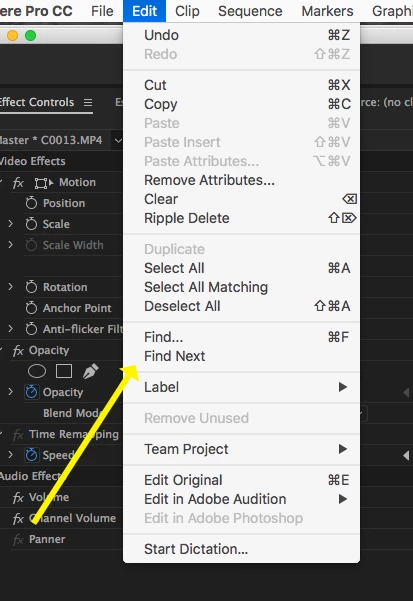
1) After finding the first instance on the timeline, use the Find Next Command:
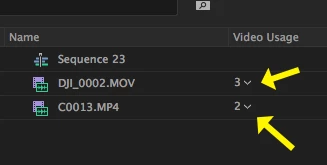
2) The down arrows are the little chevrons next to the usage numbers:
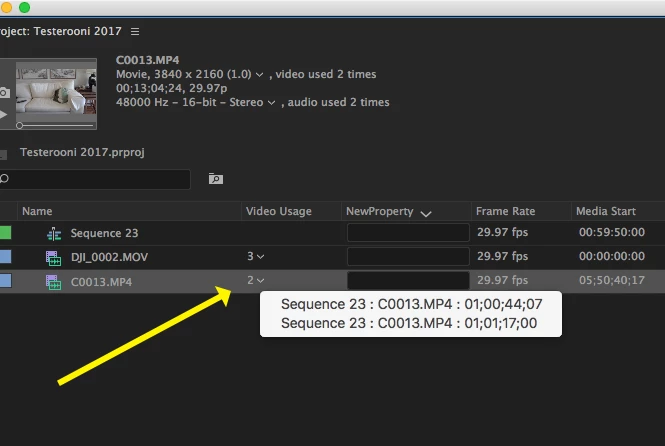
If you click on them you will see the clips locations in the timeline, clicking on the location will move the playhead there:
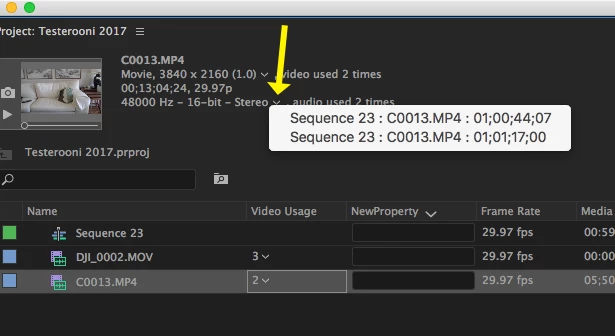
This same functionality is in the Preview Area:
To add the Video Usage Metadata column, right click on the any of the column headers, and click on the Metadata Display . . . drop down - when the Panel opens search for Video Usage, check it and click OK:
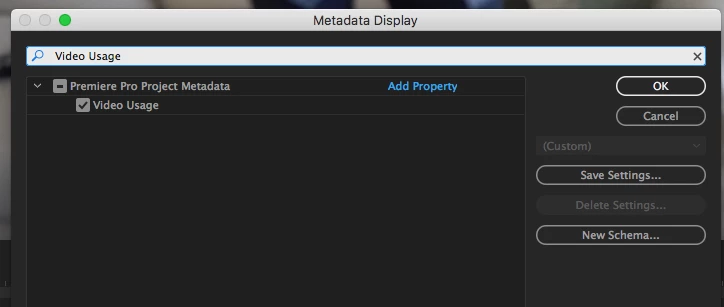
You may need to re-order your columns to see it, it will be added to the last column on the far right so you may need to scroll over.
MtD
 AdChoices