
adamfp
Inspiring
August 12, 2024
Answered

Ripple Trims don't work with playhead at the head or tail of a clip

  • August 12, 2024
  • 1 reply
  • 1329 views

I love 'Ripple Trim Previous Edit to Playhead' and 'Ripple Trim Next Edit to Playhead' because it's a super efficient tool that allows me to keep both hands on the keyboard.


However it stops functioning when the playhead is at the head or tail of a clip.


In the below screenshot for example, if I hit my shortcut for 'Ripple Trim Next Edit to Playhead', I would expect it to just delete the clip to the right of the playhead. But instead, nothing happens.
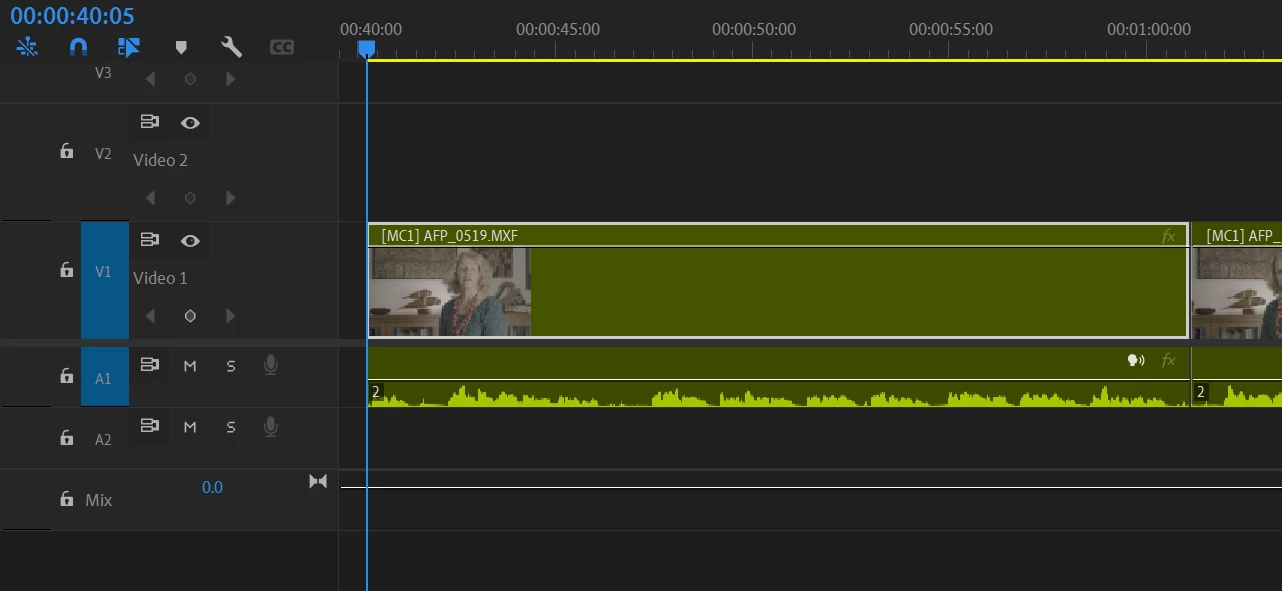
 

Does anyone know why this is the case or what I'm doing wrong? Or maybe if there's another way to delete clips with a single key? Avid has this functionality and it was super helpful.


BTW, I've read the guide but it doesn't mention the feature. I also searched the Adobe Forums and Reddit for advice on this but all the results relate to the single frame 'bug'/feature change from 2022.

This topic has been closed for replies.
Correct answer PaulMurphy

To ripple delete a whole clip with a single keystroke:

  1. Make sure you have Sequence > Selection Follows Playhead enabled.
  2. Use the Ripple Delete command (Alt/Option + Backspace/Delete).


However, you need to keep your video and audio linked. In the example you posted, the video and audio are unlinked, so the Ripple Delete command would only delete the video.

1 reply

R Neil Haugen
Legend
August 12, 2024

That is designed to work within a clip. And to trim from the first frame to the playhead (Q) or last frame to playhead (W).


Which is precisely what it does. When the playhead is within a clip.

Everyone's mileage always varies ...
adamfp
adamfpAuthor
Inspiring
August 12, 2024

Thanks for responding Neil. Do you happen to know of a way to delete/trim out whole clips with a single keystroke?

PaulMurphyCommunity ExpertCorrect answer
Community Expert
August 12, 2024

To ripple delete a whole clip with a single keystroke:

  1. Make sure you have Sequence > Selection Follows Playhead enabled.
  2. Use the Ripple Delete command (Alt/Option + Backspace/Delete).


However, you need to keep your video and audio linked. In the example you posted, the video and audio are unlinked, so the Ripple Delete command would only delete the video.