

Rolling Credits Walk-Through / Quick Reference / Reminder (2 Dec 2018)
- Place read-head on timeline where credits will start.
- Switch to Graphics workspace.
- In monitor panel, click once to create a dynamic text box.
TIP: Do not click-drag to create static size box. This forces you to manually drag box to needed size later (GUI awkward; takes forever).
- From outside text editor, select-copy content.
- Paste into box.
- On timeline, click on (select) graphics element.
- This changes the tools shown in Essential Graphics window. Now shows a check box for Roll:
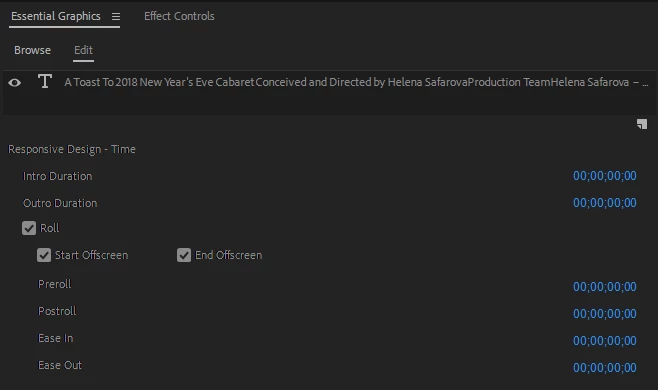
7. Fuss with look as desired, e.g.: stretch timeline box for desired duration, position box on screen, justify text in box, font, color, blah blah blah.
TIP: For best viewability of credits over busy backgrounds, such as a busy stage of cast all taking bows, this works pretty well:
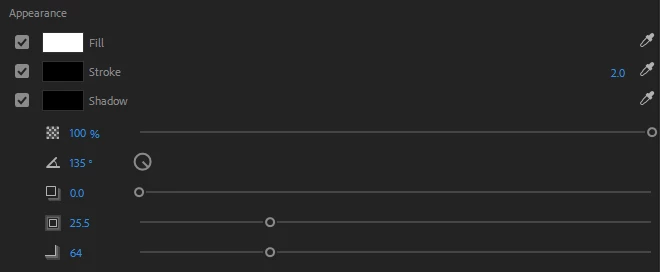
Mysterious sliders key
slider 1 = opacity. Left to darken
slider 2 = angle of shadow. (Moot in my "no distance" preference, shown here)
slider 3 = distance to shadow. (I just want a gradient stroke, beyond my actual stroke, so I set this to zero.)
slider 4 = width of shadow. By itself, widens a binary (B&W) shadow, i.e., no graduation.
slider 5 = graduation (fade) of shadow. (This makes it finally look right; a gradual transition from black at stroke to nothing some distance from each letter.)
 AdChoices