j-foto
Participating Frequently
April 16, 2019
Answered

scaling key frames do not work

  • April 16, 2019
  • 4 replies
  • 1919 views

Hi I hope someone can help this is doing my head in.

So I am trying to scale a picture. I go to scaling, click the stop watch, set the first keyframe to 90, move this to the right and set the next one to 75 and move to the left. press play and it should scale up. Its not, why is this, I have tried nesting, but I dont think this is the answer, I dont know if its the most recent update, but I have been doing this for month and for some reason it isnt working, can someone please help me with this. It could be something really simple. I will try apply a screen shot

so when I move the line across the image remains the same size regardless of the above settings.
This topic has been closed for replies.
Correct answer Meg The Dog

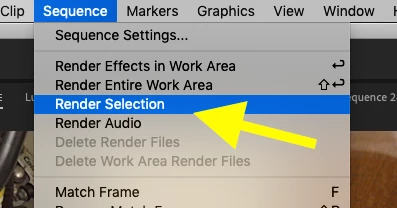
Click on the clip to select it (the top clip is all you need to select) and once selected go to the menu Sequence > Render Selection:

MtD

4 replies

Inspiring
September 12, 2021

I have the same issue, except i know it&s an error because the scaling works it&s jus tthe key framing that doesnt. I did render.

and I also tried resetting preferences and clearing cache.

Adobe Employee
April 16, 2019

Hi j-foto,

Are both the keyframes applied on the same clip or they are on different clips? For the scale to animate based on the keyframes they need to be on the same clip. In case you want to spread those keyframes across multiple clips, then you may select all those clips and nest them and then apply keyframes on the nested clip.

If the keyframes are on a single clip and the scale function is still not animating then you may try to switch the Renderer to

Mercury Playback Engine Software Only (FAQ: How to change the Video Renderer in Premiere Pro? ) and check if the preview is updating properly. If the playback is not in real-time, you may render the sequence (Sequence> Render In to Out).

Hope it helps, Let us know if you have any questions.

Thanks,

Sumeet

Inspiring
April 16, 2019

Have you tried rendering that portion of the timeline?

The large size of your source files, combined with layering over a Gaussian blur effect, may too much for Premiere to play in real time.

MtD

j-foto
j-fotoAuthor
Participating Frequently
April 16, 2019

Hi Thanks for the info, how do I render that portion of the timeline.

Meg The DogCorrect answer
Inspiring
April 16, 2019

Click on the clip to select it (the top clip is all you need to select) and once selected go to the menu Sequence > Render Selection:

MtD

Peru Bob
Community Expert
Community Expert
April 16, 2019

Delete the Media Cache and Media Cache files.

If that doesn't work, Try resetting the preferences:

Try resetting the preferences:

FAQ: How to reset preferences in Premiere Pro?

If that doesn't work, try resetting the Workspaces:

Reset a workspace

Reset the current workspace to return to its original, saved layout of panels.

  1. Do one of the following:
    • Click the Workspace menu icon and select Reset to Saved Layout.
    • Choose Window > Workspace > Reset to Saved Layout.

from here:

https://helpx.adobe.com/premiere-pro/using/workspaces.html

If that doesn’t work ,try updating or rolling back your graphics driver directly from the video card manufacturer’s site.

j-foto
j-fotoAuthor
Participating Frequently
April 16, 2019

Thanks for the advice, the deleting media cache didnt work, I may try the graphics card update.