MahaB82A
Legend
October 18, 2022
Question

Sequence Settings

  • October 18, 2022
  • 3 replies
  • 1637 views

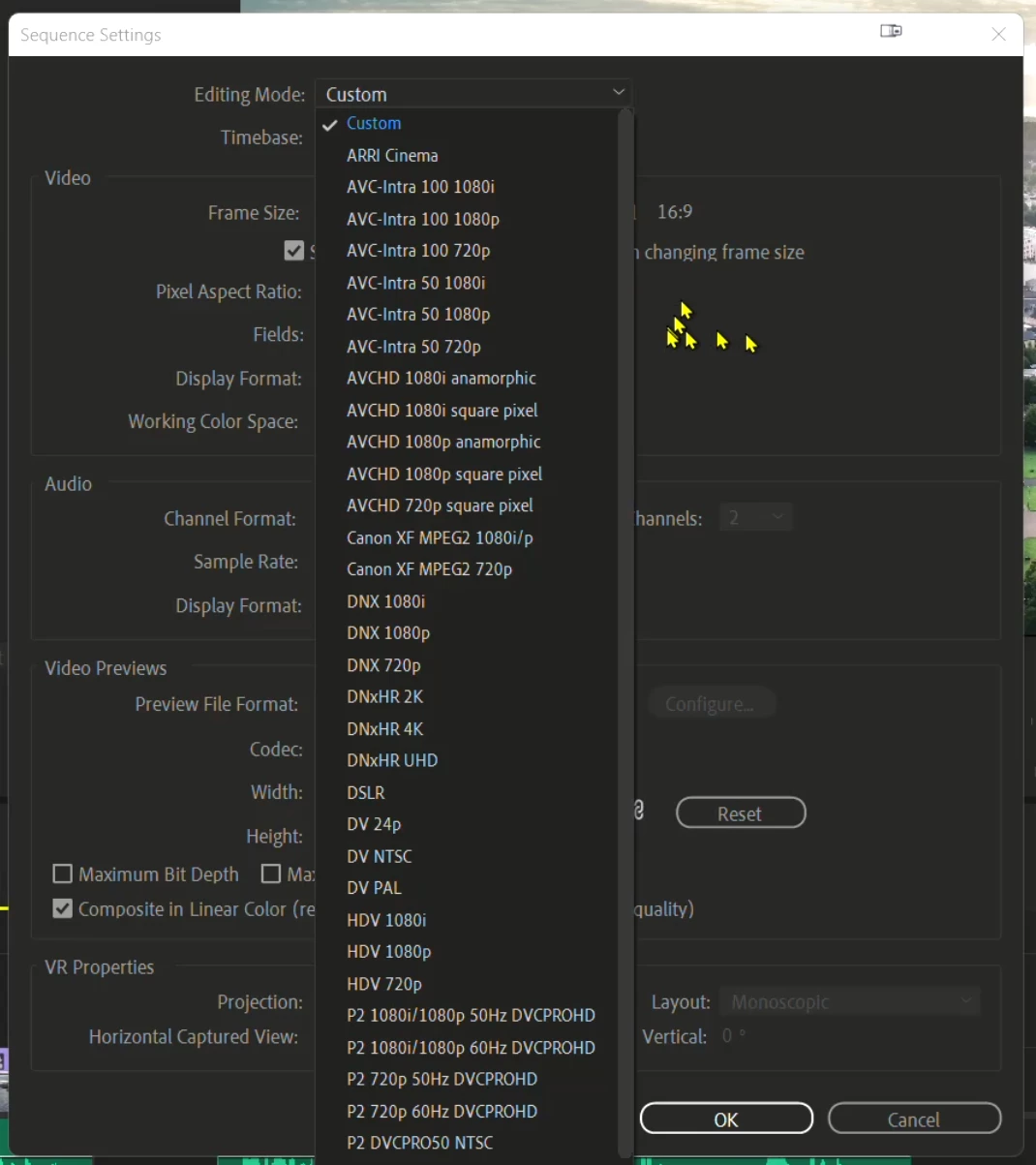
My sequence setting is Custom. I watched many YouTube video's in that sequence setting was not custom. How to decide what should be the sequence setting?
 

This topic has been closed for replies.

3 replies

Kevin-Monahan
Community Manager
Community Manager
October 26, 2022

Maha,

I use Custom exclusively. It is customizable, as the name suggests. It allows for changing the Video Preview codec so I can choose which codecs to render effects to. That way, I can achieve a nice smart rendering workflow. I use QuickTime > ProRes LT. To achieve the best Timeline performance (not yellow), you need the sequence settings and clip properties to match precisely. You need a fast enough computer to handle the formats for some formats.


Thanks,
Kevin

Kevin Monahan - Sr. Community & Engagement Strategist – Pro Video and Audio
MahaB82A
MahaB82AAuthor
Legend
October 26, 2022

If Video Preview is not QickTime - error message

If Video Preview is QickTime - rendering.


R Neil Haugen
Legend
October 19, 2022

Premiere will auto-select the 'closest' first-match from the Sequence settings list to the clip you tell it to make a sequence from. That's all those are ... a variety of potentially correct settings. And as soon as you change anything, the sequence changes from whatever it was to "custom".


Many users have a whole series of saved custom sequences they use for specific things. There's no need for the sequence to 'BE' something, as long as the settings fit the media you are working with.


Neil


Everyone's mileage always varies ...
MahaB82A
MahaB82AAuthor
Legend
October 19, 2022

You can see in this video in the timeline yellow line is followed by red line & my Sequence setting is custom. If I change the sequence setting I think I can render without error message. As this is a tutorial, I do not have any other information.  

R Neil Haugen
Legend
October 19, 2022

The timeline green/yellow/red line is simply Premiere's trying to outguess whether or not it will have dropped frames in playback. That's it. Whether your sequence settings are named "custom" or anything else doesn't have anything to do with that.


What matters are the for the appearance of the line is the media of the sequence, the effects used, and your hardware. If Premiere thinks the combination of media and effects used may exceed the system's capability to play back properly without dropping frames at normal speed, you get a yellow line.


If it is sure your system will drop frames, you get a red line.


And again, that's only an issue during playback ... and depending on the codec chosen in your sequence settings for Previews when you 'render' a timeline, you may get better playback with rendered previews.


BUT ... previews do NOT affect the export from a sequence ... unless!!!!! ... you are using 'smart rendering', where you have the preview setting to the EXACT same intraframe format (DNx, ProRes,Cineform) of the coming export, AND you have "use previews" checked in the Export dialog.


For the vast majority of exports, including ALL H.264/5 long-GOP exports ... no previews are used in the export process. So rendering the timeline for playback does absolutely NOTHING for helping the export process.


Neil

Everyone's mileage always varies ...
Community Expert
October 18, 2022

I recommend using Media Encoder presets, Social Media, YouTube and whatever your frame size is.