This topic has been closed for replies.

6 replies

Richard van den Boogaard
Community Expert
Community Expert
June 21, 2023

If the Set to Frame Size option does not work for you, consider trying Scale to Frame Size instead.


If that doesn't work, manually scale the clip to the desired setting (e.g. 51%). Next, click the Motion setting in the control panel and save it as a Preset and give it a name (e.g. scale clip 51%). From the Effects > Preset panel drag the preset onto any other clip or selected group of clips to effect them in the same way.


If it doesn't work, make it work.


Hope this helps.

Inspiring
June 21, 2023

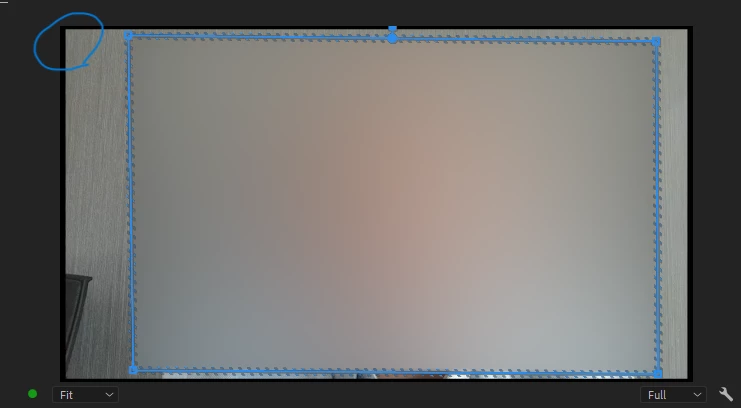
set to frame size works most of the time, but as you can see from the screenshot, sometimes (not always) it leaves a black frame around the perimeter. i want to know why

Richard van den Boogaard
Community Expert
Community Expert
June 21, 2023

Something's amiss, clearly. Either with your footage and maybe the way PPro handles it.


I typically don't spend too much time searching for anwers to non-critical issues in my life. I just fix things and move on. Saves a lot of headaches too, IMHO 😉

Peru Bob
Community Expert
Community Expert
June 20, 2023

Is there an alpha channel in the clip?

Peru Bob
Community Expert
Community Expert
June 20, 2023

Change the view from Fit to 100%.

Participating Frequently
June 20, 2023

Are you certain the thin black border is not part of the source clip?  What does it look like in the source monitor?

(Creating a sequence to match the clip dimensions would also answer this.)

Inspiring
June 21, 2023

Actually it is like this


Creating a sequence to match the clip dimensions won't help because I have many clips with different dimensions

Participating Frequently
June 21, 2023

So here's what's happening.  The thin black bars on the sides are embedded in your image.  As far as Premiere understands it they are part of the image.


When you place that into a timeline with a different raster shape, Premier adjusts the whole image, including the thin black lines to fit the timeline raster.  In this case it needs to add space to the top and bottom in order to include the whole image.  It's behaving as expected.  If you want to enlarge the image to exclude the lines at the side you must do that manually.

Remote Index
June 20, 2023

@Kevin-Monahan 


It's probably worth noting the failure of Adobe documentation here: no hits or phrase matches for a command.

Link

Kevin J. Monahan Jr.
Community Manager
Community Manager
June 20, 2023

Hello @Remote Index,

Thanks for drawing my attention to this issue. I have asked the docs team about this. If they cannot surface it, I'll make sure it is added and can be found on Adobe Search.


Thanks,
Kevin

Kevin Monahan - Sr. Community and Engagement Strategist – Adobe Pro Video and Audio
Community Expert
June 20, 2023

Are the top and bottom filling the frame?

Inspiring
June 20, 2023

no, as you can see from the screenshot

Participating Frequently
June 20, 2023

What sequence setting are you using while creating the sequence? Depending on the clip dimension and sequence setting there might be a chance to remain the black size. might be your clip dimension are small and your sequence dimensions are large.

When dragging the clip to sequence select the " change the sequence setting" option.

let us know its works.

Thanks,

Suraj.