
Severe Banding Issue in Premiere Pro but Not in QuickTime - Need Assistance
Hello Adobe Community,
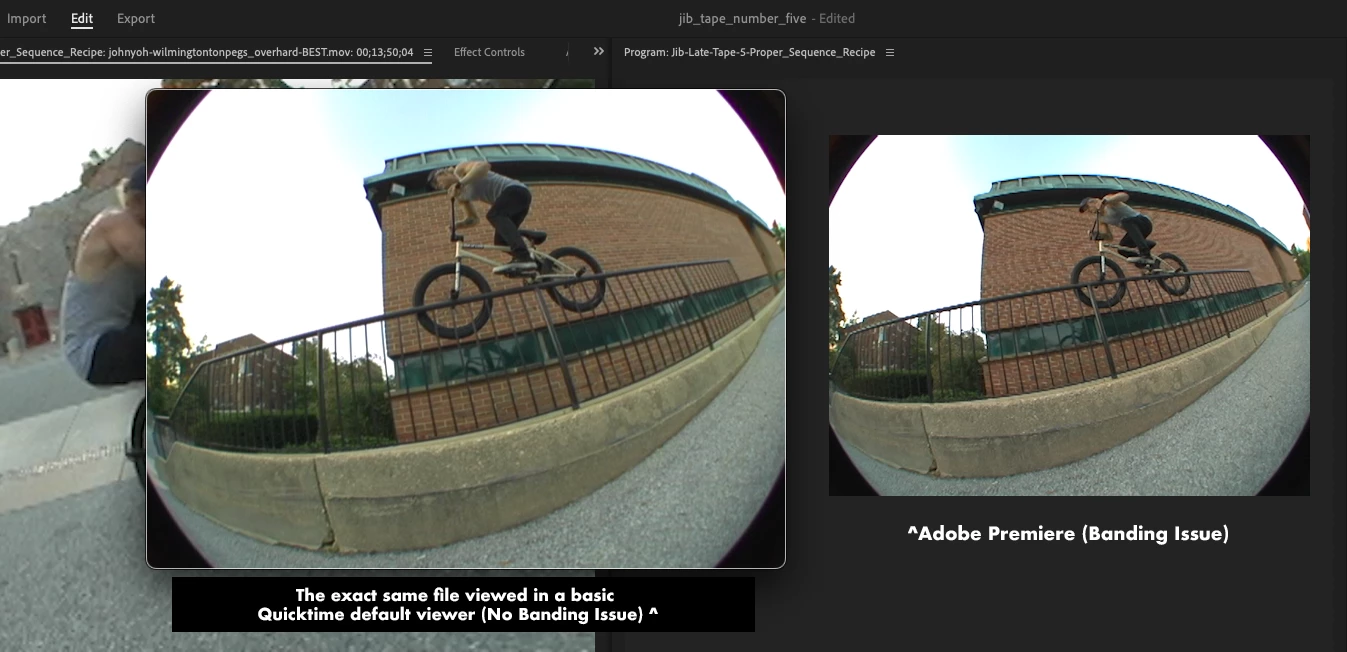
I'm experiencing a severe banding issue in Premiere Pro that does not occur when I play the same footage in QuickTime. So it isn't an issue with the source video files. I’m editing a project that includes footage captured using the same camera over 6 years since 2018. I have made a previous video that the footage was captured with using the same camera and also edited in Adobe Premiere which makes this banding issue even more odd. I was successfully able to Color grade it and add desired Lumetri additions on my last project. This footage is captured with a Panasonic DVX100b that used a MiniDV tape. I then used a "capture camera" that also uses a MiniDV tape (think family cameras to capture memories back in the film days) to transfer the clips from the film to make a digital file from the footage and not wear down the film heads on the camera in the process. A pretty standard recommended process. This is something i have done for years, starting with a VX1000. This was a lot of work but was all in the name of having that "aesthetic" which is quite popular in the Skate/BMX film making scene.
Here are the specifics of my setup and the problem:
System Information:
- Device: MacBook Air (2020)
- Processor: 1.1 GHz Quad-Core Intel Core i5
- Graphics: Intel Iris Plus Graphics 1536 MB
- Memory: 16 GB 3733 MHz LPDDR4X
- OS: macOS Sonoma 14.5
- Premiere Pro Version: 24.5 (Latest)
Footage Details:
DVX100b Camera Capturing on MiniDV tapes and then converted into digital '.mov' files
- Format: MPEG-4 (QuickTime) (DVCPRO)
- Resolution: 720x480 (4:3), at 29.970 FPS
- Bit Depth: 16 bits
- File Size: 33 s 834 ms, 24.4 Mb/s bitrate
Issue Description:
When playing back my footage in Premiere Pro, I experience severe banding that is not present when the footage is played back in QuickTime. The issue persists through various attempts to resolve it, including disabling hardware acceleration.
Troubleshooting Steps Taken:
- Created a New Project from Source Clip: Imported the source file directly into a new project, but the banding persisted.
- Disabled Hardware Accelerated Decoding: Went to Premiere Pro > Settings > Media, unchecked "Enable hardware accelerated decoding", restarted both Premiere Pro and my MacBook, and created a new project, but the issue remained.
- Checked Sequence Settings: Ensured that the sequence settings matched the source clip settings, including codec and frame rate.
- System Specs Confirmation: Verified that my system meets the necessary requirements for running Premiere Pro.
Screenshots and MediaInfo + Export video:
- The same clip showing banding in Premiere & not showing banding in the basic Quicktime preview
- MediaInfo software showing the source file information
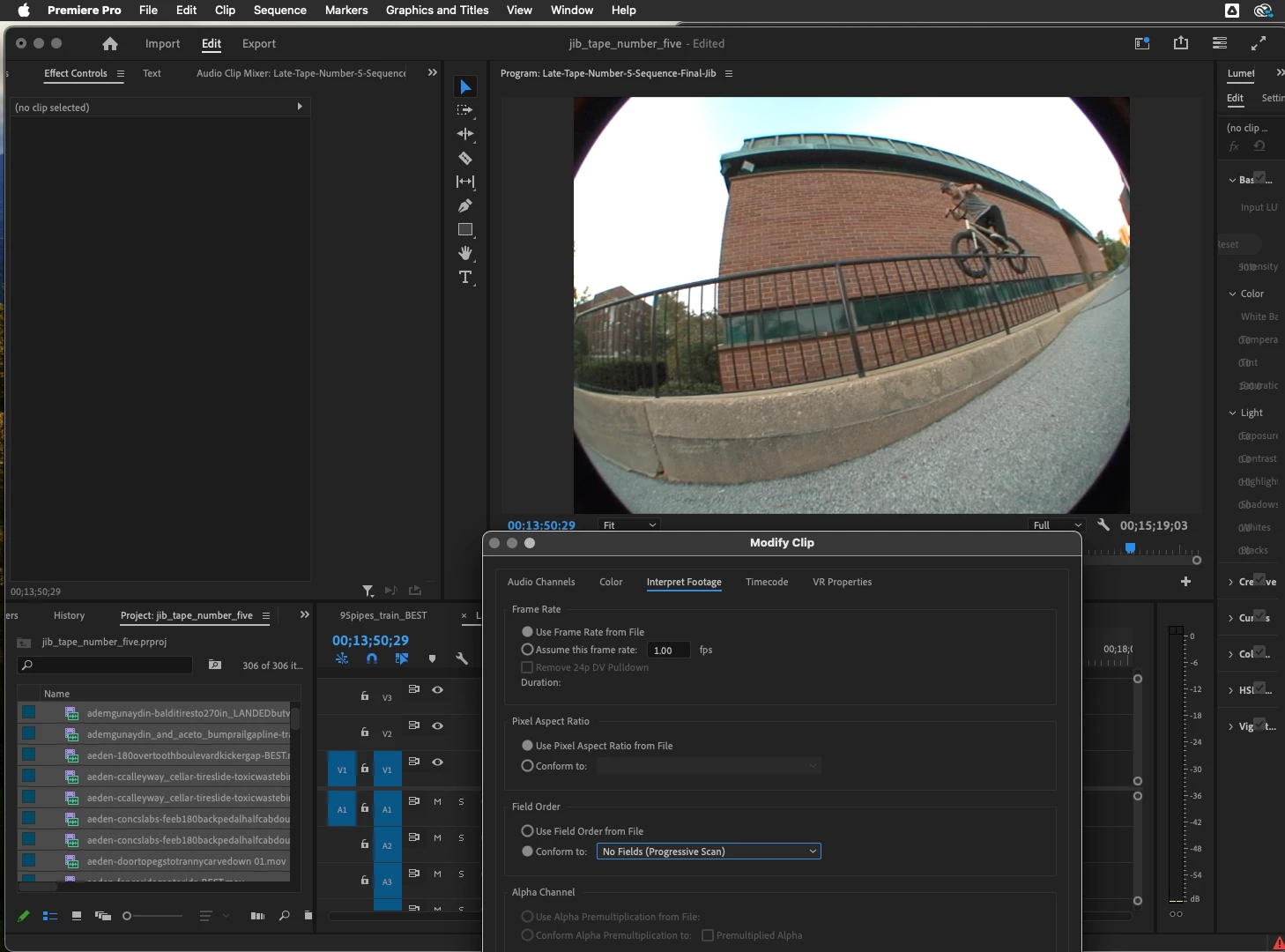
- Brand new project/Sequence with Hardware Decoding Accelerated Disabled & Still Showing Banding
- All views show banding - Fit View
- All views show banding - 50%
- All views show banding - 100%
- Exported Video Showing The Current Banding Issue — If that is helpful
Additional Notes:
- The footage plays perfectly in QuickTime without any banding.
- This issue has persisted through different codec usage and files that were captured using the same camera.
- I found a very similar issue on this forum where the user says that the banding is only happening in Premiere and nowhere else, so i know that it's not just me experiencing this odd banding issue in Premiere Pro: premiere-pro-discussions/banding-on-quicktime-prores-422-10-bit-videos-in-premiere-not-elsewhere
I would appreciate any assistance or suggestions on how to resolve this issue. It’s crucial for my project, and I’m at a loss on how to proceed further. I have used Premiere for every personal project i have ever made, i don't desire learning a new piece of software like Final Cut and take my editing work that i've done in an XML file there.
I have considered that using Media Encoder may be helpful? If anyone reading this feels that would be the way to go let me know!
Here is the video that i made in 2017 using the same DVX camera and edited it using Premiere Pro:
"Tape" 4
The idea was that this was to be a follow up to this. I even downloaded this file from that link above from my Vimeo account so i could match the Media Information on the export. I've spent considerable time editing this new project so to find out that it wasn't just a display oddity that needed to be adjusted and is truly based on how Adobe is interpreting the footage is quite dissapointing. Especially since I have used the same technology successfully in the past. This footage that I have accumulated is very important to me and not being able to use it well is hard for me to accept.
Thanks in advance for any help that I may receive!
 AdChoices