
anastasiaa67607051
Inspiring
September 27, 2023
Answered

Shutter Doubling Issue Premiere

  • September 27, 2023
  • 2 replies
  • 448 views

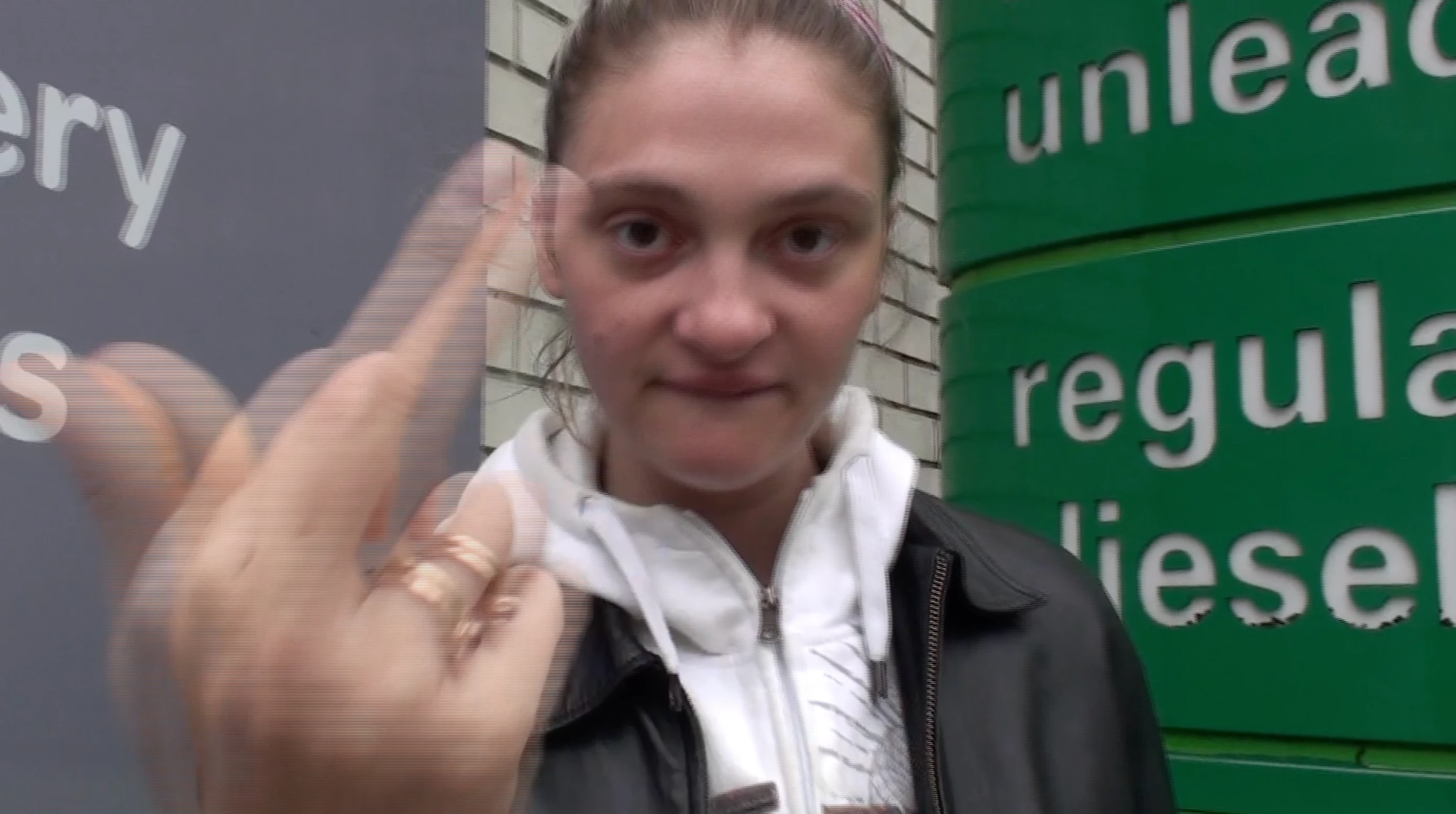
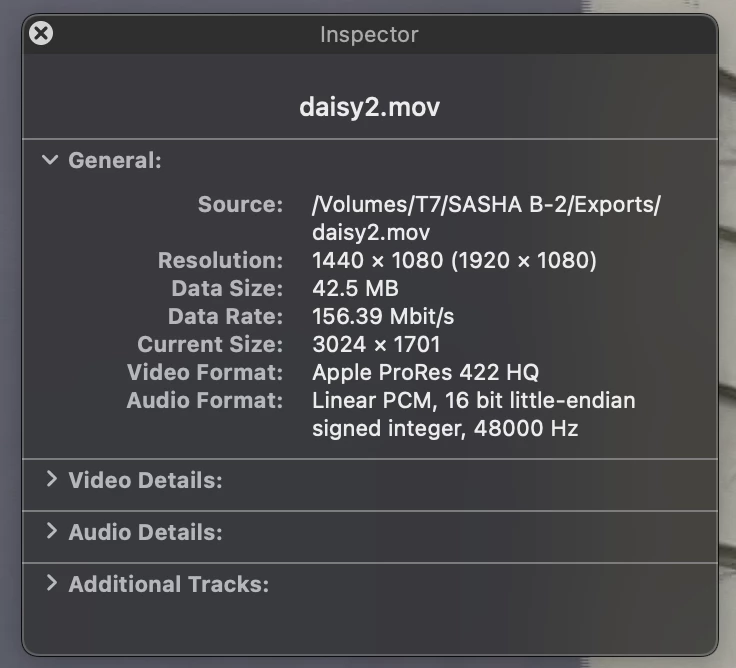
I am trying to export this video and am having a strange issue on export - it looks like there is a shutter lag on export (additionally, the export is desaturated). Does anyone know the fix? Working on a Mac OS 13.4.1 and Premiere Pro 2023. Attaching my export settings below. The source footage is 25 fps and I did both an export at 25 fps and 24.98 fps but neither solved the issue. I tried doing a H264 export but it didn't help. Let me know if yall know the issue.
 

This topic has been closed for replies.
Correct answer anastasiaa67607051

Figured it out! Here's the info from another thread - 


This is an interlacing issue.

Guessing by the resolution with non-square pixels, I'm guessing your camera was shooting AVCHD, HDV, or one of the older XDCAM flavours? If you right click > create sequence from clip using an interlaced clip, your sequence will be interlaced.

Go into sequence settings, set:

  • Resolution to 1920x1080

  • Aspect ratio to 'Square pixels'

  • Fields to 'No fields (progressive scan)

  • Timebase to 25 or 50fps - former will look sharper, latter will look smoother

As long as you're exporting same-as-source, that should fix your issue. 'Use maximum render quality' should be enabled when using interlaced footage and exporting to progressive for best results.

The saturation change is an Apple OSX issue:

https://www.todddominey.com/2021/01/24/why-are-videos-washed-out-on-the-mac-exploring-quicktime-gamma-shift/

Use VLC to watch your video instead.

2 replies

anastasiaa67607051
anastasiaa67607051AuthorCorrect answer
Inspiring
September 27, 2023

Figured it out! Here's the info from another thread - 


This is an interlacing issue.

Guessing by the resolution with non-square pixels, I'm guessing your camera was shooting AVCHD, HDV, or one of the older XDCAM flavours? If you right click > create sequence from clip using an interlaced clip, your sequence will be interlaced.

Go into sequence settings, set:

  • Resolution to 1920x1080

  • Aspect ratio to 'Square pixels'

  • Fields to 'No fields (progressive scan)

  • Timebase to 25 or 50fps - former will look sharper, latter will look smoother

As long as you're exporting same-as-source, that should fix your issue. 'Use maximum render quality' should be enabled when using interlaced footage and exporting to progressive for best results.

The saturation change is an Apple OSX issue:

https://www.todddominey.com/2021/01/24/why-are-videos-washed-out-on-the-mac-exploring-quicktime-gamma-shift/

Use VLC to watch your video instead.

Community Expert
September 27, 2023

This looks a lot like interlacing, are you sure your source material is Progressive?

Richard van den Boogaard
Community Expert
Community Expert
September 27, 2023

The Source Material is most likely interlaced. The hint that gives it away is that the resolution is 1440 x 1080 (1920 x 1080).


So if the source is interlaced, you'll see this artefacting happening. Perhaps a de-interlacing plugin will help, or this old trick inside PPro: https://www.youtube.com/watch?v=eXpSOgyk1BY


Hope this helps.