
Participant
December 18, 2017
Answered

Side black bars on the exported video

  • December 18, 2017
  • 1 reply
  • 24389 views

Hello, I edited a video using stock footage, which came in different aspect ratios. I'm guessing that's the source of the side black bars, but I don't know.

Here's my sequence and export settings:

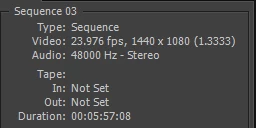
SEQUENCE SETTINGS
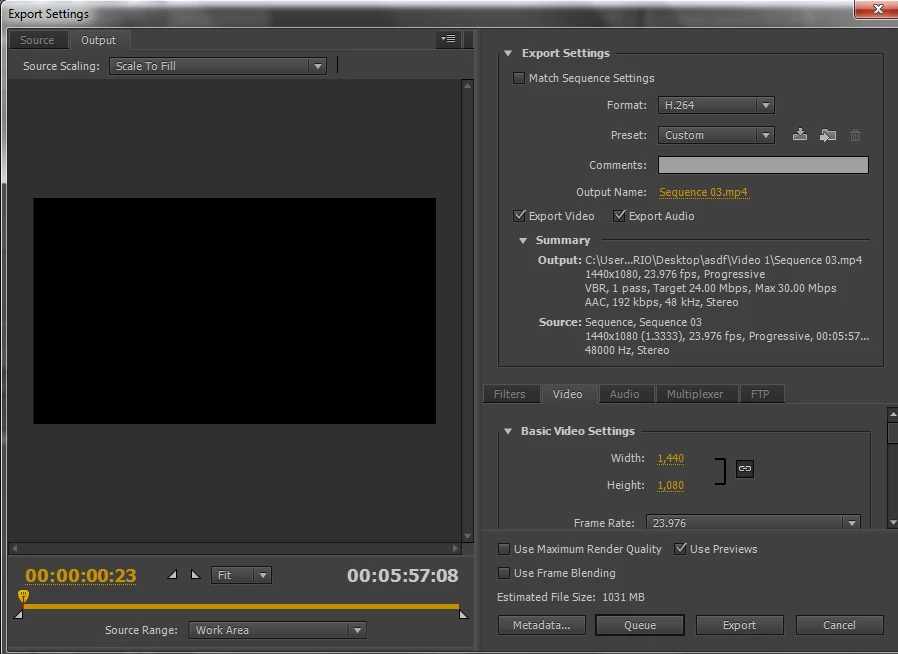
EXPORT SETTINGS
The aspect ratios of the clips used are: 1280x720, 640x360, 320x240 and 1920x1080

Some clips I scaled to frame size, in others I used Motion effects, such as Scale, Scale Width and Scale Length. It appears that one can't change scale, scale width and length in the same clip, so if I were to remove the "scale to frame size" and crop the black bars with scaling I'd lose my effects. And anyway I like how the different aspect ratios work in my video.

So, how could I remove the side bars premiere creates? Thanks.

This topic has been closed for replies.
Correct answer SAFEHARBOR11

1440x1080 with 1.333 pixel aspect ratio is known as anamorphic video since the non-square pixel aspect stretches the video. That is most likely part of the issue you are running into.

What are the resolutions of the stock clips you are using? One would typically want to edit using square pixels (1.0 PAR) so that would for instance be 1920x1080 or 1280x720 (720p) video (EDIT: 1.0 PAR for computer/online viewing, but there are exceptions for other media like DV/DVD widescreen for instance).

So first things first, you may need to change the Sequence Settings, and then also, never export as anamorphic since video will be appear stretched or squished in most software players. You always want to export using square pixels.

Please let us know more about the sources you are working with, then we can suggest a workflow for best results.

Thanks

Jeff

1 reply

SAFEHARBOR11Correct answer
Participating Frequently
December 18, 2017

1440x1080 with 1.333 pixel aspect ratio is known as anamorphic video since the non-square pixel aspect stretches the video. That is most likely part of the issue you are running into.

What are the resolutions of the stock clips you are using? One would typically want to edit using square pixels (1.0 PAR) so that would for instance be 1920x1080 or 1280x720 (720p) video (EDIT: 1.0 PAR for computer/online viewing, but there are exceptions for other media like DV/DVD widescreen for instance).

So first things first, you may need to change the Sequence Settings, and then also, never export as anamorphic since video will be appear stretched or squished in most software players. You always want to export using square pixels.

Please let us know more about the sources you are working with, then we can suggest a workflow for best results.

Thanks

Jeff

Participant
December 18, 2017

Hello Jeff. It's 1280x720, 640x360, 320x240 and 1920x1080. I will change the sequence settings, although I'm not sure what to change them to. Thanks!

Participating Frequently
December 18, 2017

Ah, I see that now. So none of the clips are 1440x1080, so not sure how you ended up with that for a Sequence Setting. Also, 24p is not that common, but maybe that is your preference? What are the frame rates of the clips? Best not to change if you don't have to. For instance, if most of the clips are 29.97fps, then edit that way. Changing to 23.976 can affect the smoothness of playback.

Since you are using so many different frame sizes, you need to look at a couple of factors to determine what the best workflow is:

1) What frame size among the clips you will be using for majority of the video?

2) What frame rate will you be using most?

3) What are the delivery specs, or how do you intend to share finished video?

Obviously, 1920x1080 is the best quality/highest resolution, but any clips that are smaller than that will need to be blown-up to fit. While the 720p clips (1280x720) would look okay, the 640x360 and 320x240 clips would not - they would look soft and/or pixelated. They are garbage to start with unfortunately, having less than even SD standard-definition video quality.

You could compromise then and edit as 720p, but the two smallest clip sizes still will not look good!

So maybe you only need to deliver as DVD, which is SD video at 720x480. In that case, the 1080p and 720p clips would look great downscaled, the 360p not so great, and the 240p pretty bad. So really, no matter what, those two smallest clip sizes are going to look poor and not match the HD clips you have.

To recap, figure out the frame size and rate of most common footage you will use, and also consider delivery options, and pick a Sequence Setting that might work best. 1440x1080 with 1.333 PAR is not that setting unfortunately. What Sequence Settings you end up editing with, then Export with those same settings. Meaning 720p editing = 720p export, don't change frame size or frame rates again, will degrade quality


If you can share frame rates of clips and let me know which clips will make up majority of video I might suggest a workflow to do the least damage

Thanks

Jeff


EDIT: realizing now that your question was really about black side bars, you must be mixing 4:3 and 16:9 (wide) clips. That's another story to deal with. Just a bad situation all around with no good ending